
Families
Invite households to Total Family and track how far each one has got.
Families is where your firm invites households and follows their progress. It uses the same table as My Team: saved views, filters, and column controls all behave identically. But the columns report on a family's journey rather than a colleague's role.
The Families Table
Open Families from the sidebar, or select Invite a family on the dashboard.
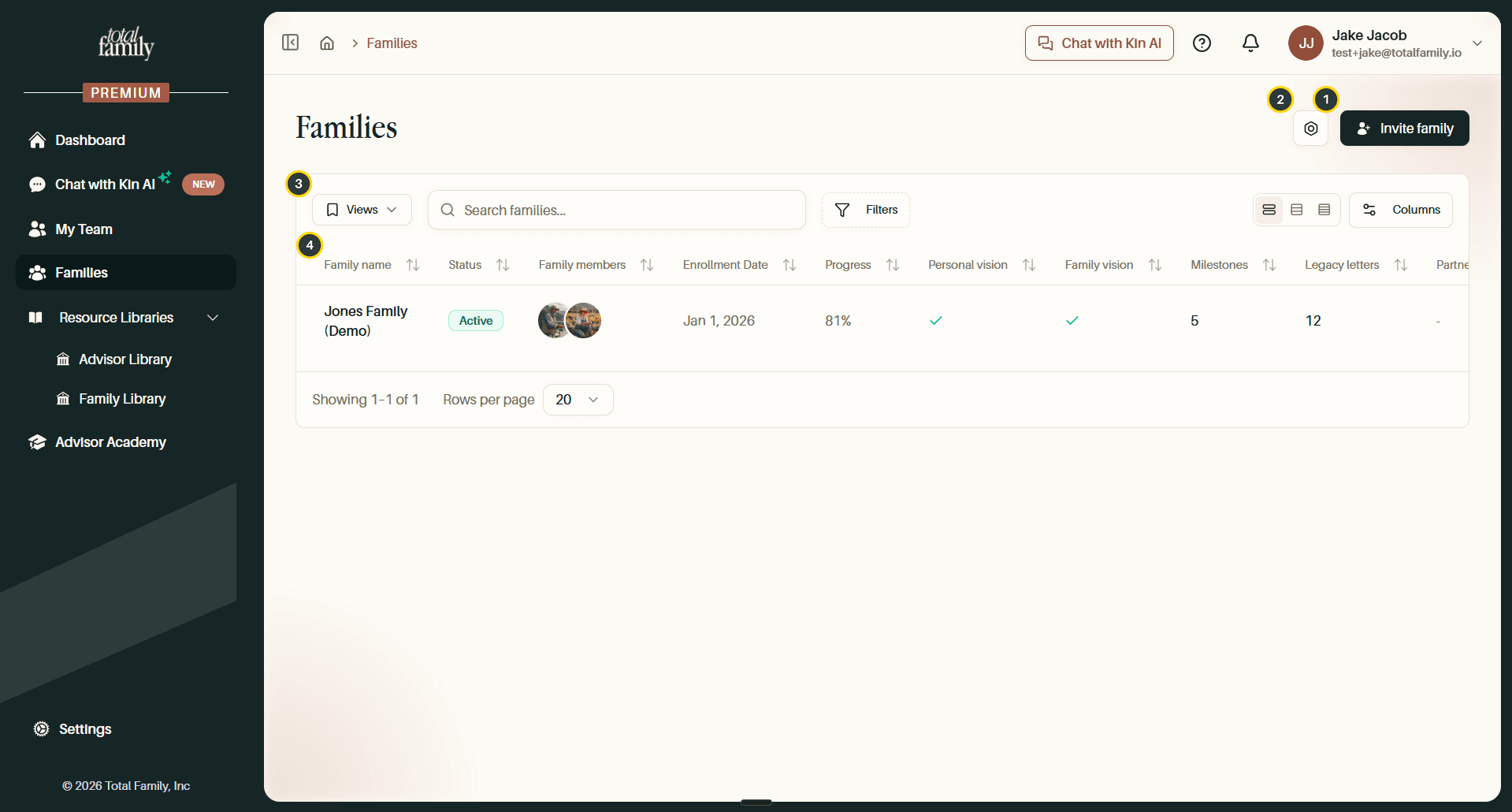
- Invite family: adds a household.
- Settings: table preferences for this page.
- Views, search, filters, and layout: the same controls as My Team.
- The table: one row per family, sortable by any column.
What the Columns Show
Each column answers a different question about a household:
| Column | What it tells you |
|---|---|
| Family name | The household, with (Demo) marking sample data |
| Status | Active once they have joined, Invited while waiting |
| Family members | Avatars of everyone in the household |
| Enrollment Date | When they were invited or joined |
| Family Activated | A tick once the household has activated, a cross while they have not |
| Last Activity | When someone in the household was last in, or a dash if never |
| Progress | Overall completion across their journey, as a percentage |
| Personal vision | A tick when done, or a ratio like 0/1 showing how many members have finished |
| Family vision | A tick or a cross, the shared vision is one per household, so it is done or not |
| Milestones | How many they have created |
| Legacy letters | How many they have written |
| Partner member | Which advisor at your firm looks after them |
Read together, they show not just whether a family joined but whether they are actually doing the work. A family sitting at 0% with no milestones needs a different conversation from one at 81%.
Invite a Family
Selecting Invite family opens the invitation form. Every field is required.
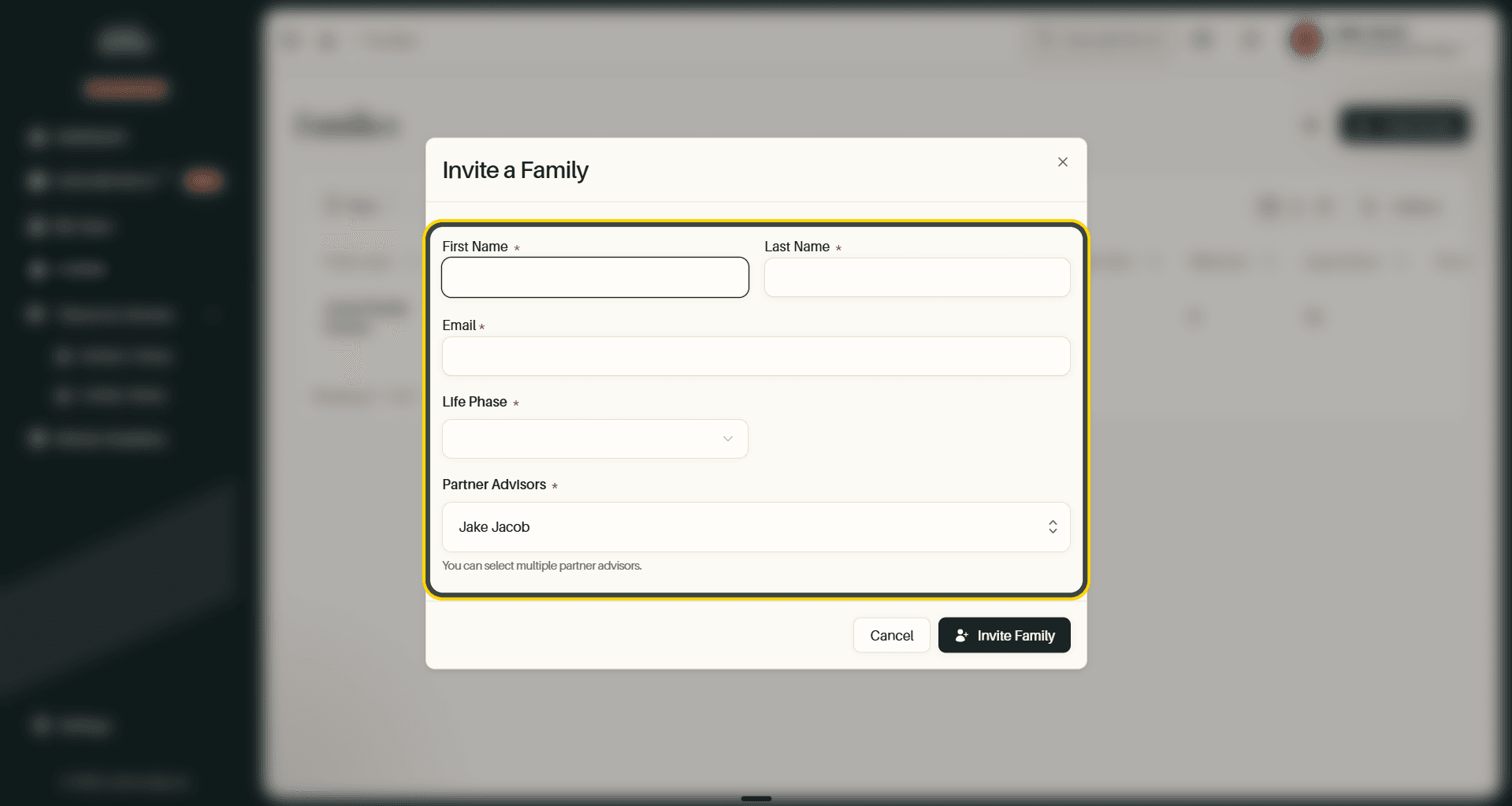
- First Name, Last Name, and Email: the head of household you are inviting
- Life Phase: the stage the family is in, which tailors what they see
- Partner Advisors: who at your firm is responsible. You can select more than one
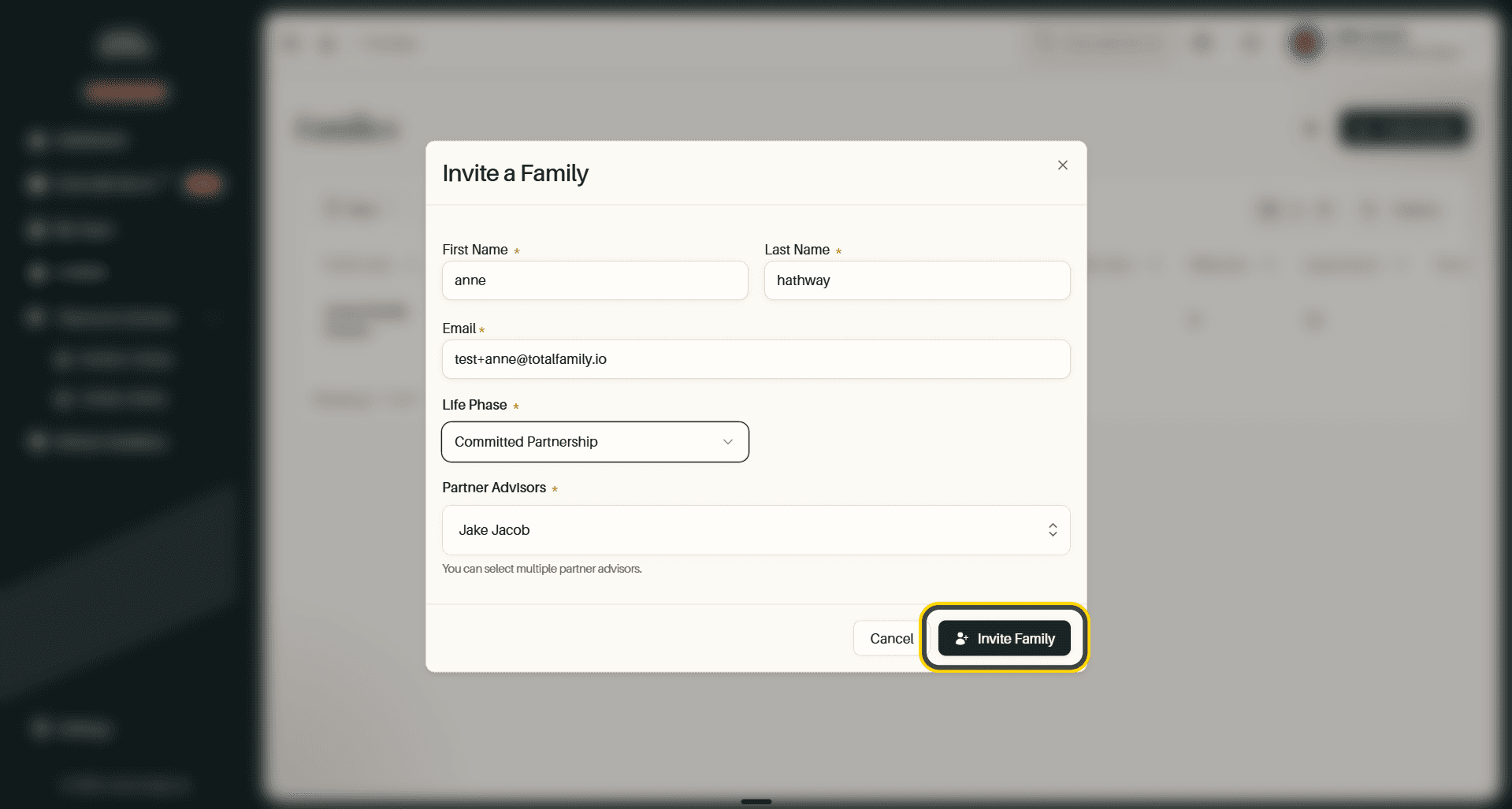
Tip Assigning more than one advisor is worth doing when a household is covered by a team. The Partner member column later shows who is attached, so it doubles as your record of who owns the relationship.
Confirm the Invitation
Total Family confirms before sending, restating the name and the exact address the invitation goes to.
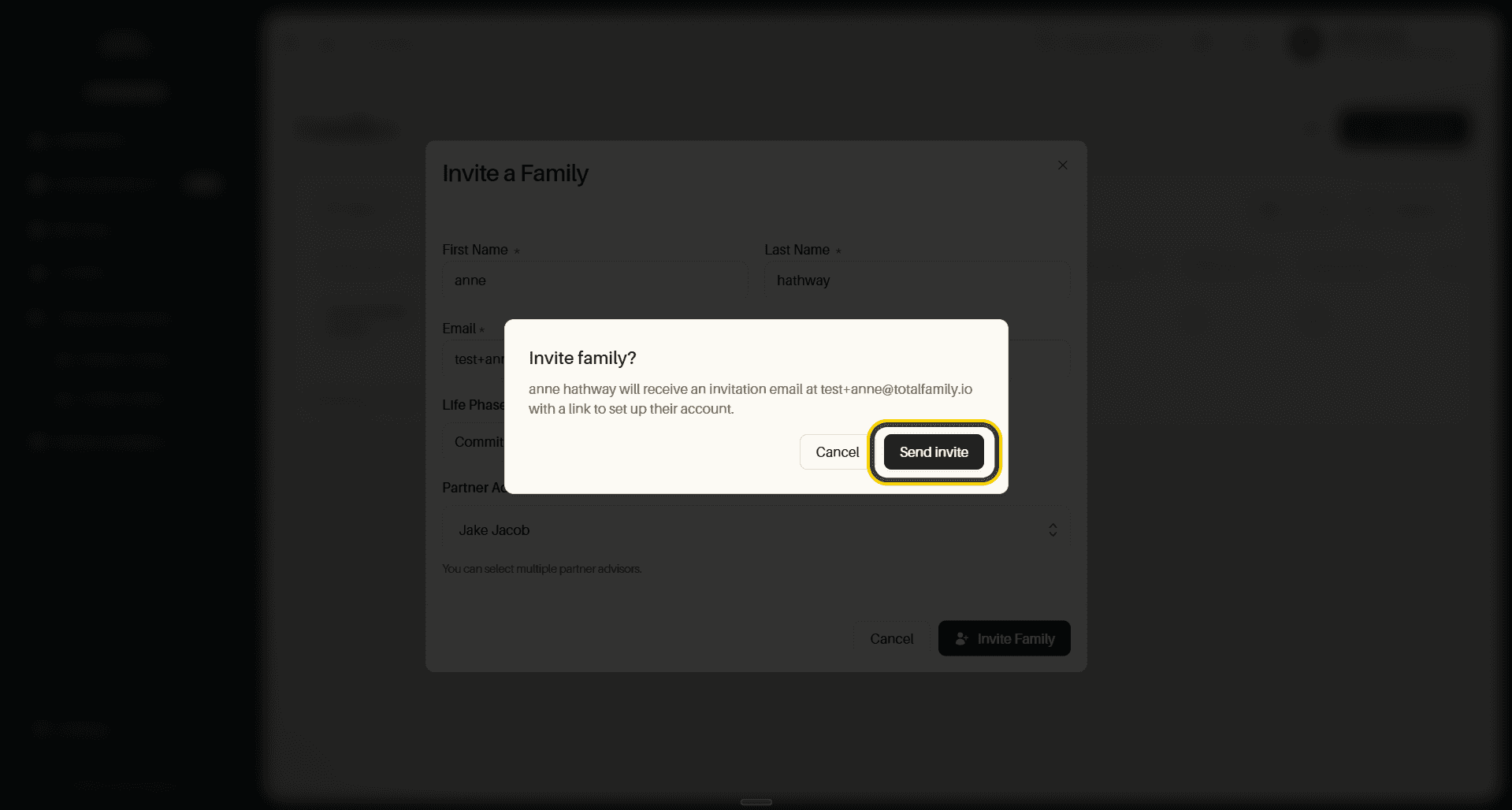
Check the address here. This is the last point at which a typo is cheap to fix.
The Invited Family
The household appears in the table immediately.
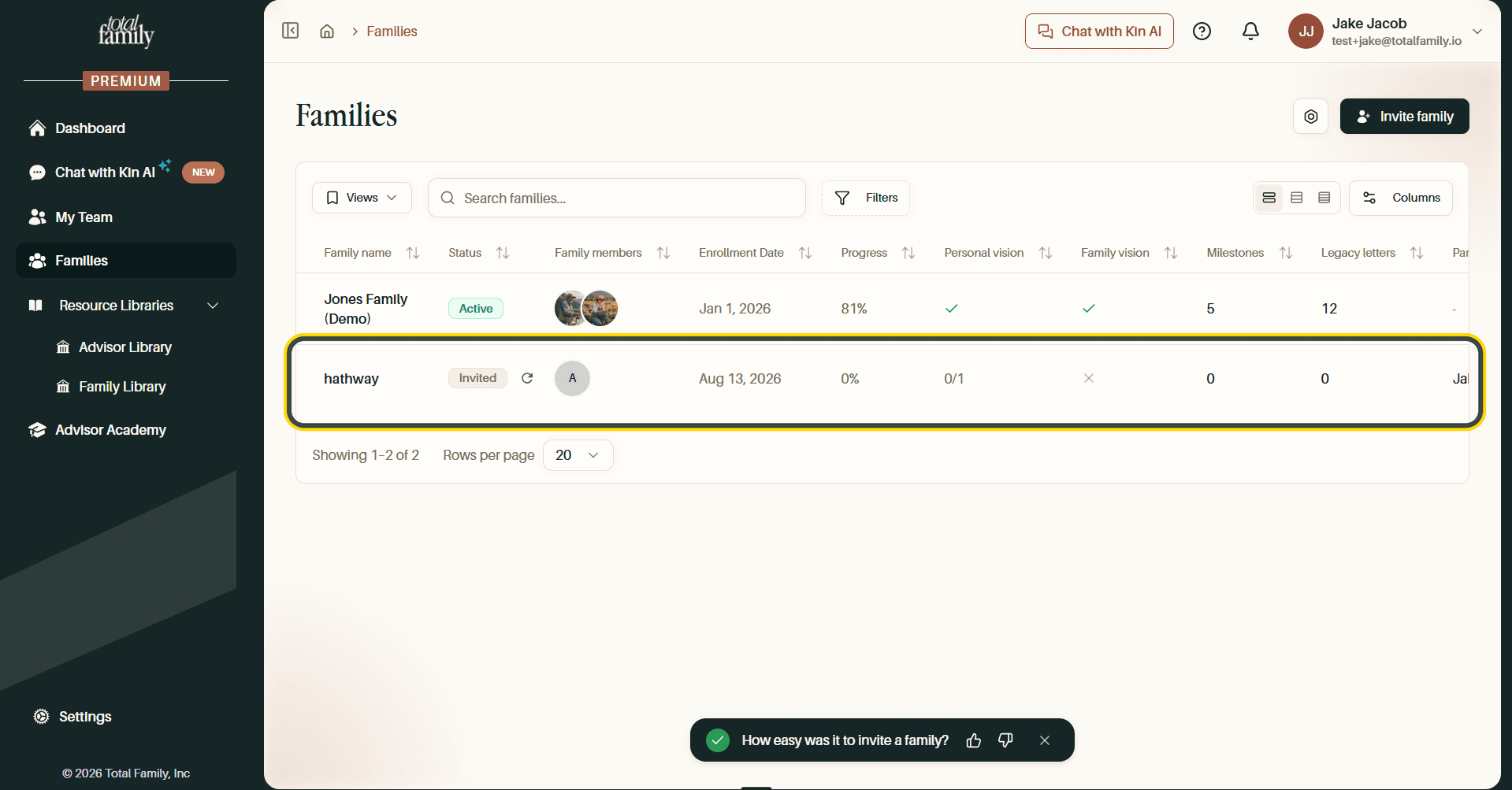
Their status reads Invited with a resend control beside it, progress sits at 0%, and the vision columns show nothing completed yet. Everything fills in as they work through their journey.
Row Actions
Scroll the table sideways to reach Partner member and the row menu.
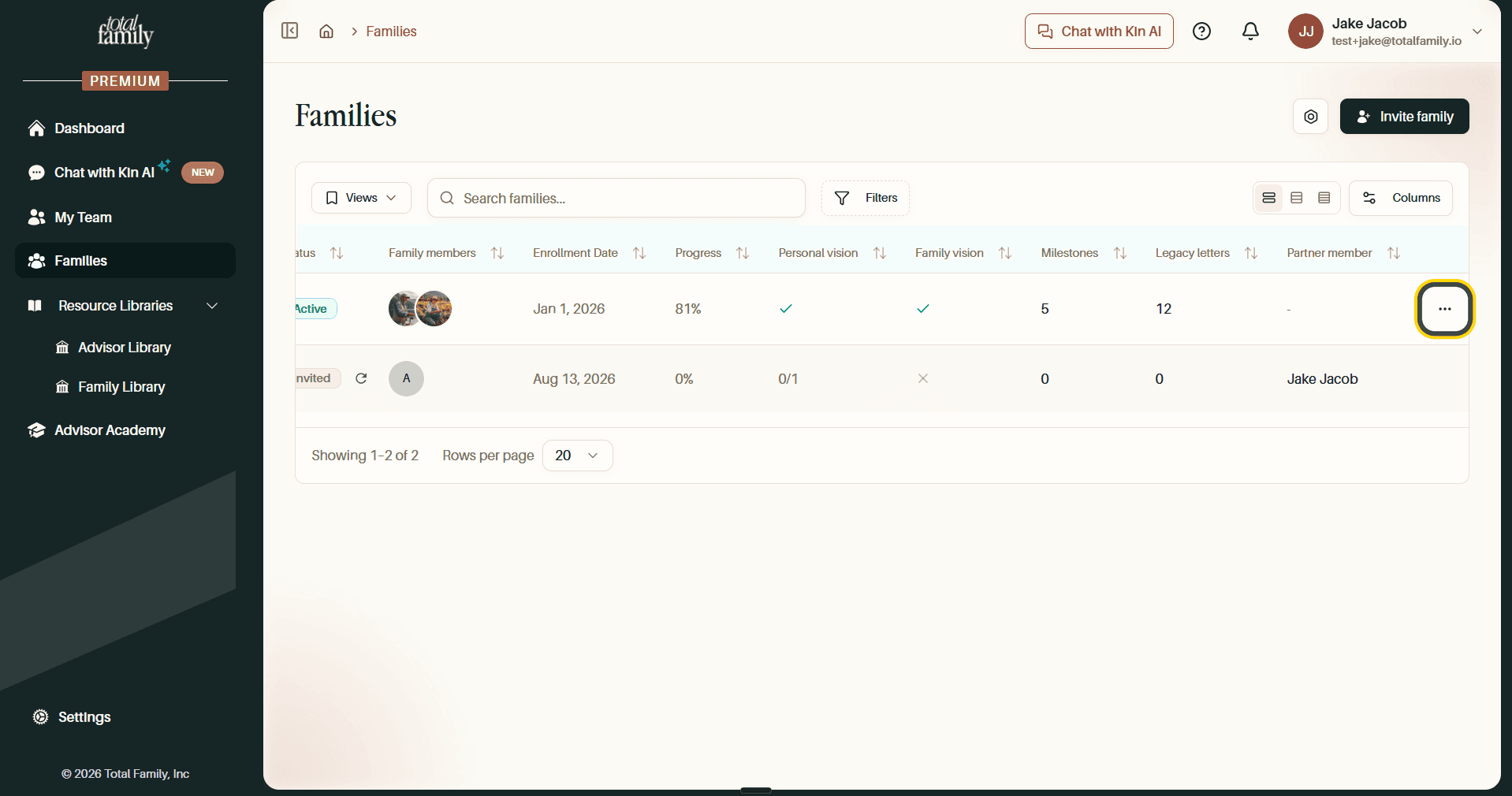
The ⋯ at the end of each row opens the actions available for that household.
Saved Views
If you keep returning to the same slice of families, one advisor's households, everyone still invited, save it as a view.
Open Views and select Save current view…. Name it for the slice it holds, the way the placeholder suggests with Active partners, and select Save. The button then carries that name instead of Views, which is how you tell at a glance whether you are looking at everyone or at your saved slice.
Manage views… opens the list.
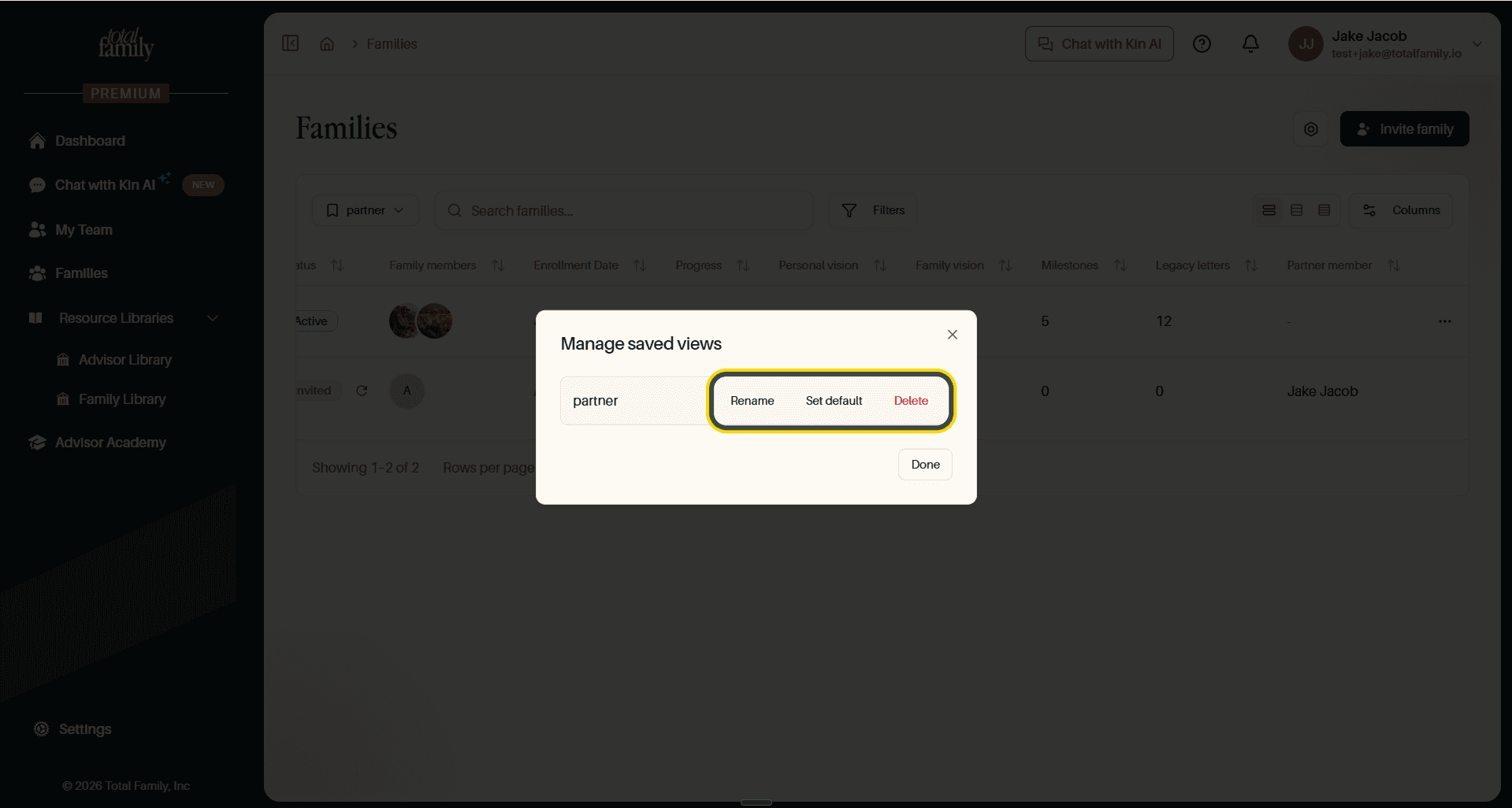
Each saved view can be renamed, deleted, or made the default, the one that loads when you open Families. Setting a default is the difference between landing on every family every time and landing on the ones you actually work with.
Filters
Filters builds conditions from a field, a comparison, and a value.
The panel starts empty, with Add filter the only thing in it. A new filter arrives as Family Name / Contains / a value box, and you change the field from there. Four are available: Family Name, Status, Family Activated, and Partner Member.
The comparison follows the field. Text like Family Name gets Contains; set values like Status get Is any of, with a searchable list of every status a household can hold: Prospect, Invited, Onboarding, Active, Delinquent, and Inactive.
Nothing happens to the table until you commit. 1 pending change appears with Apply and Discard beside it, so a half-built filter never narrows your list by accident.
Once applied, Filtered by states the filter in words above the table with an ✕ to drop it, the Filters button carries a count, and Clear filters removes the lot. Add filter stacks more conditions on top.
Columns and Layout
Columns decides what the table shows.
Every column except Family Name can be hidden: Status, Family members, Enrolled at, Family activated, Last activity at, Personal vision, Has family vision completed, Total milestones count, Total legacy letters count, Task completion percent, and Partner members. The three icons beside the button switch row density.
With this many columns, hiding what you do not need is usually faster than scrolling sideways, and a saved view remembers the choice.
Back on the Dashboard
Inviting a family updates your dashboard counters.
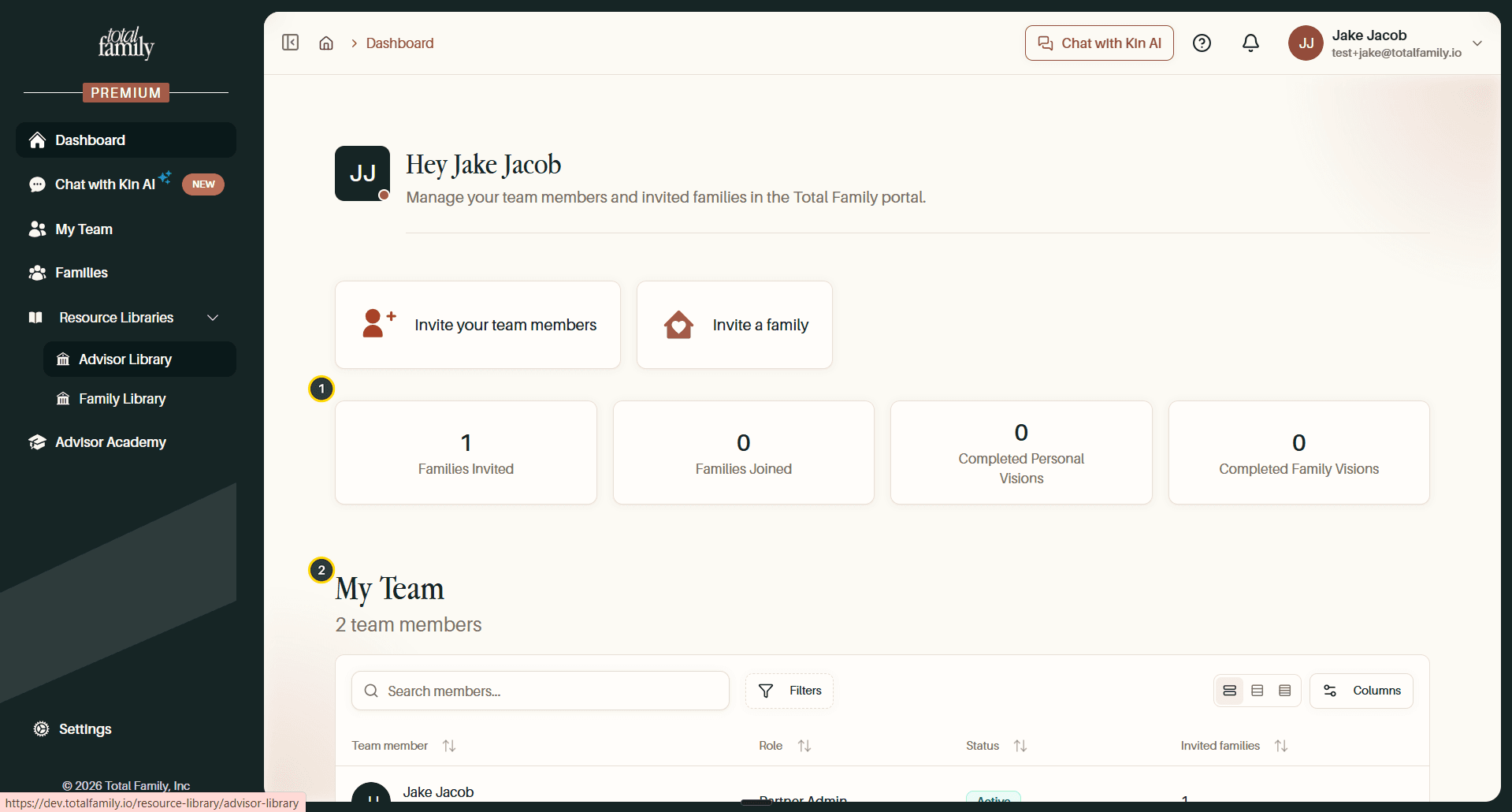
- Families Invited: now counts the household you just added.
- My Team: the advisor you assigned shows the family against their name in Invited families.
Families Joined stays where it is until they accept, so the gap between the two is your list of outstanding invitations.