
Log In and Sign Up as a Partner
Create your firm account, choose the Partner experience, and reach your dashboard.
Total Family runs two experiences from the same sign-in: one for families and one for wealth and advisory firms. This guide covers the partner side, signing in, choosing the Partner experience, and filling in your firm's details to reach the advisor dashboard.
Sign In
Open the Total Family login page. There are two ways in.
- Continue with Google: signs you straight in with a Google account.
- Email: type your work address instead.
Enter your email and select Continue.
Verify Your Email
A temporary sign-in link is sent to your address. You can click the link in the email, or select Enter Code Manually to type the code instead.
The email contains a six-digit one-time code and a Confirm Your Account button, either works.
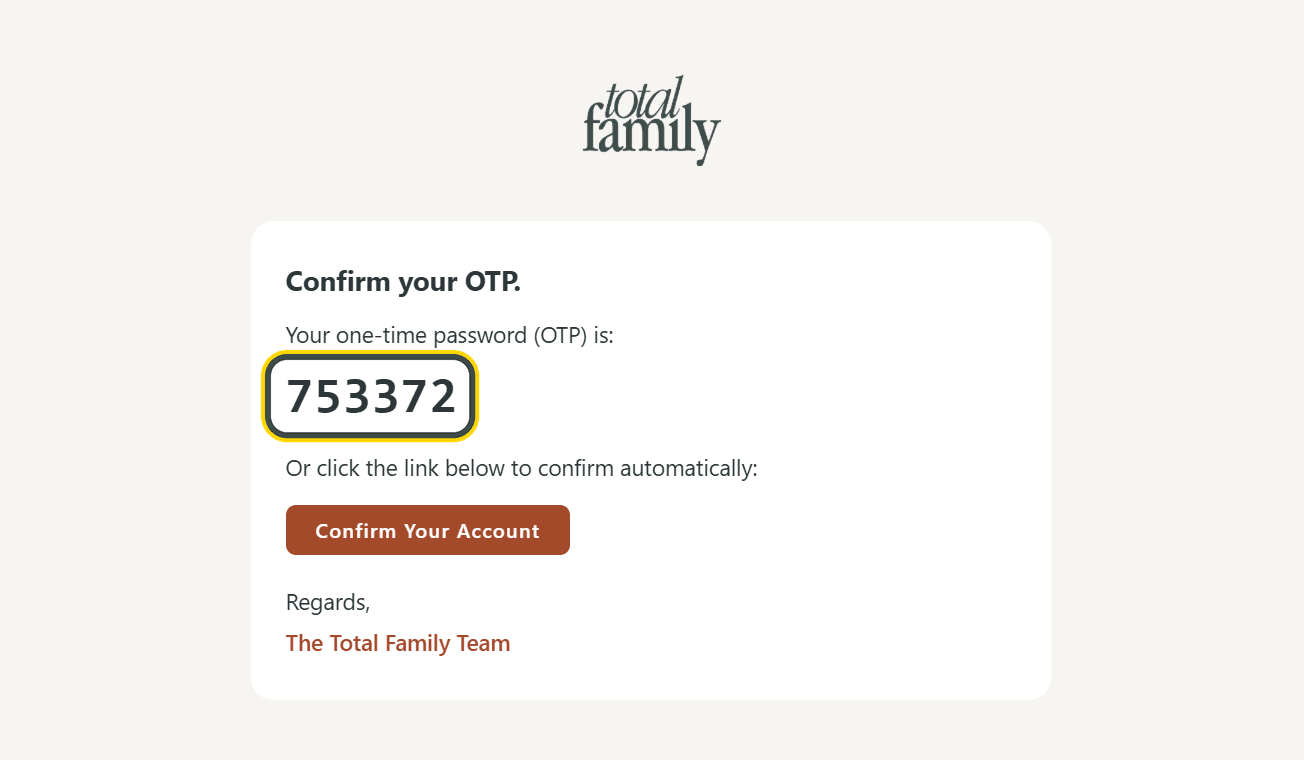
If you are typing it in, enter the six digits and select Confirm. The countdown shows how long the code stays valid.
Choose the Partner Experience
Once verified, Total Family asks which experience fits you. Firms take the second option, For Wealth & Advisory Firms.
Continue as a Family is the household experience, covered in Log in and set up your family profile. Select Continue as a Partner to carry on here.
Complete Your Personal Profile
Nothing is pre-filled. This is a fresh firm account, so you enter everything. The form comes in two halves, Personal Profile and Partner Information, on one page.
- First Name and Last Name: required.
- Phone: optional.
- Title: required. Your role at the firm.
Add Your Firm's Details
Below that, Partner Information describes the firm itself.
- Company Name: required.
- Segment: required. What kind of organisation you are, such as a Wealth Firm.
- Total Clients and Total AUM: size ranges, chosen from dropdowns. Website sits below them.
- Company Logo: optional, but worth doing. Your logo white-labels the platform, so the families you invite see your firm's brand throughout Total Family rather than ours.
- Finish setup: creates the account and takes you to your dashboard.
Tip If you picked the wrong experience, Switch to Family Account sits at the bottom left of this screen.
Your Partner Dashboard
Finish setup creates the account. You land on the advisor dashboard, on the free plan.
- Start Free Trial begins the 30-day premium trial. It is both a button in the top bar and a banner across the dashboard, headed Give Clients a Legacy Experience They'll Remember.
- Invite Family and Invite Advisor are the two actions you will use most.
- Your metrics are all zero until you start inviting.
See Partner Dashboard for what each part reports.
Next Step
The free plan is limited. To invite unlimited families, add colleagues, and white-label the platform, see Upgrade to Premium.