
Chat with Kin
The AI assistant in the partner portal, answering from Total Family's own material and citing where it came from.
Kin is an AI assistant built into the partner portal. It answers from Total Family's own material rather than the open internet, and shows where each answer came from.
It works the same way as the family side, with one difference that matters: it answers as an advisor, so it draws on advisor material and only ever references data you are authorised to see.
Kin Follows You Around the Portal
Chat with Kin AI in the top bar opens Kin beside whatever you are looking at, rather than taking you away from it. The full page is still available under Chat with Kin in the sidebar for longer conversations.
Kin knows which page you are on. A chip above the message box names it, so on your Partner Dashboard it reads Sharing "Dashboard", and that context goes with your question. On a family's profile you can ask about that household without describing it first; on the Firm Roadmap you can ask about the task in front of you.
Glance at the chip before asking. If it names a page you have moved away from, the answer will be built against the wrong screen.
The panel opens with its own advisor prompts, the same kind you get on the full page, so you can start from one of those instead of writing a question.
What Kin Will and Will Not Tell You
Kin filters every answer by your role. As an advisor it references only the visions, milestones, and legacy letters you already have access to, so a question about a family returns that family's material and nothing from another household.
That boundary is the point. You can ask freely without worrying about what Kin might surface from a client you do not work with.
Where Kin's Answers Come From
Four kinds of material, all Total Family's own:
- Help Centre articles, including the partner guides
- Resource Library articles, from the Advisor Library and the Legacy Toolkit
- Podcast episodes, including Visionary Advisor
- Videos and product demos
An answer can cite a film rather than only text, and following that citation opens the video itself.
The small chips through the answer are citations, naming the material a particular claim came from. Sources under the answer opens the full list as a panel, with the count beside it, so an answer built on five sources says so before you open it.
Each entry in that panel tells you what it is before you spend time on it: the kind of material, such as Product demo or Podcast, how long it runs, and how closely it matched what you asked. The most relevant sits at the top.
That detail is worth a glance when you are about to repeat something to a client. An answer leaning on a product demo is a different thing from one leaning on a podcast episode.
Prompts Built for a Practice
The suggested prompts on the start screen are about your work rather than your own household.
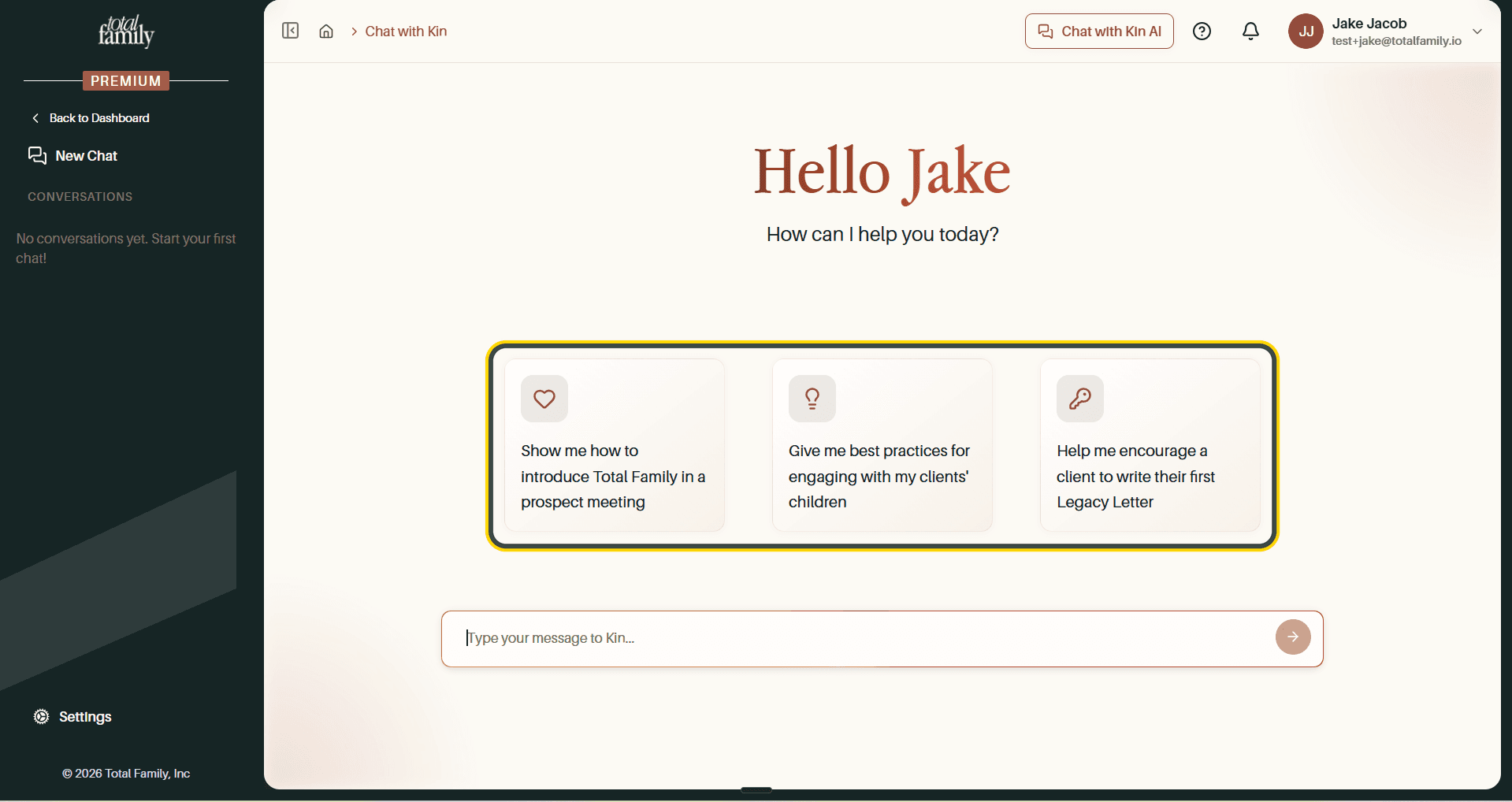
Introducing Total Family in a prospect meeting, best practices for engaging with a client's children, encouraging a client to write their first legacy letter.
Selecting one fills the message box rather than sending it, so you can adjust the wording for the client you have in mind.
Kin also appears inside the roadmap. Two Advisor Activation tasks come with their own prompts, one for identifying which client to approach first and one on how the Legacy Toolkit supports a family. See Advisor Activation.
What to Do With an Answer
The same actions sit under every answer: Copy, thumbs up or down, Regenerate, and Sources, with the time it took on the right.
Ask a follow-up question continues the thread, so Kin keeps the context of what you have already discussed. Conversations are saved under Conversations, named after the question that started them.