
Partner Dashboard
Your firm's home screen, invite colleagues and families, and track their progress.
The Dashboard is where your firm lands after signing in. It does two jobs: it gives you the two actions you will use most, inviting colleagues and inviting families, and it reports how the families you have invited are progressing.
What Is on the Dashboard
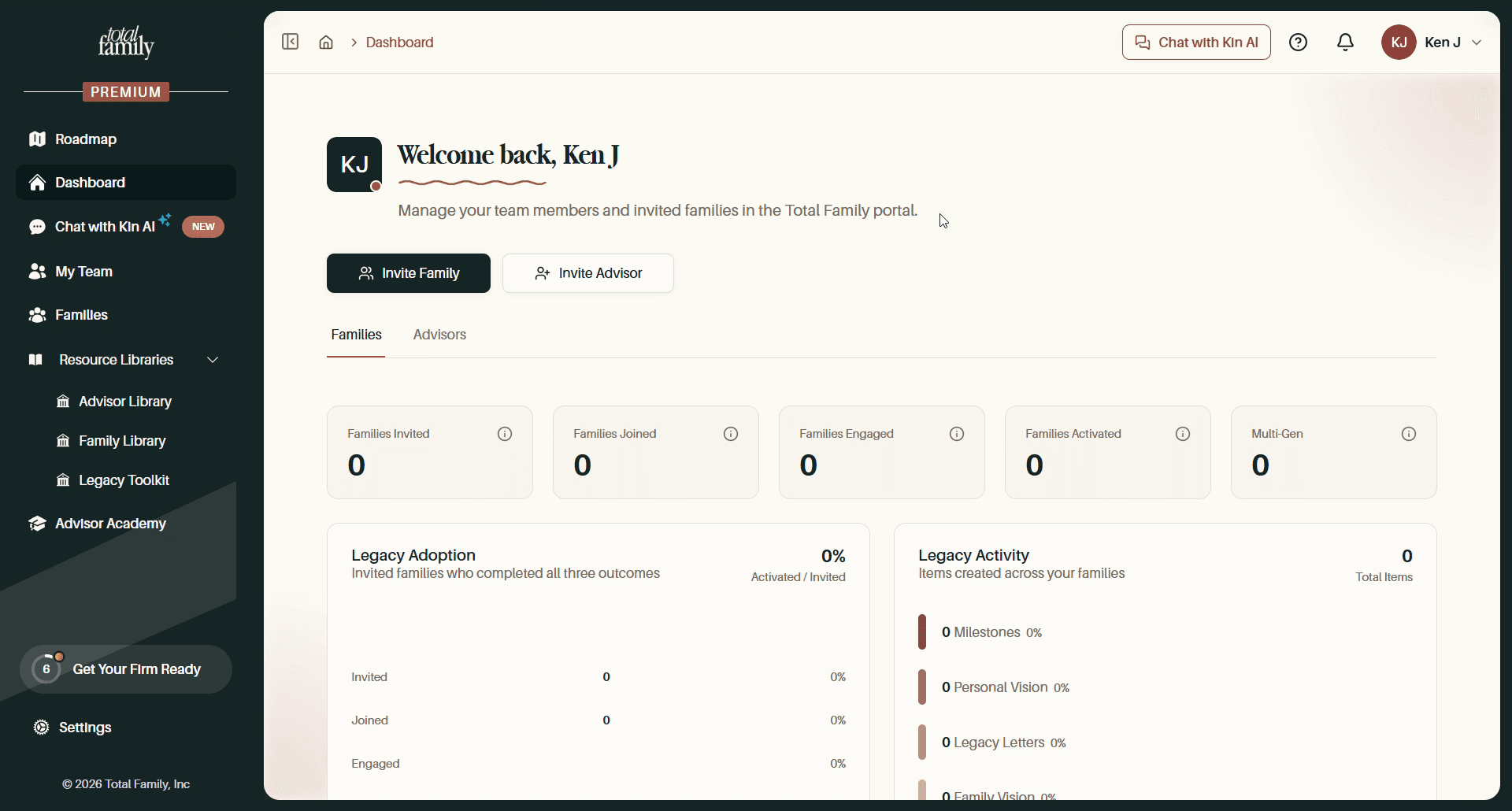
Three things sit above everything else:
- Invite Family: takes you to Families, where you invite a household.
- Invite Advisor: takes you to My Team, where you add a colleague.
- Families and Advisors tabs: the same dashboard reported two ways, once for the households you have invited and once for the people at your firm.
Both invite buttons are shortcuts rather than dialogs of their own. Selecting either moves you to the matching section with the invite already open, so you can also get there from the sidebar.
The Families Tab
Five counters run across the top, in the order a household moves through them:
| Counter | What it counts |
|---|---|
| Families Invited | Households your firm has sent an invitation to |
| Families Joined | How many of those accepted and created an account |
| Families Engaged | How many have started doing the work rather than just signing in |
| Families Activated | How many have completed what counts as activated |
| Multi-Gen | Households with more than one generation taking part |
Each has an information icon beside it, so the exact definition is on the dashboard itself rather than only here.
The gap between Invited and Joined tells you who needs a nudge. The gap between Joined and Engaged tells you which families signed up and then stopped, which is the more useful number once your list is long.
Legacy Adoption and Legacy Activity
Two panels sit underneath, and they answer different questions.
Legacy Adoption is a funnel: invited families who completed all three outcomes, shown as a percentage of activated against invited, with Invited, Joined, Engaged, and Activated broken out as rows underneath.
Legacy Activity counts what your families have actually created, across all of them: Milestones, Personal Vision, Legacy Letters, Family Vision, and Quotes, each with its own share of the total. A firm whose families are writing legacy letters but never finishing a family vision looks different here from one where nobody has started at all.
The Advisors Tab
The Advisors tab reports on your team rather than your clients.
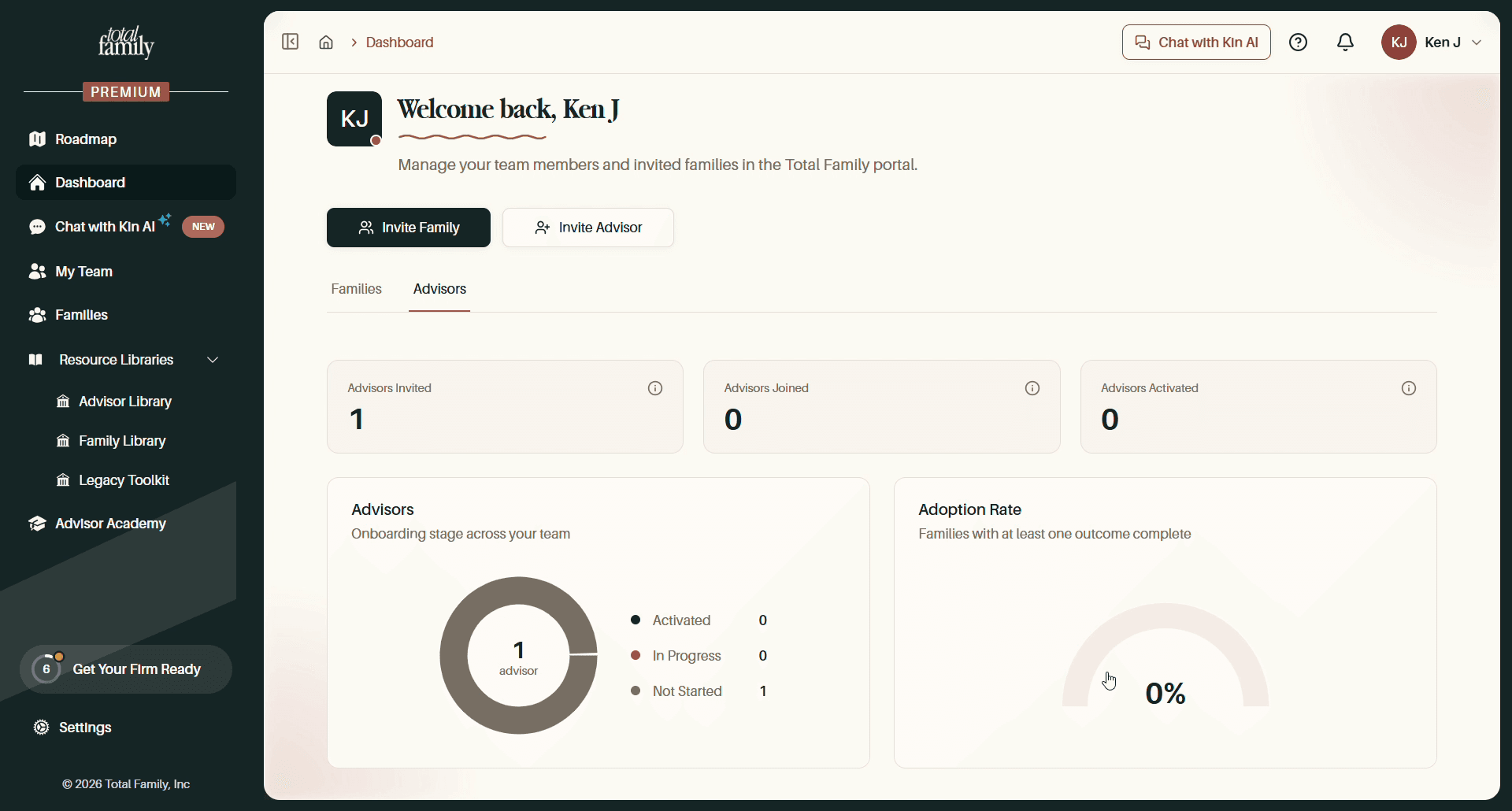
Three counters, Advisors Invited, Advisors Joined, and Advisors Activated, then two charts:
- Advisors, a donut showing the onboarding stage across your team, split into Activated, In Progress, and Not Started. This is the quickest read on whether your colleagues have actually got going.
- Adoption Rate, the share of families with at least one outcome complete.
My Team lists those advisors individually, with what each one has invited.
Invite a Team Member
Selecting Invite Advisor opens the My Team page with the invite dialog ready. Adding a colleague uses an advisor seat, and the two roles differ in what they can change, see My Team for the whole flow, along with the table's views, filters, and column controls.
Invite a Family
Invite Family takes you to the Families section with its invite dialog open. Families invited this way appear in your Families Invited count, and move to Families Joined once they accept.