
Partner Settings
Your profile, password, firm details, billing, and the two ways to reach us.
Settings holds everything about your account and your firm rather than your clients: who you are, how you sign in, your company details, what you pay, and how to get help. Open it from the bottom of the sidebar.
The layout matches the family-side settings page, with one difference that matters: where a family has a Family Profile, you have a Company Profile, and your billing is a firm subscription rather than a personal one.
My Profile
Your own details. The panel on the left lists every section and shows your name and role (Partner Admin or Partner Advisor), so you always know which account you are in.
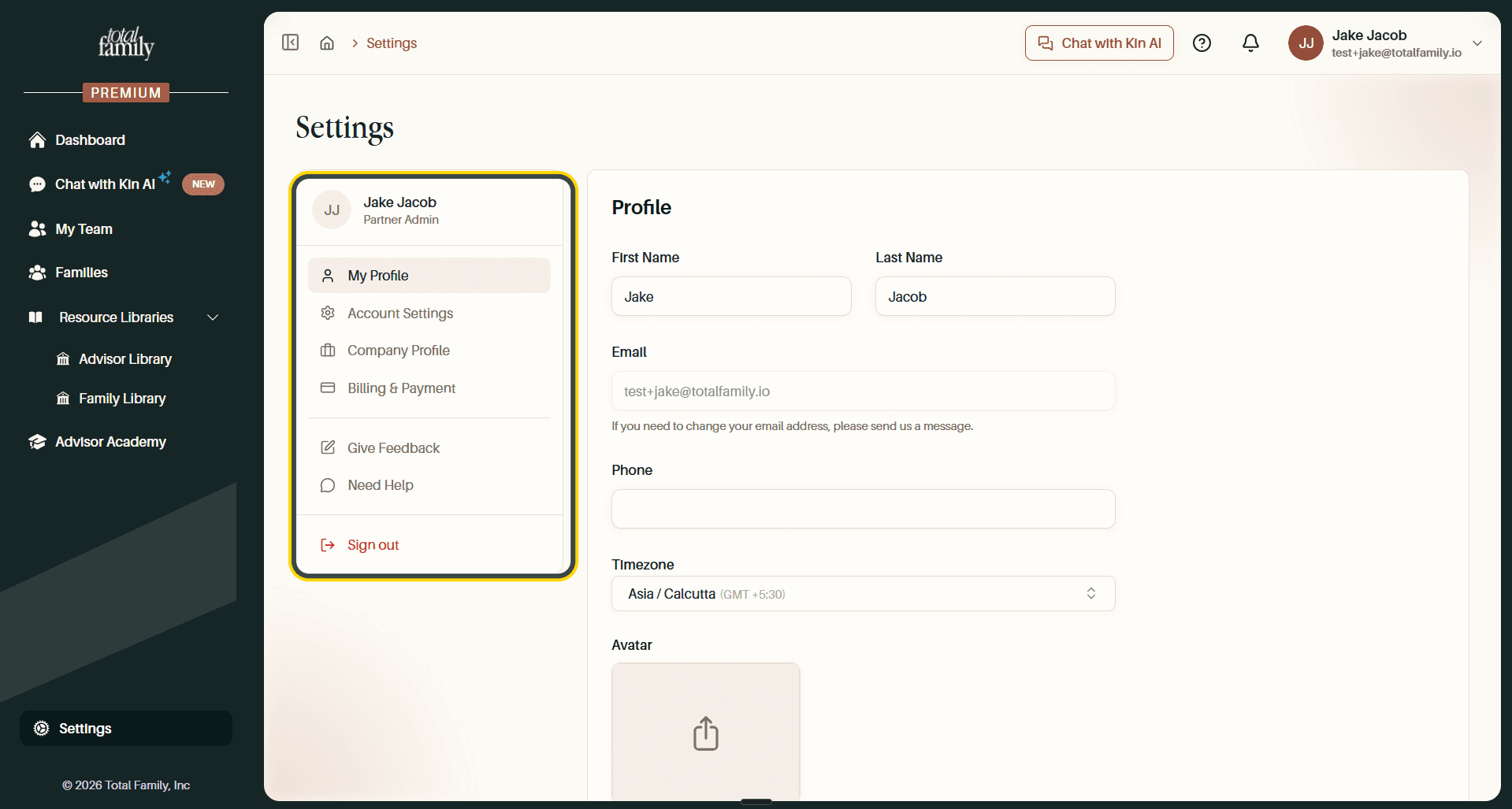
The form holds your First Name, Last Name, Phone, Timezone, and Avatar. Your Email is shown but not editable; the hint underneath points you at Need Help to change it.
Account Settings
How you sign in. Your email is listed here, and Set Password adds a password to an account that has only ever used sign-in links.
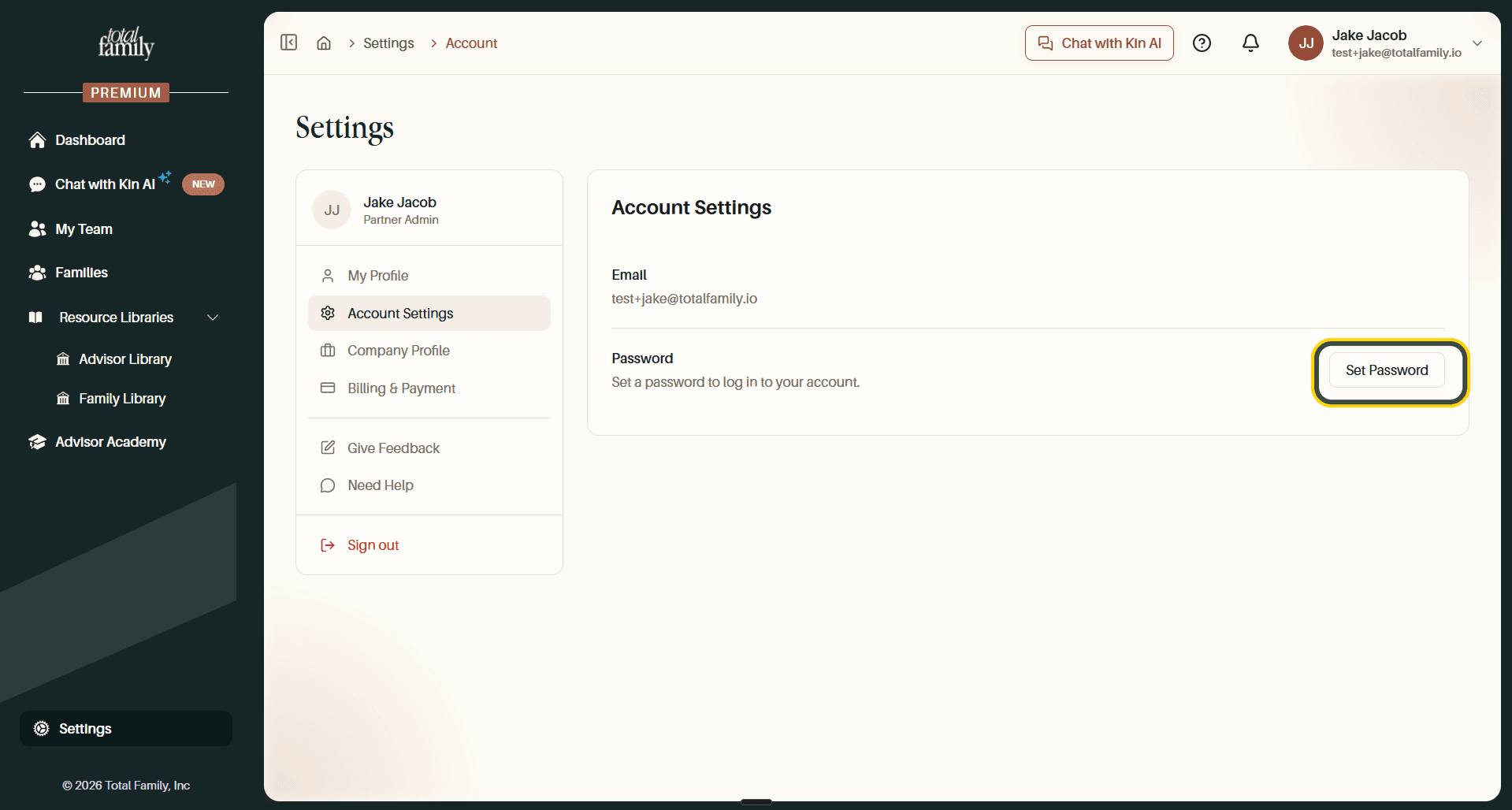
Setting one takes three steps: a code is emailed to confirm it is you, then you choose a password meeting five rules. The flow is identical to the family side, covered step by step in Settings.
Company Profile
Your firm's details, and the section with no family-side equivalent.
Company Logo is worth doing properly. As the helper text says, your logo appears in client communications and dashboards. This is what white-labels the platform for the families you invite. Drag a file onto Drop File Here or select Browse file. PNG, JPG, WebP, or SVG.
Once it is in, the upload box becomes a preview of the logo with a bin icon on it, so replacing one is a matter of removing what is there and dropping in the new file.
Below it sit the rest of the firm's details. Company Name and Segment describe the firm; Total Clients and Total AUM are size ranges; Referral Source, Primary Partner Contact, Account Manager, and Website round it out.
Nothing is kept until you select Save at the bottom. The fields grey out while it saves.
Billing & Payment
What your firm is on, what it costs, and every payment so far.
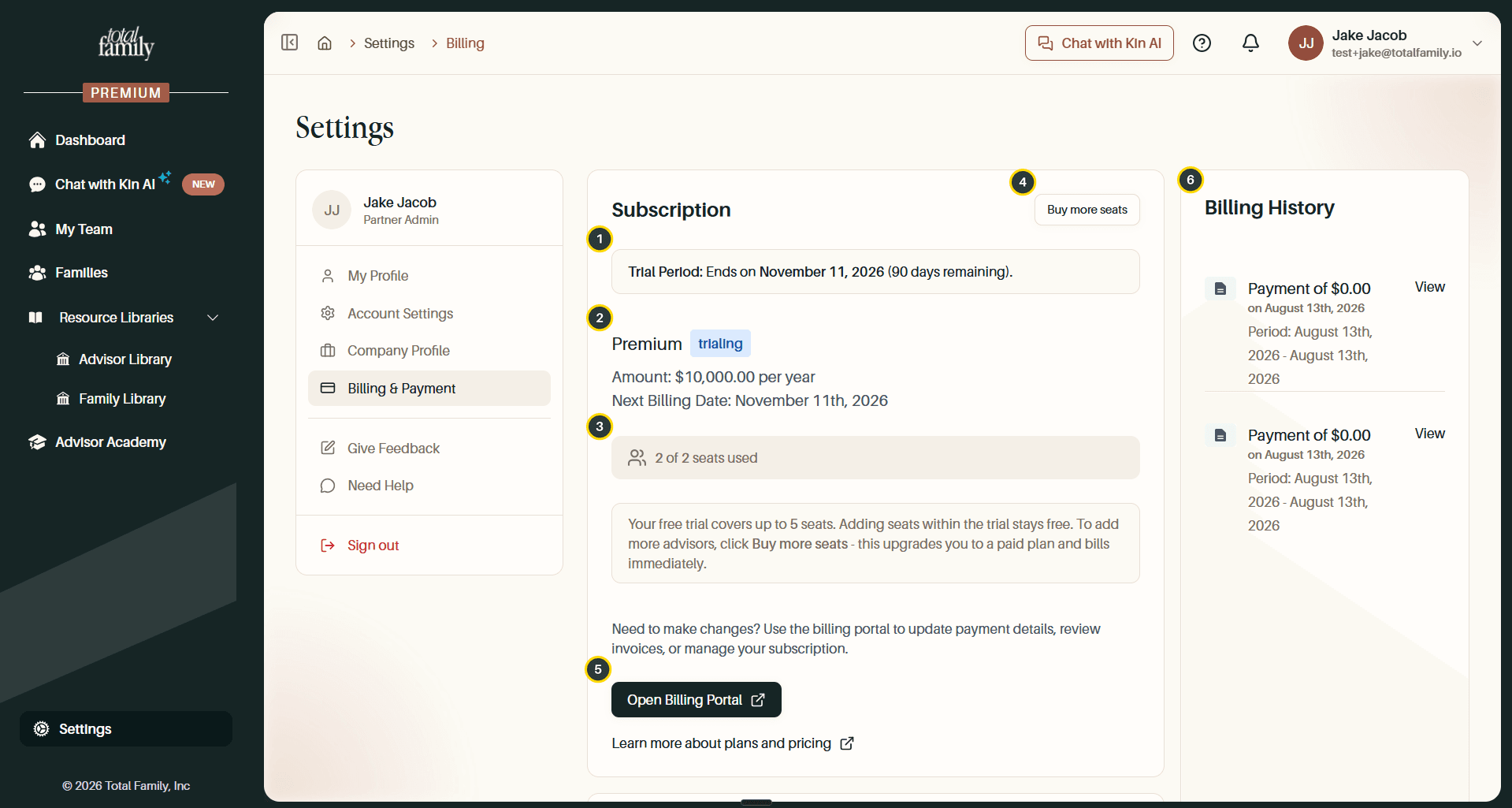
- Trial Period: when your trial ends, with days remaining.
- Your plan: the tier, a trialing badge while the trial runs, the annual amount, and the next billing date.
- Seats used: with a note explaining how seats are billed.
- Buy more seats: adds advisors beyond the trial allowance.
- Open Billing Portal: update payment details, review invoices, or manage the subscription.
- Billing History: every payment, with View for the invoice.
Note The seat note is the important part and easy to skim past. Your trial covers up to 5 seats, and adding advisors within that allowance stays free. Selecting Buy more seats is a different action. It upgrades you to a paid plan and bills immediately, which ends the trial.
Give Feedback
For product suggestions. Give Feedback opens Share Your Thoughts.
The dialog opens with one field, Feedback Type, set to Select a type. The rest appears once you choose one:
- What would you like to see?, the feedback itself
- Attach an Image (Optional), the same drop box as elsewhere. PNG, JPG, WebP, or SVG
- Yes, Total Family can contact me…, tick it if you are happy to be asked follow-up questions
Select Send Feedback. Thanks, we've received your request confirms it and gives you a support ticket number. Keep that number if you need to refer back to the suggestion.
Need Help
For anything that needs a person. Describe what is going on and select Send Message.
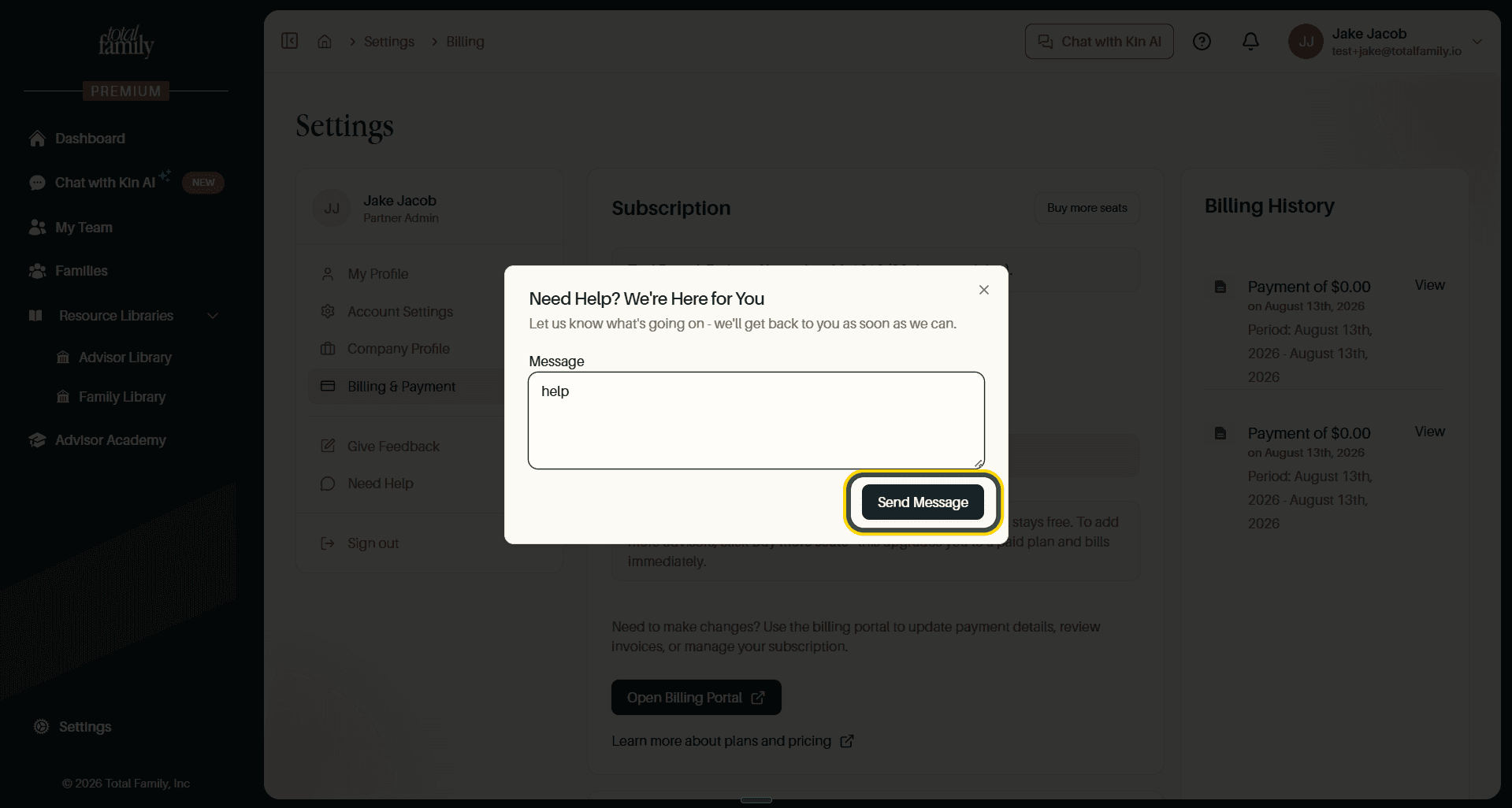
This is also how you change your email address, since that field is read-only on your profile.
The Help Panel
Give Feedback and Need Help are also reachable from anywhere in the portal. The ? icon in the top bar opens a help panel, and it carries the same two actions.
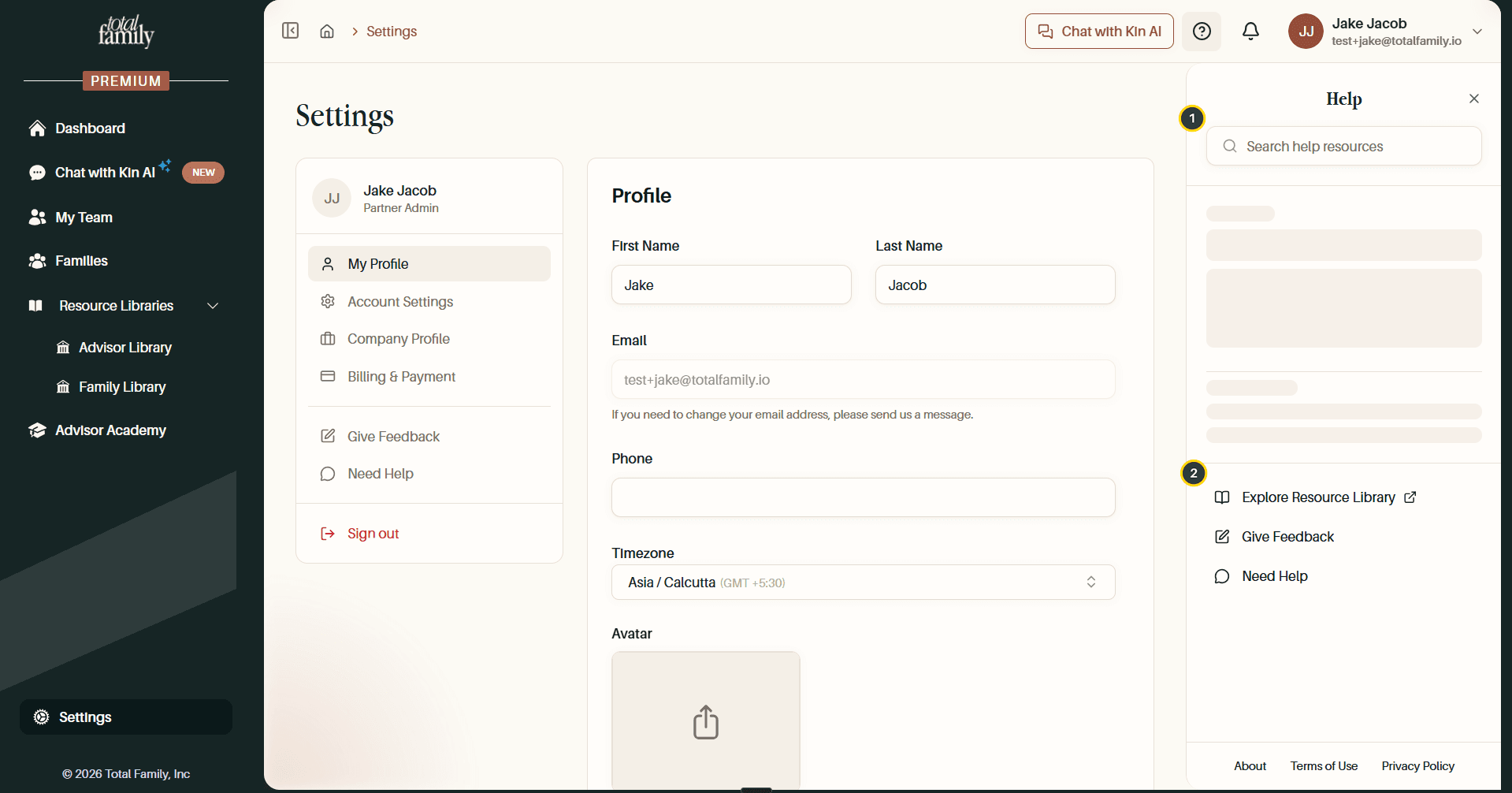
- Search help resources: searches help content without leaving the page you are on.
- The three actions: Explore Resource Library, Give Feedback, and Need Help. The last two open exactly the same dialogs as the Settings entries.
Selecting a result opens it in the panel beside your work, rather than navigating away.
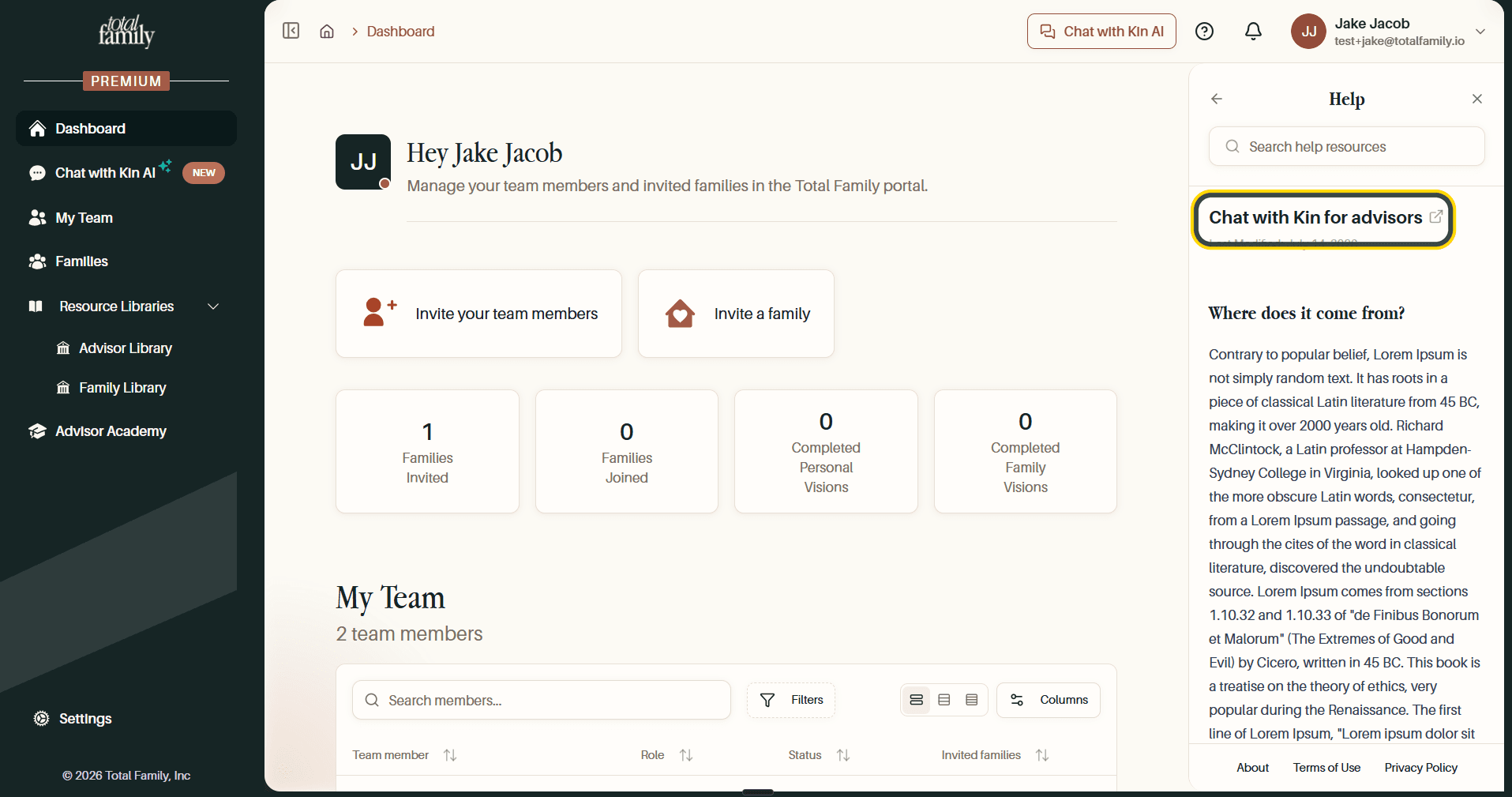
Tip Use the ? panel rather than Settings when something goes wrong mid-task. You keep your place, and the feedback or help form is the same one either way.
The Account Menu
Your name in the top right opens the account menu.
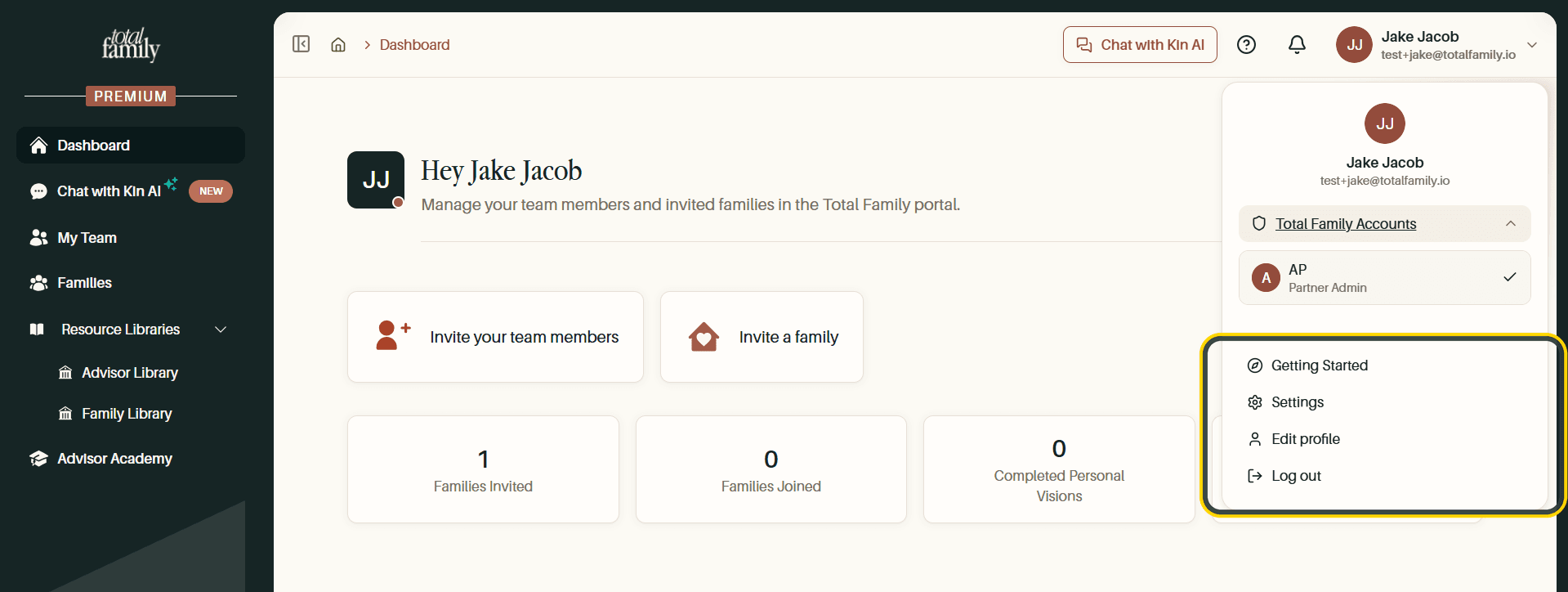
Total Family Accounts lists the accounts you belong to, with a tick beside the active one and your role in each, which helps if you work across more than one firm. Below that: Getting Started, Settings, Edit profile, and Log out.
Sign out at the bottom of the Settings list does the same thing as Log out here.