
Set Up Your Firm
Create the firm account, add your details, and bring your team in.
Setting a firm up takes about fifteen minutes. Do the branding properly while you are in there, because it is what your client families see.
1. Create the Account
Sign up and verify your email with the code sent to you, the same as any other account. The step that matters comes next.
Choose the Partner experience, not the Family one. This decides which product you land in.
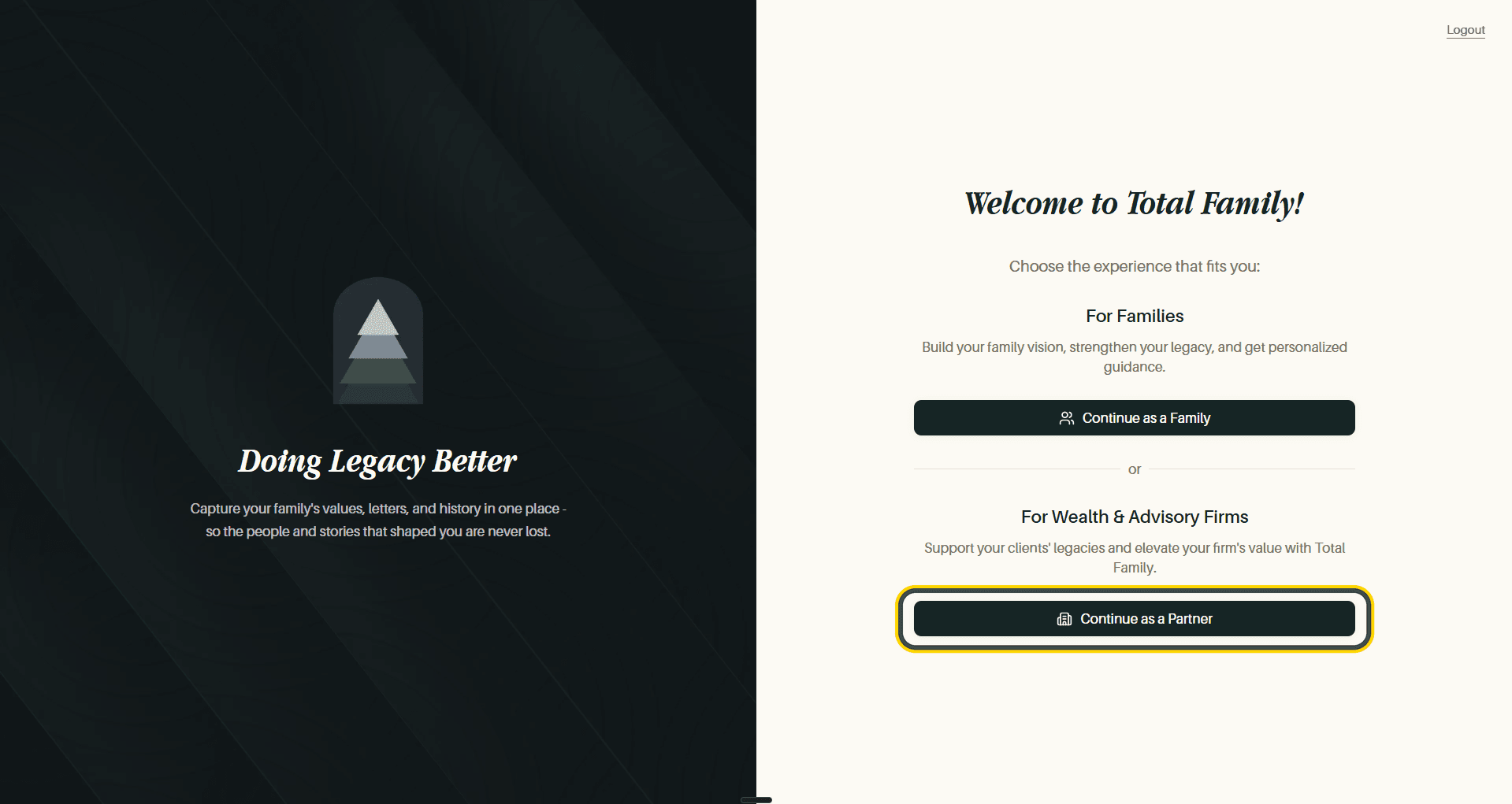
If you pick the wrong one, Switch to Family Account sits at the bottom left of the following screen.
Log In and Sign Up as a Partner covers this in full.
2. Add Your Firm's Details
After your own profile comes your firm's.
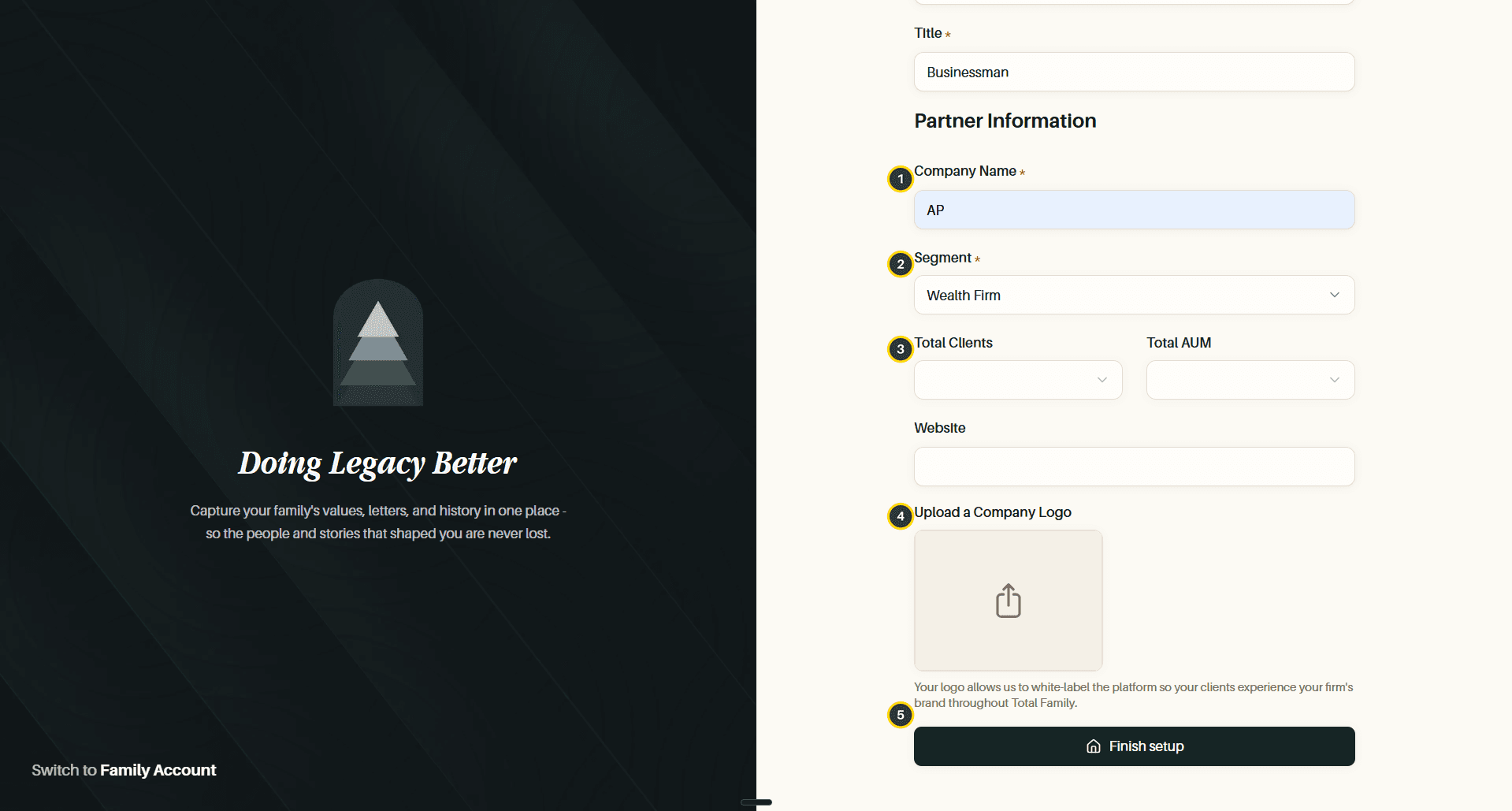
- Company Name, required.
- Segment, required. What kind of organisation you are, such as a Wealth Firm.
- Total Clients and Total AUM, chosen as ranges, with Website underneath.
- Company Logo. Optional in the form, and the one field worth going back for if you skip it. Your logo is what white-labels the platform on a paid plan, so the families you invite see your brand throughout Total Family rather than ours.
- Finish setup creates the account and takes you to your dashboard.
3. Start the Trial
Your firm begins on a free plan, which is limited. The full advisor platform, and Premium for the families you invite, comes with the 30-day trial.
Start Free Trial sits in your dashboard top bar and again on the dashboard itself.
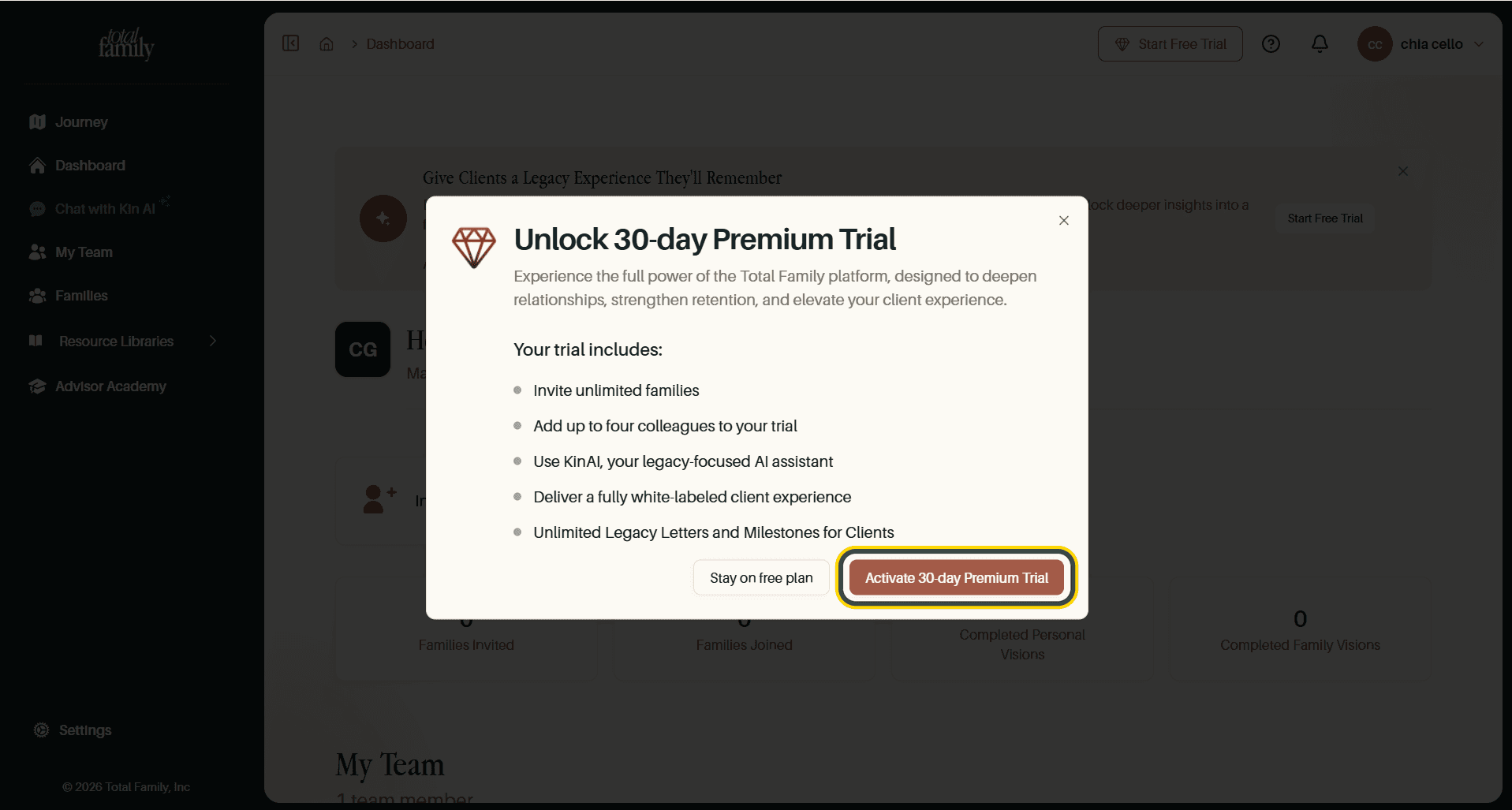
A card is held at this point but you are not charged today, and the dialog gives the exact date billing would begin. Plans and the Trial covers what happens at the end.
4. Invite Your Team
My Team is where colleagues are added.
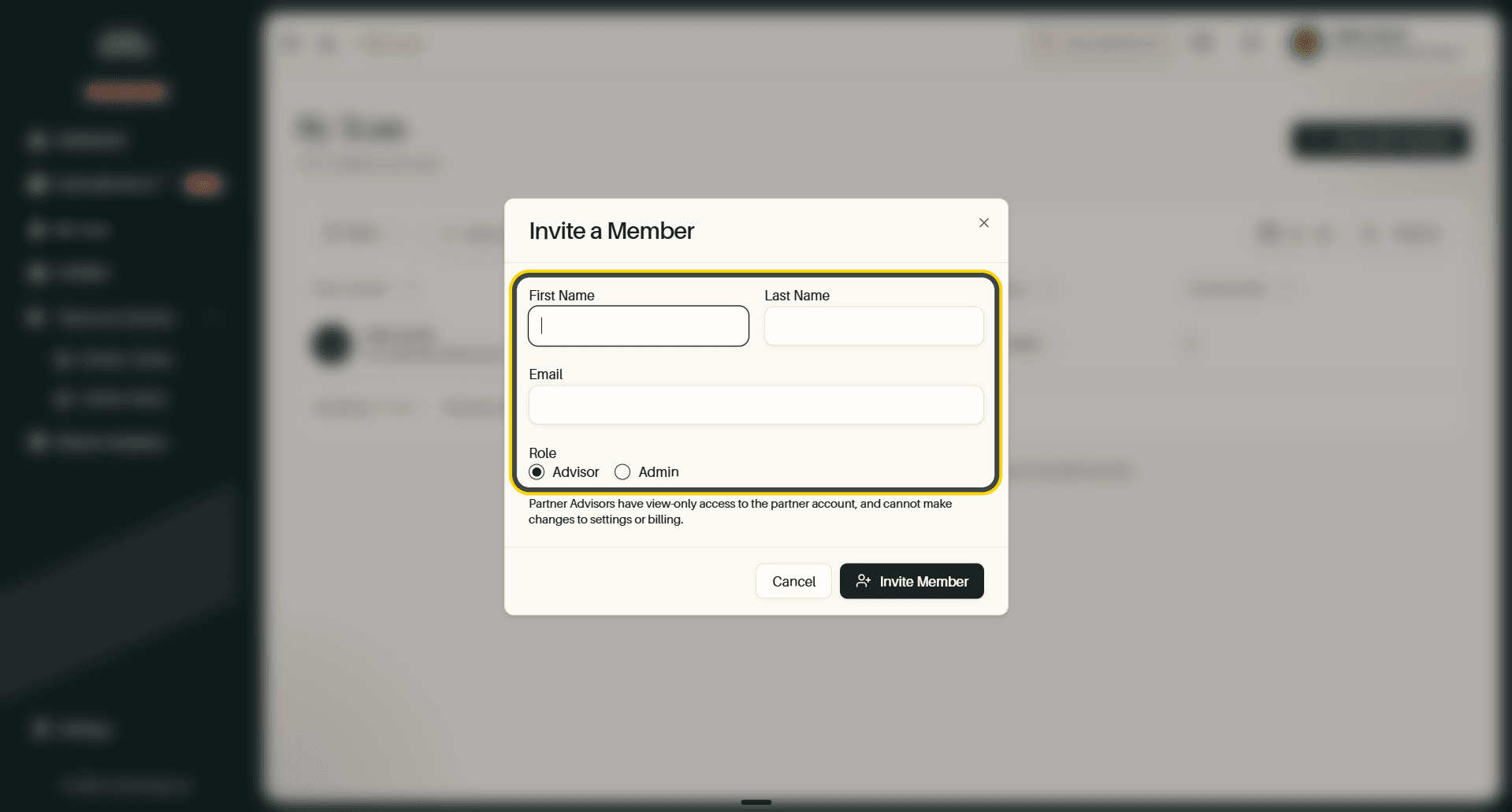
Fill in their name and email, then pick a Role. The role sets what a colleague can change:
- Partner Admin can alter settings and billing.
- Partner Advisor has view-only access to the partner account, and works with the households assigned to them.
Choose deliberately. My Team covers managing the team table afterwards.
Next
With the firm set up, your first families covers getting households in and actually using it.