
Firm Readiness
Step by step through the first phase: your firm profile, the admin details, and bringing your advisors on.
The first phase of the Firm Roadmap. Seven tasks in three groups, taken here one at a time.
Two tasks make up Firm Set-Up, and they are done in order: watch the welcome video, then fill in your firm's profile.
Step 1: Watch the Onboarding Welcome Video
The first task is a short film explaining how your firm guides families through their legacy journey. It is worth watching before you fill anything in, because it frames what the rest of the setup is for.
Select Watch Video on the right of the task. The video opens in a panel over the roadmap, so you do not lose your place.
Close the panel when you have finished.
Step 2: Mark It as Complete
Watching does not tick the task off. The Watch Video button has a small arrow beside it: open that and choose Mark as Complete.
Three things move at once when you do:
- The task greys out and takes a Completed badge.
- Firm Set-Up goes from 0 of 2 to 1 of 2 completed.
- Firm Readiness goes from 1 of 7 to 2 of 7, and the overall percentage at the top climbs with it.
Nothing needs saving or refreshing. If the counts do not move, the task was not marked.
Step 3: Complete Your Firm Setup
The second task is Complete Firm Setup, and it behaves differently. Expand it and you get a checklist of the individual fields it is waiting on, each ticking green as it is filled:
- Company Name
- Website
- Logo
- Firm Segment
This is genuinely useful when you are part way through, because it tells you which field is missing rather than only that the task is unfinished.
There is nothing to fill in on the roadmap itself. Select Complete in Settings and it takes you to Settings, then Company Profile, with the form already open.
Step 4: Fill It in, and Watch It Tick Off
You land on Settings, then Company Profile, with the form open. The four fields the checklist is waiting on are here, along with a few extras worth doing while you are on the page.
- Company Logo. Drag a file onto the panel or browse for one. PNG, JPG, WebP, and SVG are accepted. This is the field that white-labels the platform, so your client families see your brand rather than ours.
- Company Name and Segment, such as Wealth Firm.
- Total Clients and Total AUM, chosen as ranges.
- Referral Source, Primary Partner Contact, Account Manager, and Website.
Select Save, then go back to the roadmap. The checklist items you filled are now green, and once all four are in, the task itself takes a Completed badge and Firm Set-Up reads 2 of 2.
That round trip is the pattern for every Complete in Settings task: the roadmap sends you to the right screen, you save, and the roadmap reflects it when you return. Nothing is marked by hand.
Step 5: Admin Set-Up
The second group is the operational half of the phase, and its three tasks all follow that same round trip.
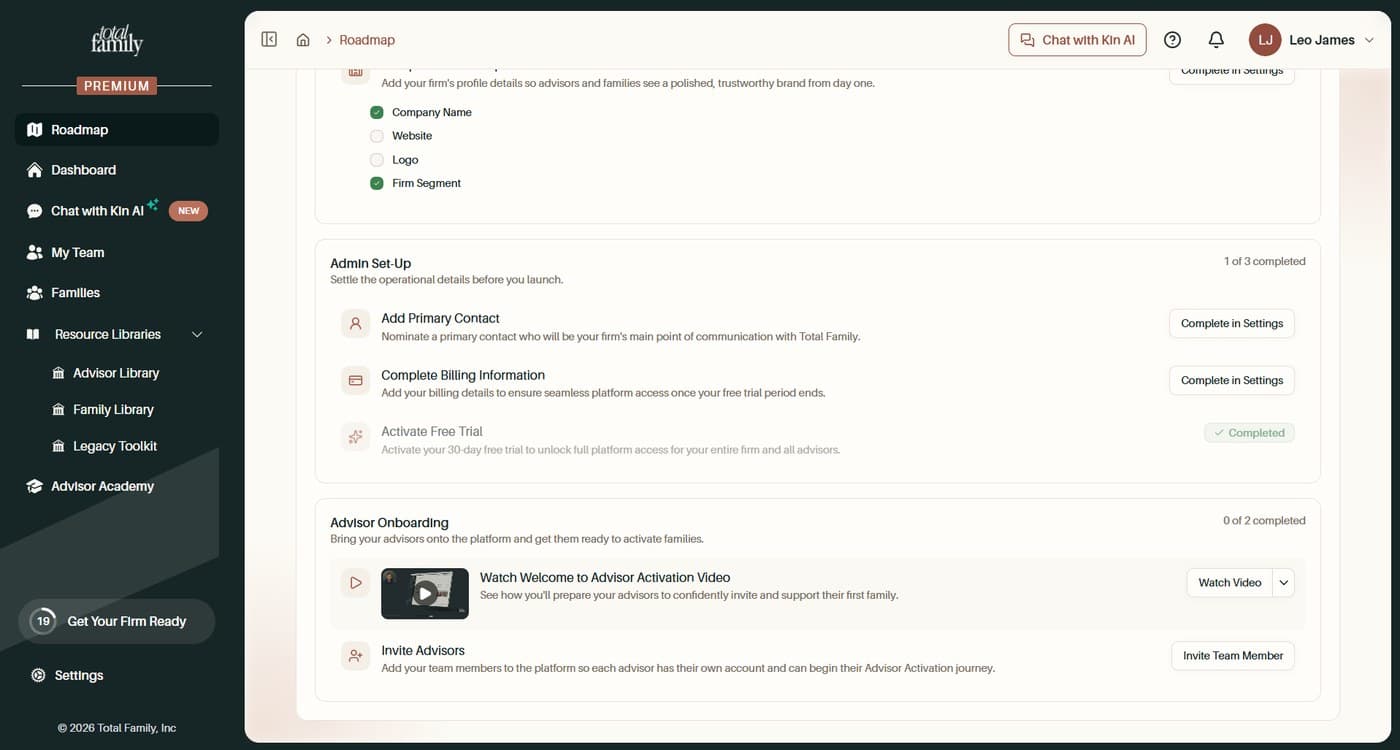
- Add Primary Contact. Nominate who at your firm is the main point of communication with Total Family. Complete in Settings.
- Complete Billing Information. Your billing details, so access carries on without interruption when the free trial ends. Complete in Settings.
- Activate Free Trial. Already done if your firm is on the trial, and showing as Completed without you touching it.
That last one is worth noticing. Some tasks tick themselves off because the thing they describe has already happened elsewhere in the product.
Step 6: Advisor Onboarding
The last group in Firm Readiness brings your team onto the platform.
- Watch Welcome to Advisor Activation Video, which covers how you will prepare advisors to invite and support their first family. Same two steps as step 1: watch it, then mark it complete from the arrow.
- Invite Advisors. Select Invite Team Member and add your colleagues. Each gets their own account and starts their own Advisor Activation.
Sending the invitations is enough. The task takes its Completed badge as soon as they are out, without waiting for anyone to accept.
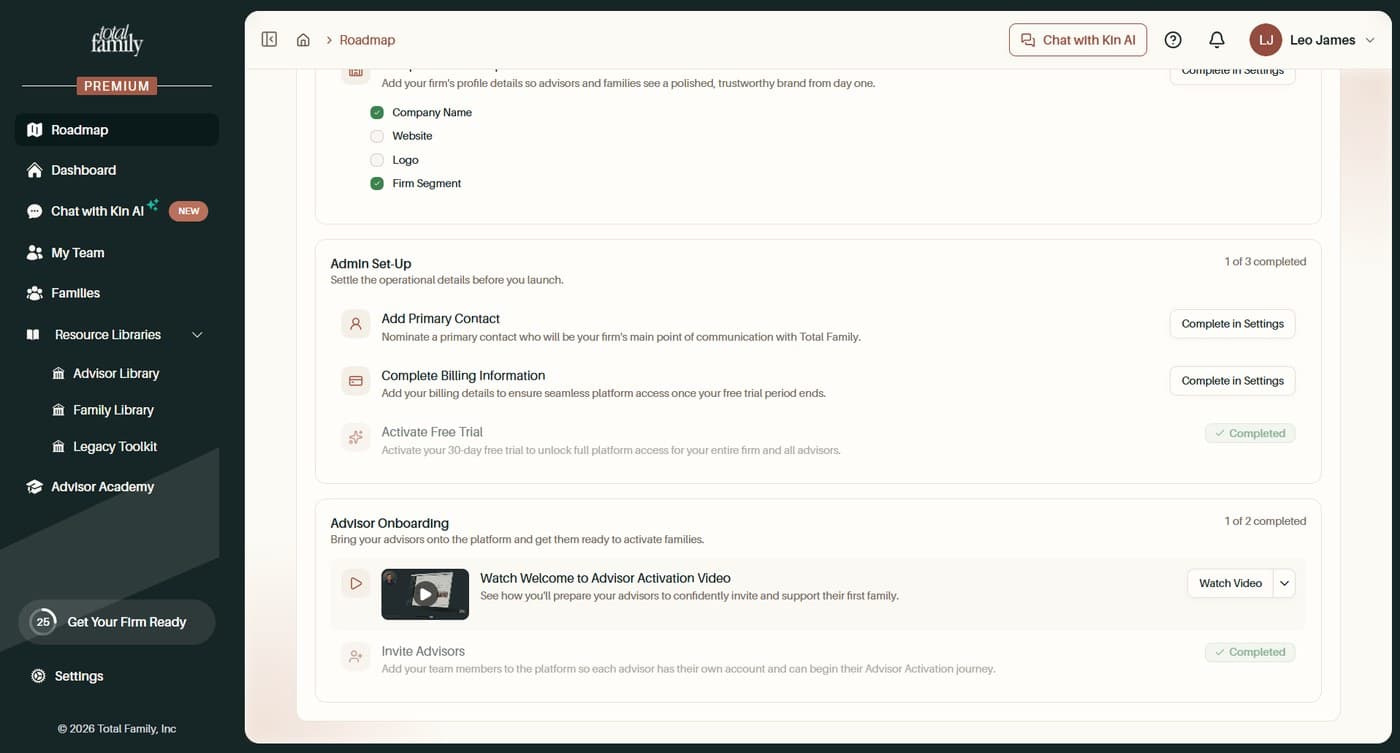
With that, Firm Readiness is done and Advisor Activation is where the work moves to next.
Next: Advisor Activation, where each advisor is equipped to run the conversation.