
Legacy Contact
Name someone you trust to inherit your Total Family account, and set what they can see.
A Legacy Contact is the person who takes care of your Total Family account after you die. You choose who it is, exactly what they can see, and leave them a note explaining what you want. They cannot reach any of it while you are alive. Access only opens after they prove your death and present the key you gave them.
Nothing here is settled for good. While you are alive you can change who it is, change what they would be able to see, or remove them entirely.
Choose What Happens to Your Account
Open Settings > Legacy Contact. There are two paths.
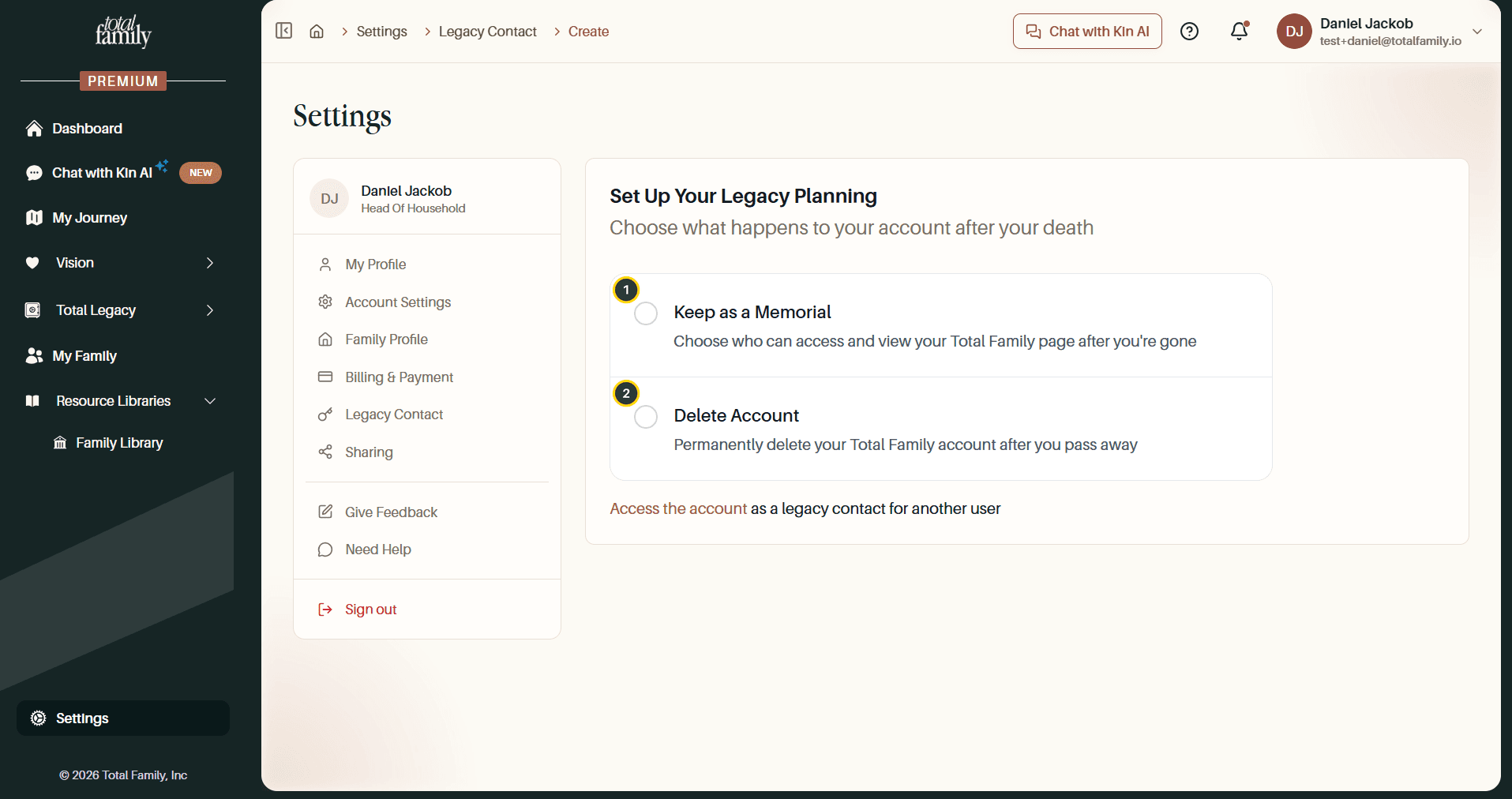
- Keep as a Memorial: preserve the account and let someone you trust access it.
- Delete Account: permanently delete everything after you pass away.
The rest of this guide follows Keep as a Memorial. Selecting Delete Account needs no further setup. Nothing is preserved and nobody is given access.
Choose Your Contact
Selecting Keep as a Memorial opens the rest of the form.
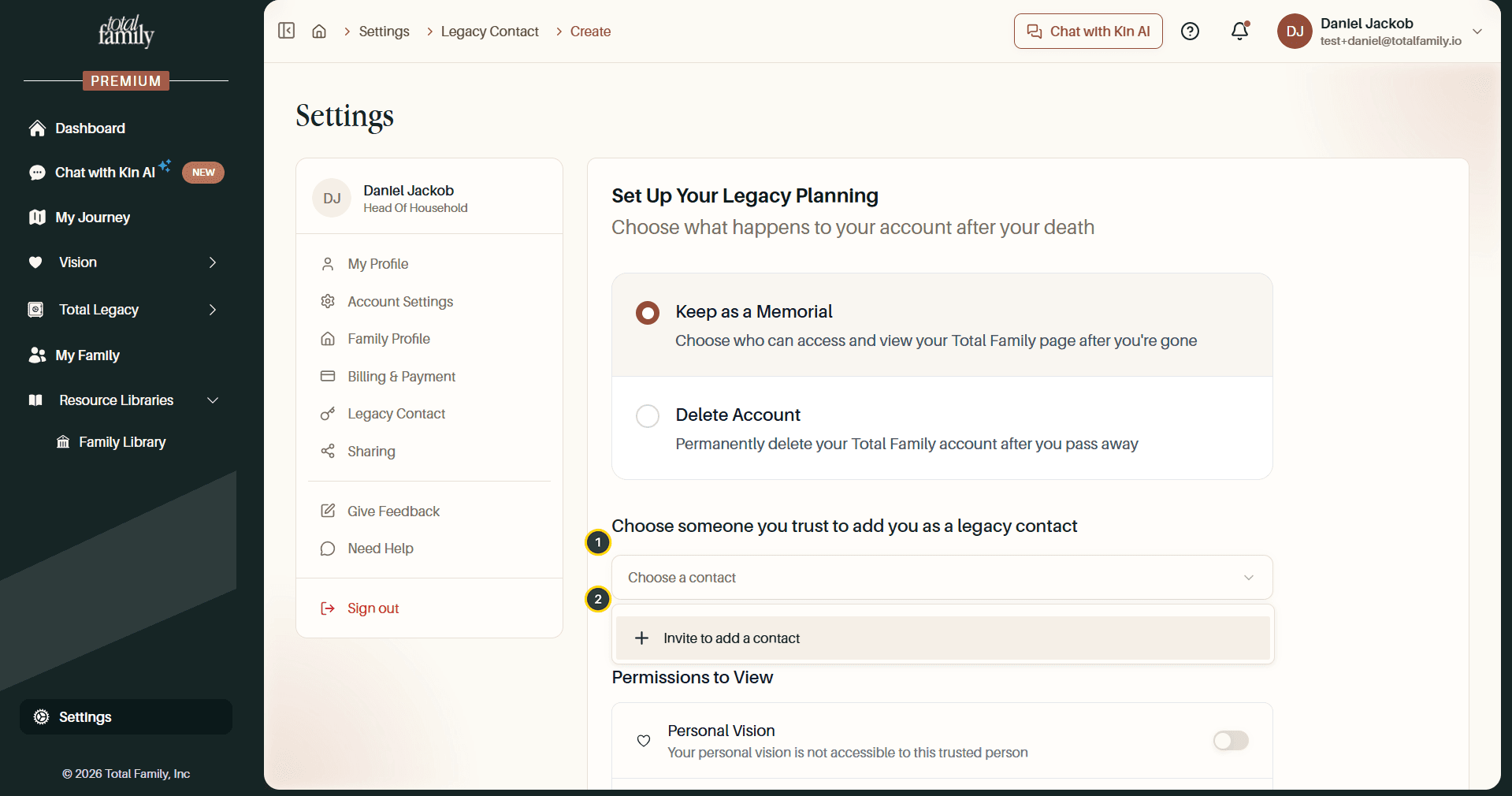
- Choose a contact: pick from the family contacts you already have.
- Invite to add a contact: add someone new.
Add Someone New
Adding a contact asks for their details. First Name, Last Name, and Email are required; the rest is optional.
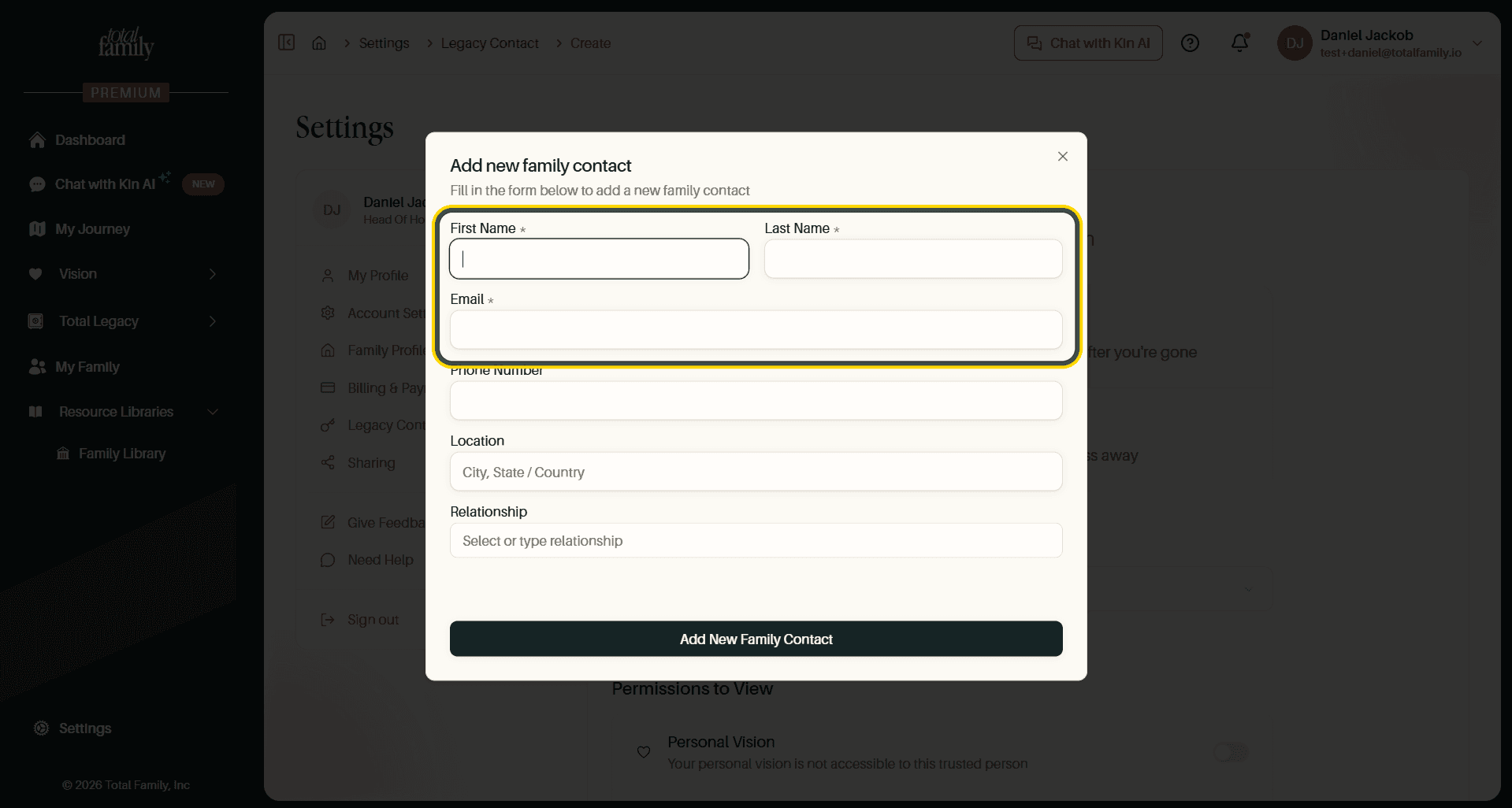
The email address matters most: it is where their invitation and, later, the access key are sent.
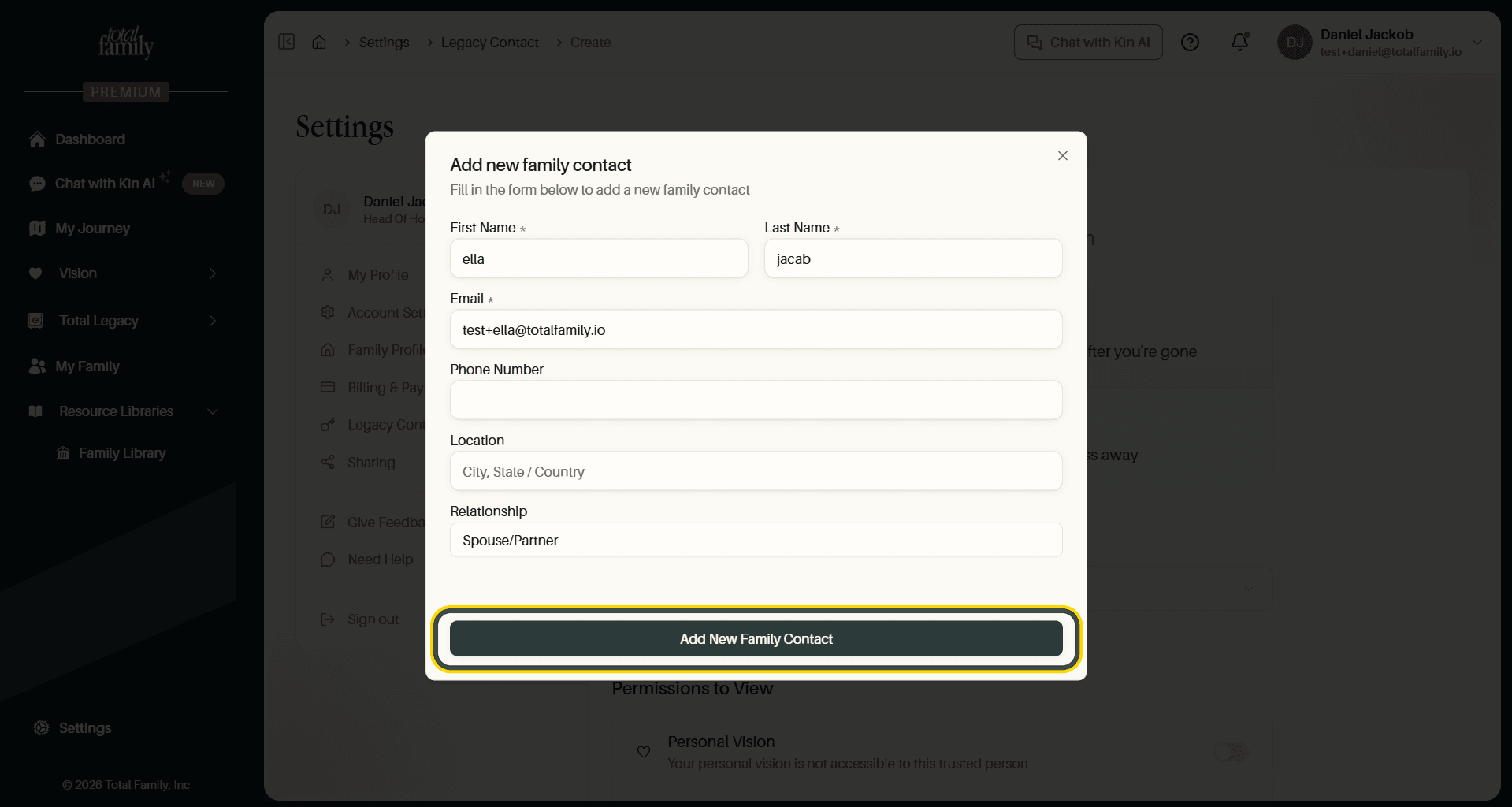
Select Add New Family Contact and they appear in the picker, ready to select.
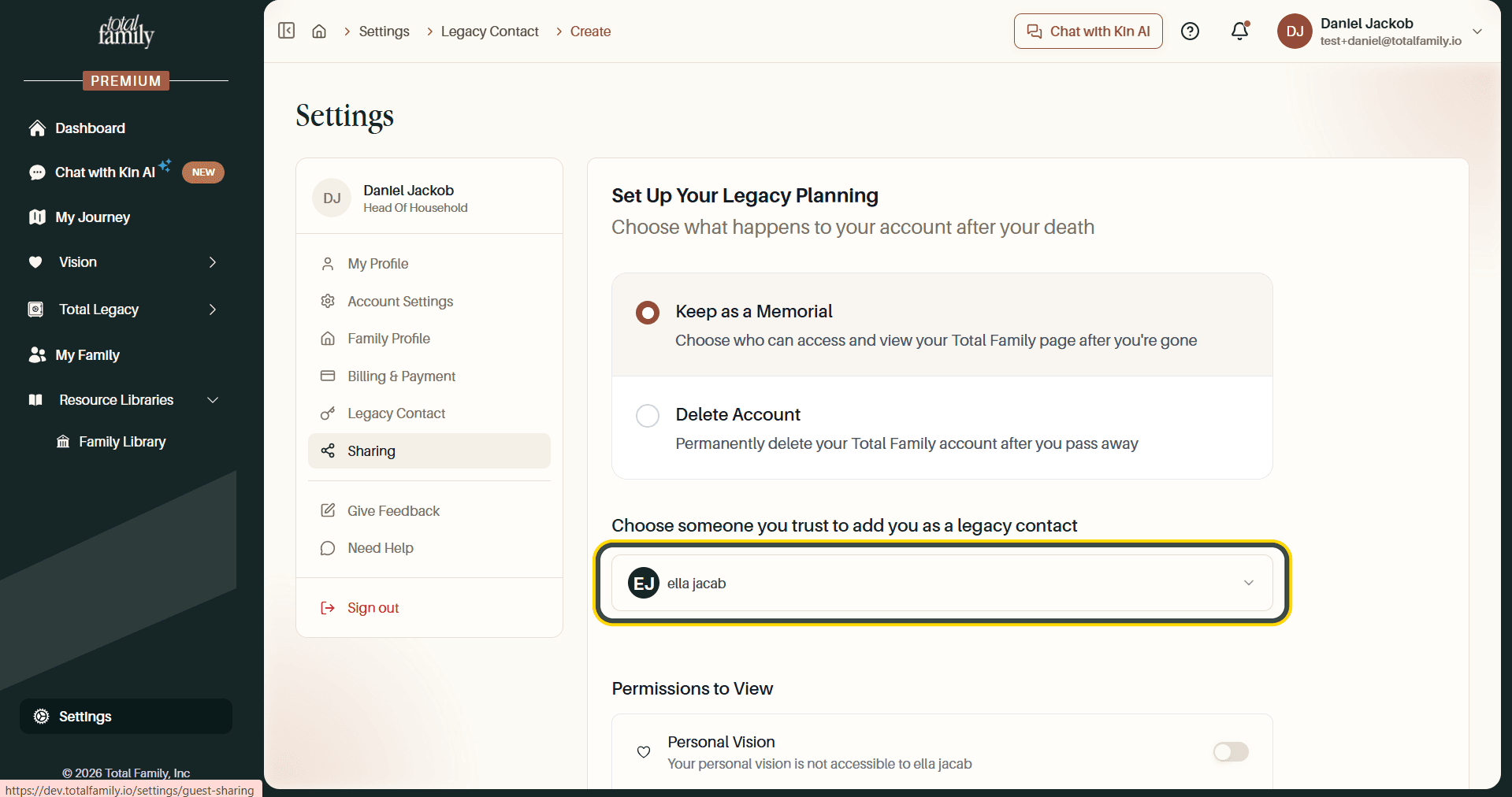
Set What They Can See
Permissions to View controls what your Legacy Contact can open. Each toggle is off by default. Nothing is shared until you say so.
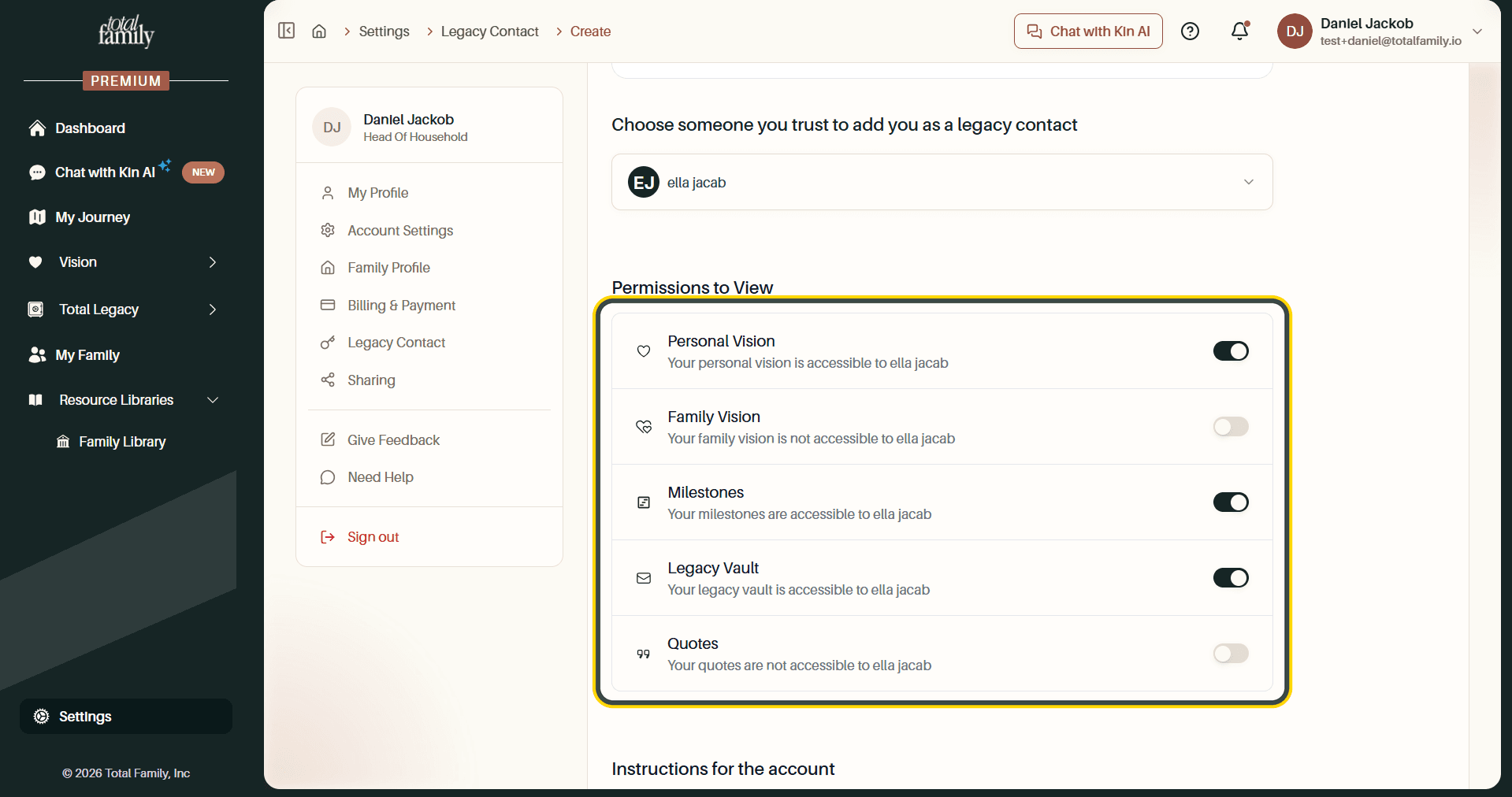
You can grant Personal Vision, Family Vision, Milestones, Legacy Vault, and Quotes independently. The line under each name always states the current position in plain words: "Your family vision is not accessible to…". There is no ambiguity about what you just switched.
Leave Them a Note
Instructions for the account is a message to the person who will one day be reading it. The placeholder suggests what to cover: what Total Family means to you, your wishes for how your stories and photos should be handled, and anything specific you want preserved or removed.
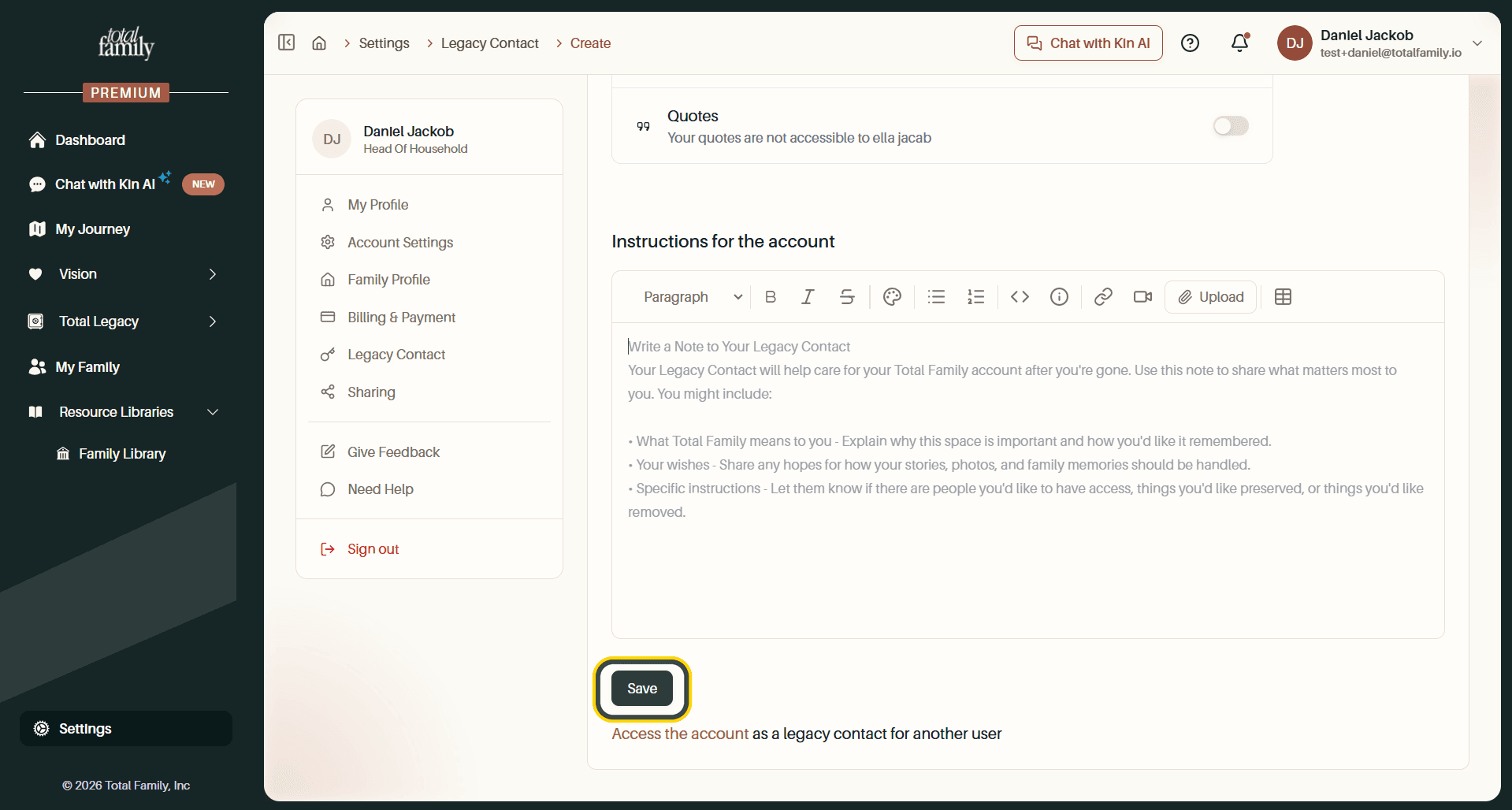
It uses the same editor as Legacy Letters, so you can format the note, add links, and insert images. Select Save when you are done.
Send the Invitation
Saving offers to email your contact. You see the exact message before it goes.
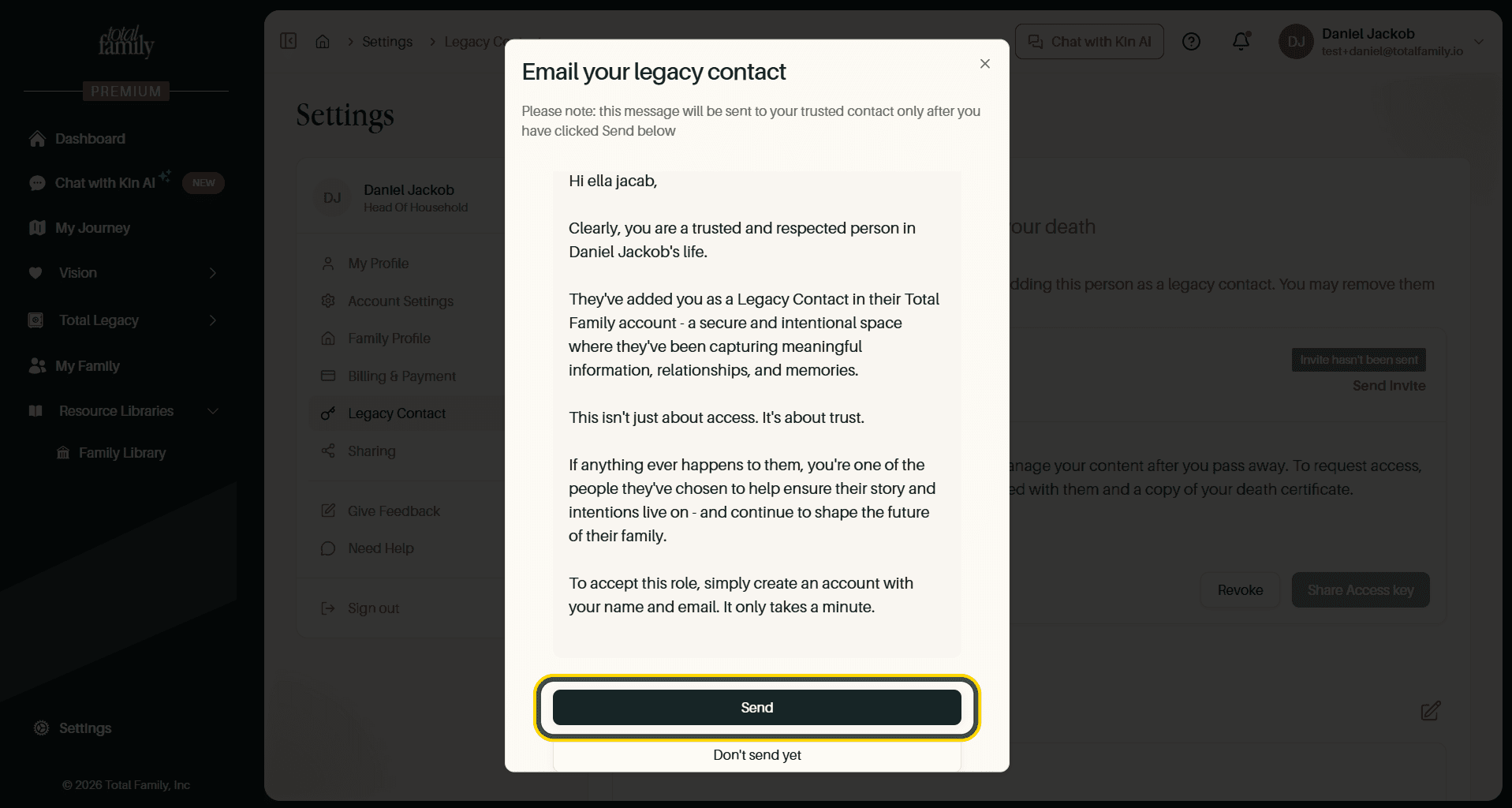
Select Send, or Don't send yet to save your setup and invite them later.
Your contact now appears with an Invited status.
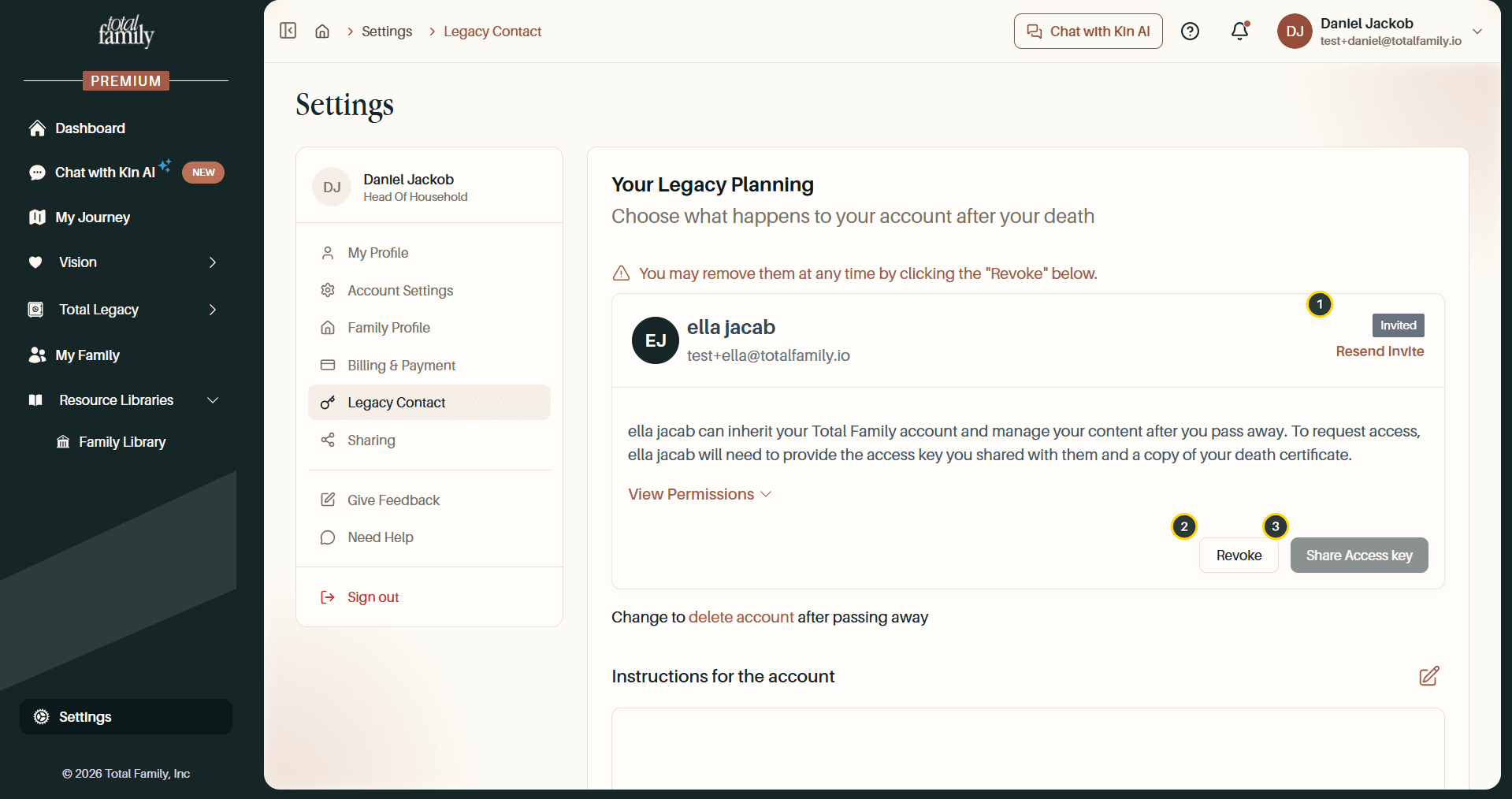
- Invited / Resend Invite: their current status, and a way to send the email again.
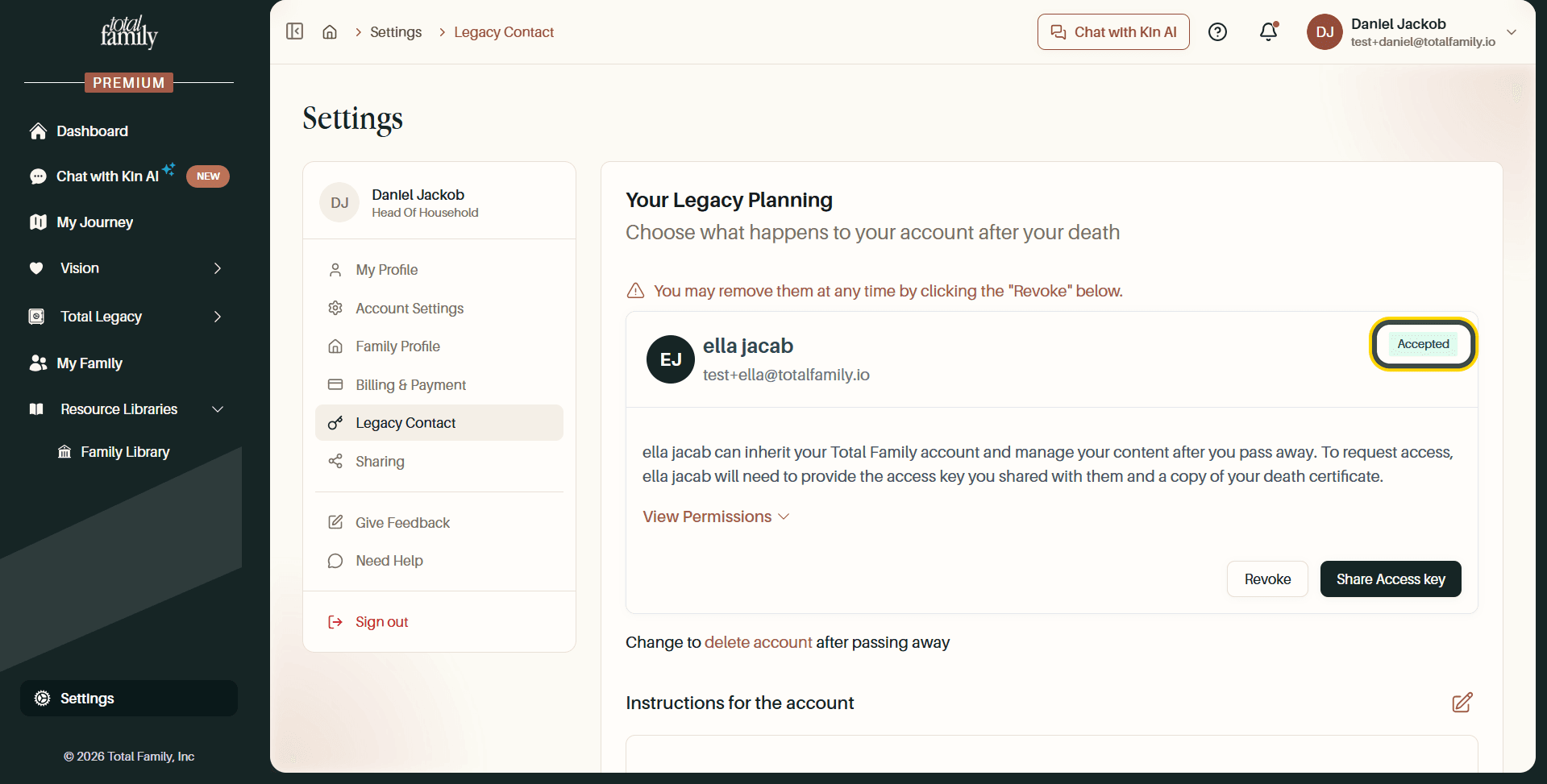
- Revoke: remove them as your Legacy Contact.
- Share Access key: greyed out until they accept.
What Your Contact Receives
They get an email explaining the role and asking them to create an account.
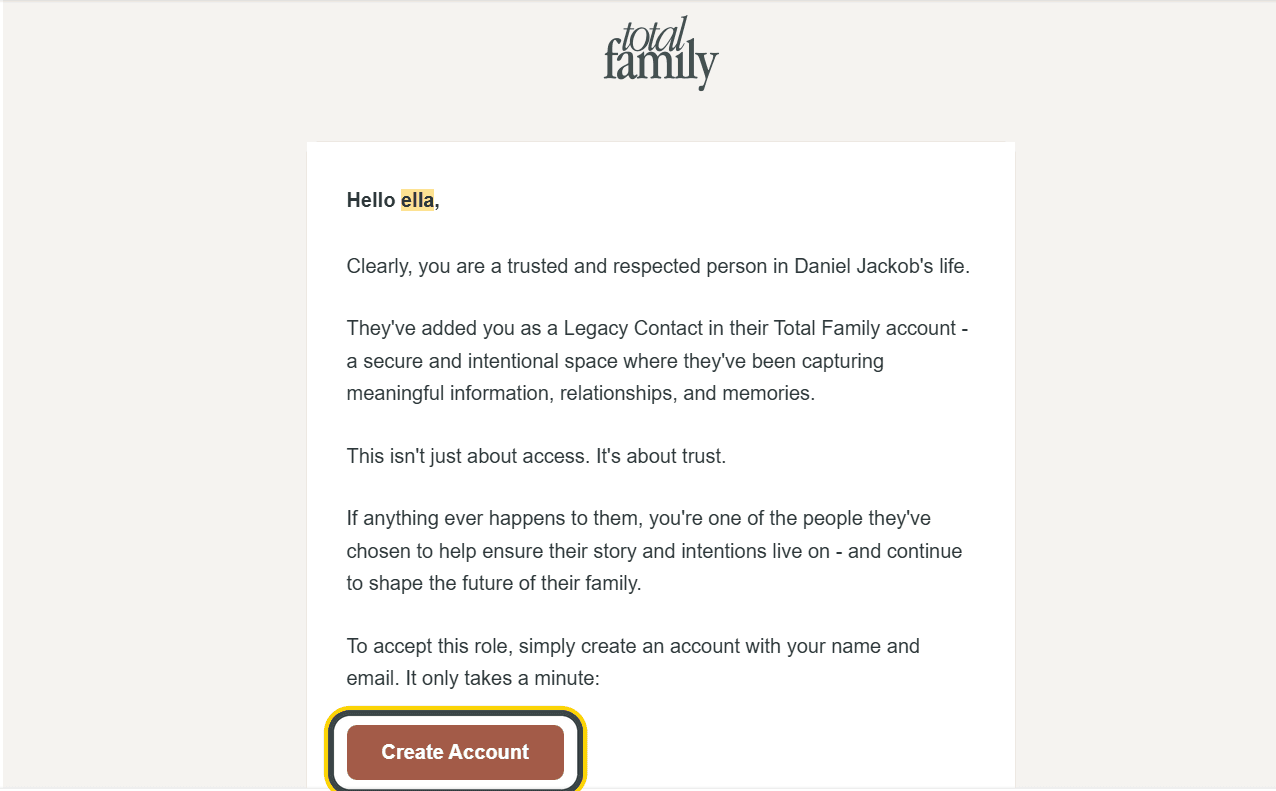
That takes them to a confirmation page.
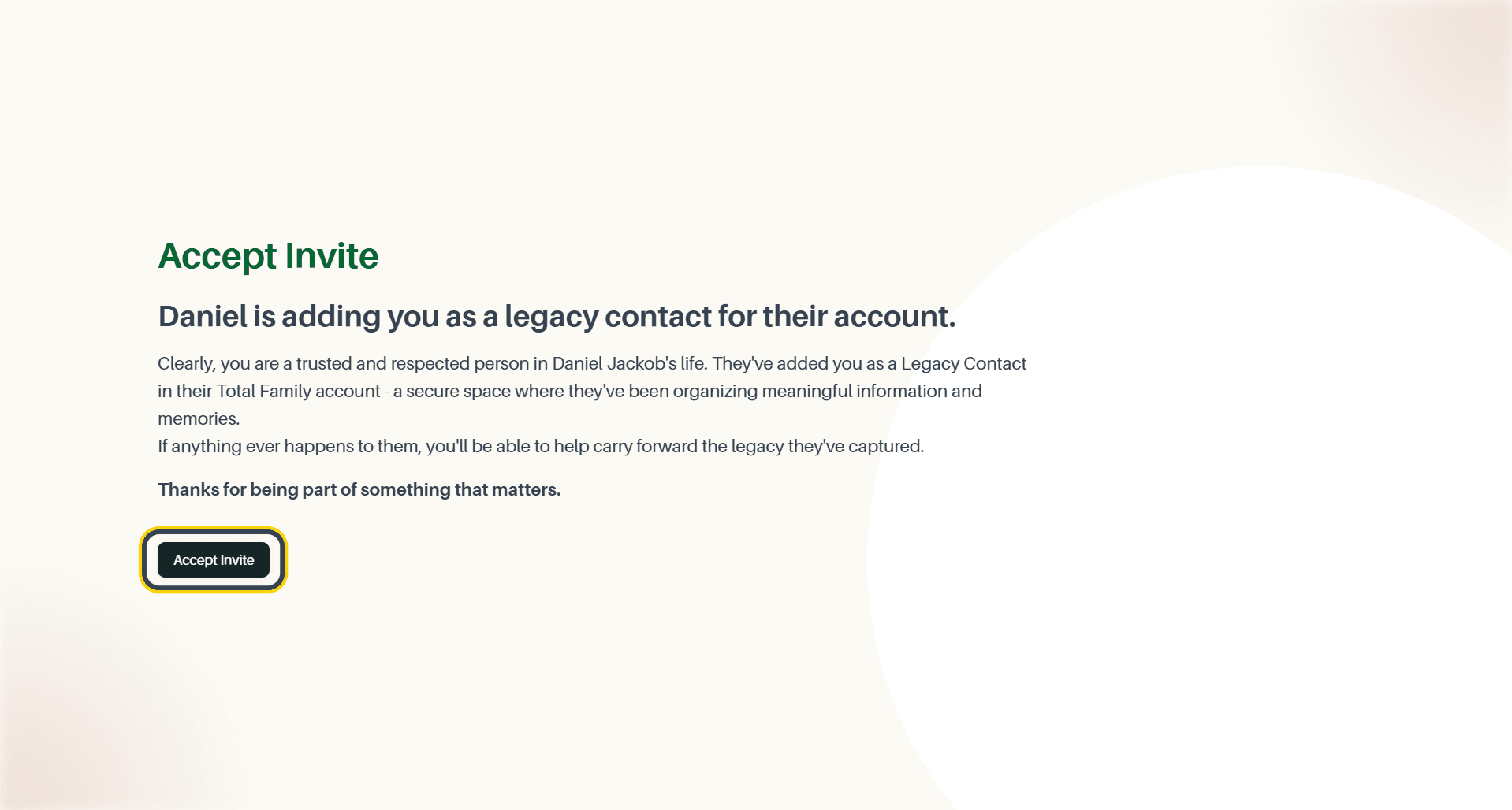
Once accepted, they are done for now. There is nothing further for them to do until it matters.
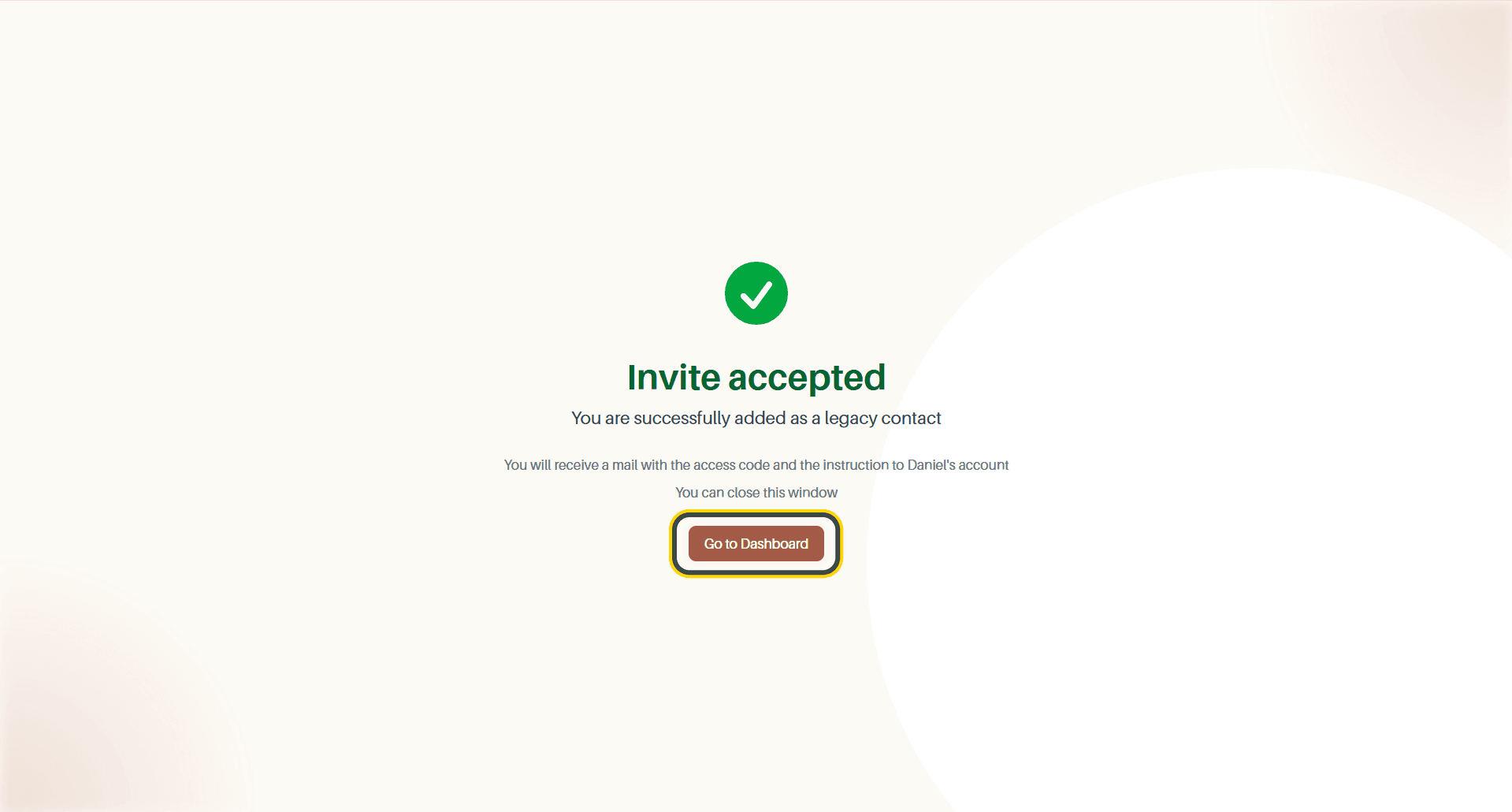
Back in your settings, their status changes to Accepted and Share Access key becomes available.
Share the Access Key
The access key is the second half of the lock. Your contact needs it and proof of your death before anything opens.
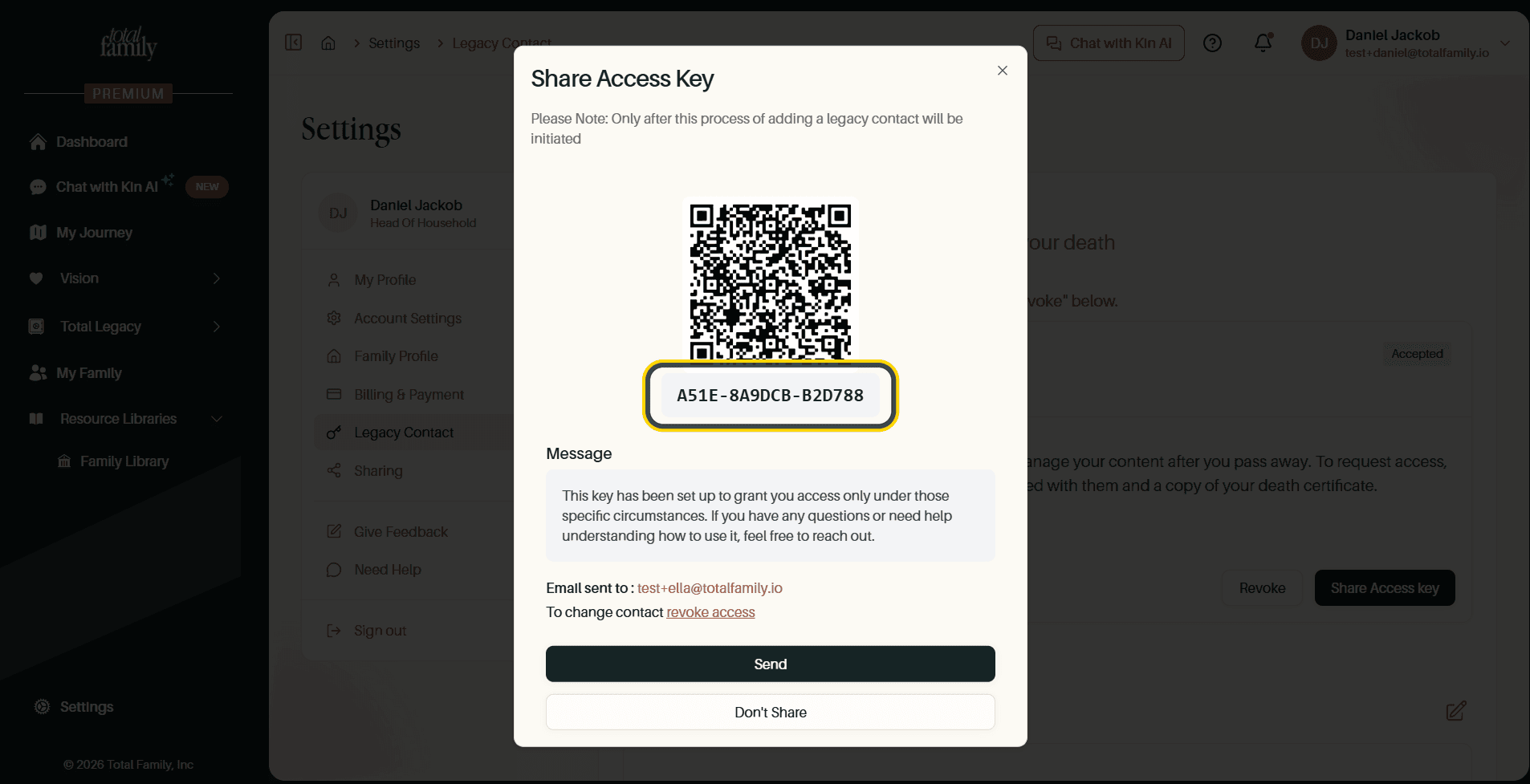
The key is shown as a code and a QR code, with a message you can send alongside it. Select Send to email it, or Don't Share to hold off.
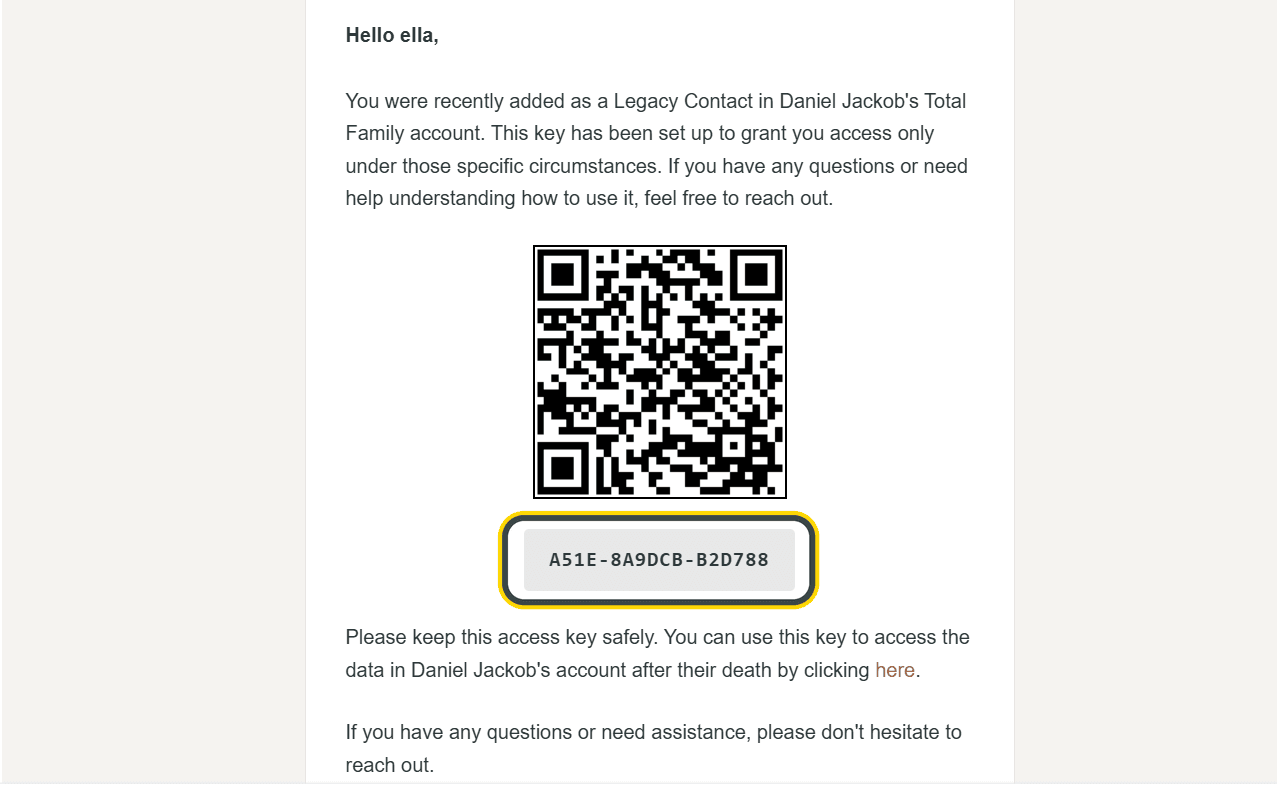
Tip Tell them where to keep it. A key sitting in an inbox for twenty years is easy to lose. The people who plan this well write it down somewhere their family already knows to look, alongside a will or other important documents.
Requesting Access Later
This is the part your contact does after you are gone. They open the access link and enter the key you shared.
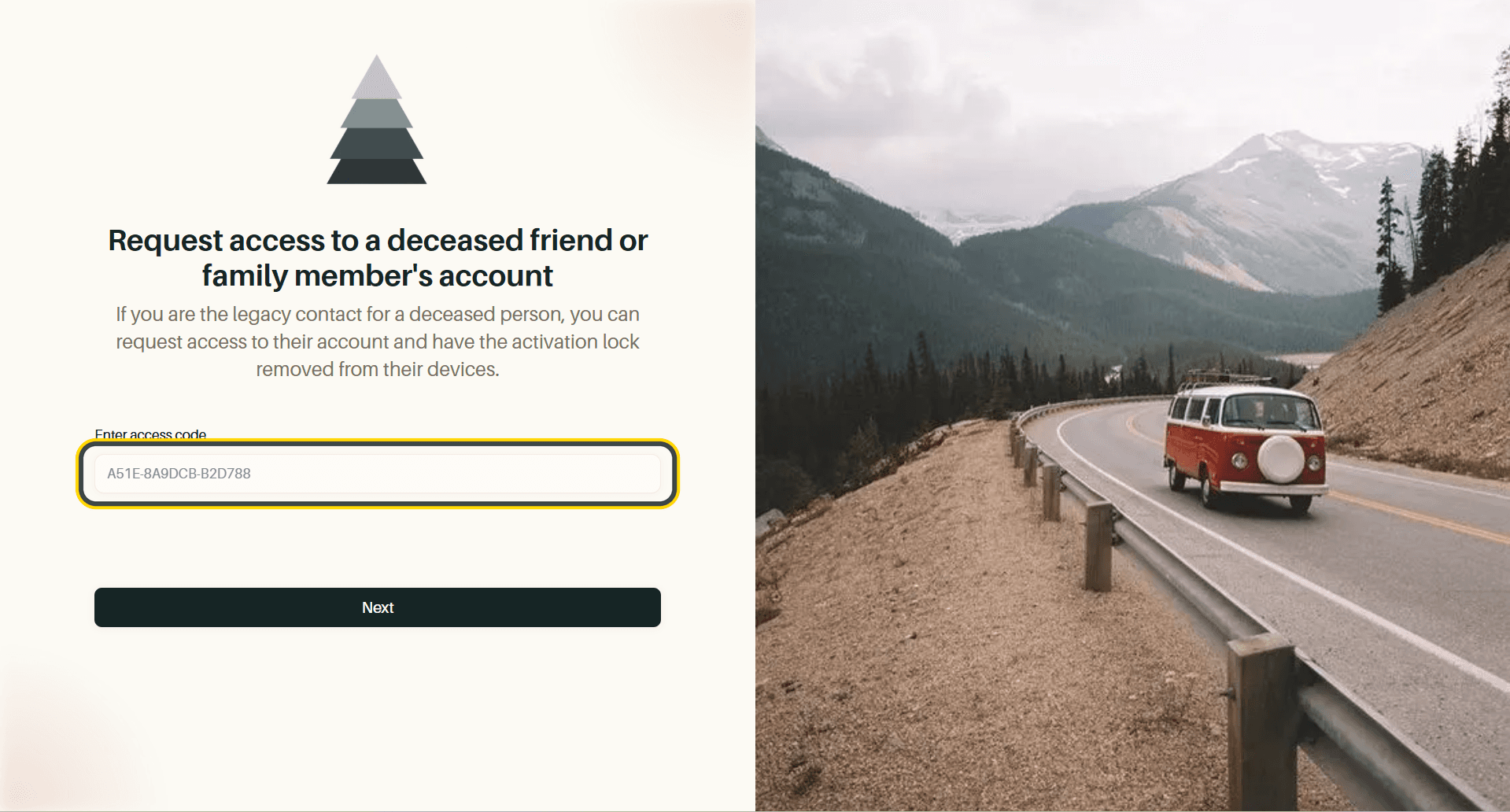
If the key matches, they are asked to upload a death certificate: an image or PDF, up to 10 MB.
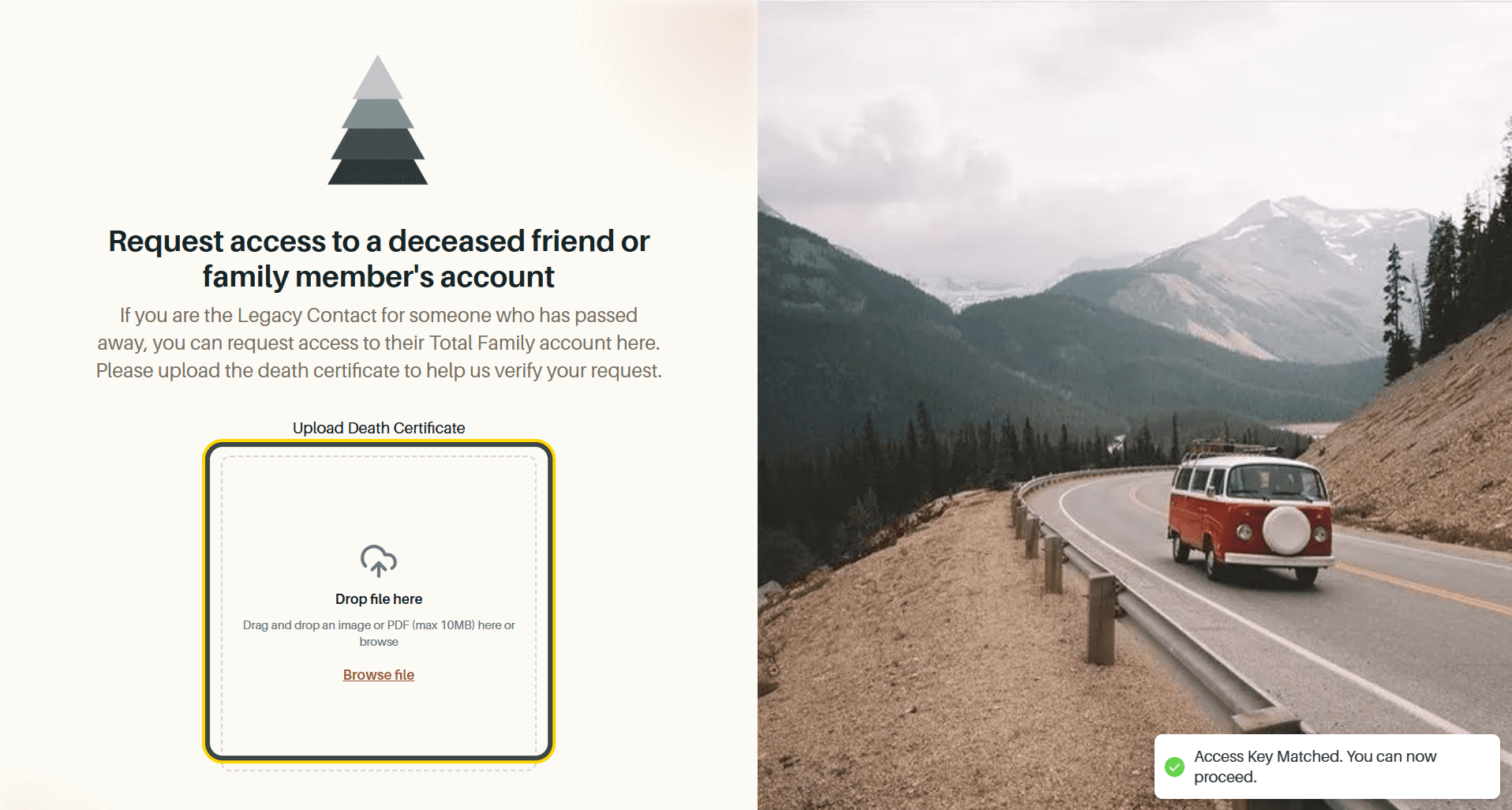
Both are required. The key alone does nothing without the certificate, which is what stops anyone from getting in early.

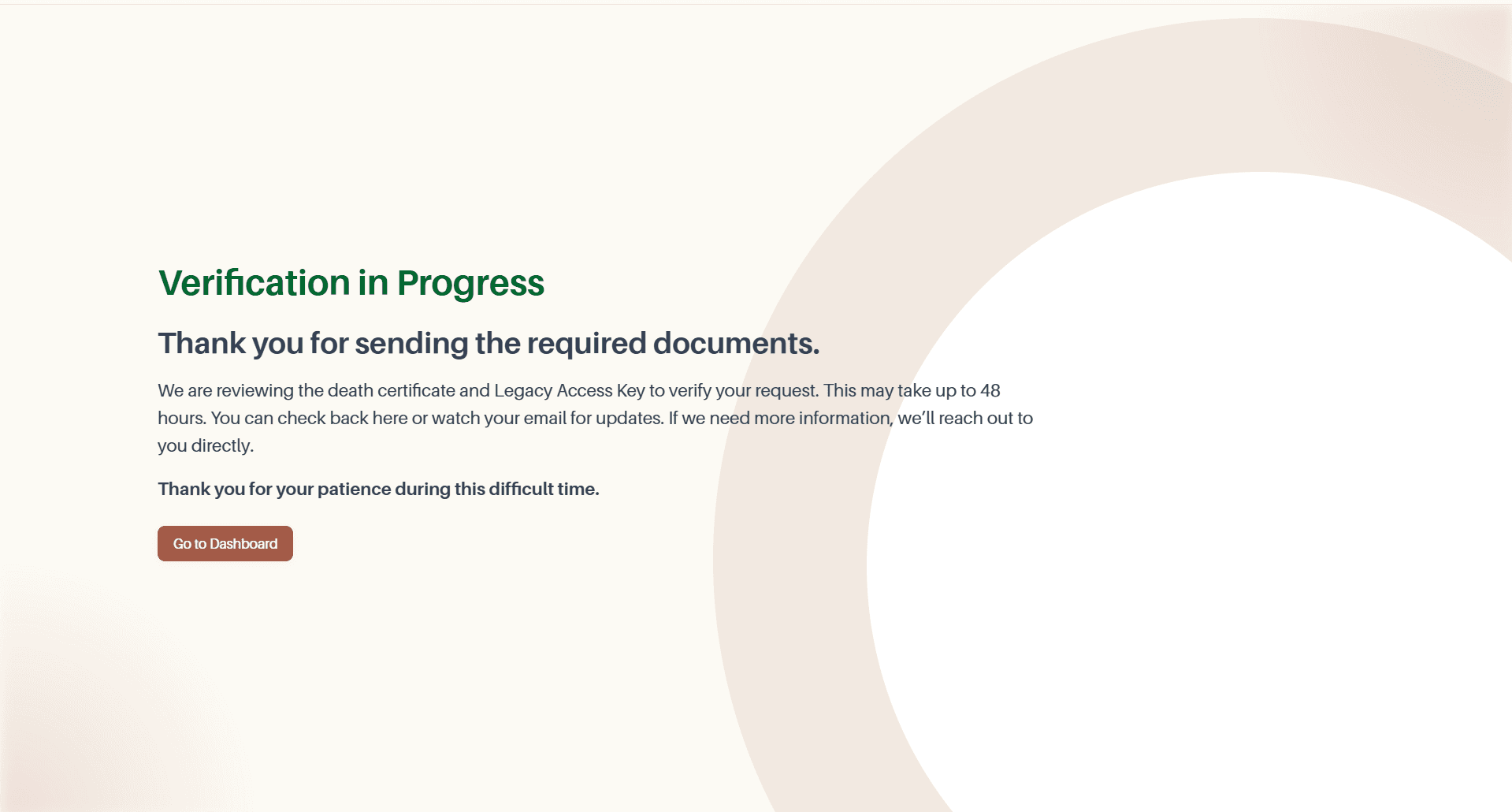
After Submit Request, Total Family reviews both documents. This takes up to 48 hours, and they are contacted directly if anything more is needed.
Changing Your Mind
Nothing here is permanent while you are alive:
- Revoke removes your Legacy Contact entirely, at any time
- View Permissions reopens the toggles so you can change what they would see
- Change to delete account after passing away switches you to the other path
- The pencil beside Instructions for the account reopens your note
Choose someone, tell them where to keep the key, and leave it be. That is the whole job.