
Personal Vision
Create your personal vision in three steps: values, purpose, and roles.
Your Personal Vision is built from three pillars: the values that matter most to you, the purpose that gives your life direction, and the roles you hold today. Total Family walks you through them in that order, and you end up with a vision board you can return to and refine over time.
Set aside twenty minutes or so. You can save and take a break at the end of each pillar.
Before You Start
You will need a Premium account. See Upgrading to Premium. Nothing here is permanent: every part of your vision can be edited afterwards, and the app says so repeatedly. Answer honestly rather than aspirationally.
Start Total Vision
Open Vision > Personal Vision in the sidebar. Total Vision introduces the three steps ahead, with a short film if you would rather watch than read.
The three steps are named on the screen: choose the values that matter most to you, define the purpose that gives your life direction, and clarify the roles you hold today. It is also honest about what you end up with. By the end you have a first draft, not a finished thing, and it is meant to grow as you do.
Select Let's Get Started. About Total Family beside it is there if you want the background first.
A progress bar across the top tracks Values, Purpose, and Roles for the rest of the flow, so you always know how far along you are.
Step 1: Values
Values are what is important to you. The introduction sets out the shape of it against the 3 Pillars of Vision: you will be shown 71 values, and your job is to narrow them to five.
Select Choose Values to begin. The screen is blunt about not overthinking it: the first step of living your values is defining them, so get it done rather than get it perfect.
Pick Up to 15
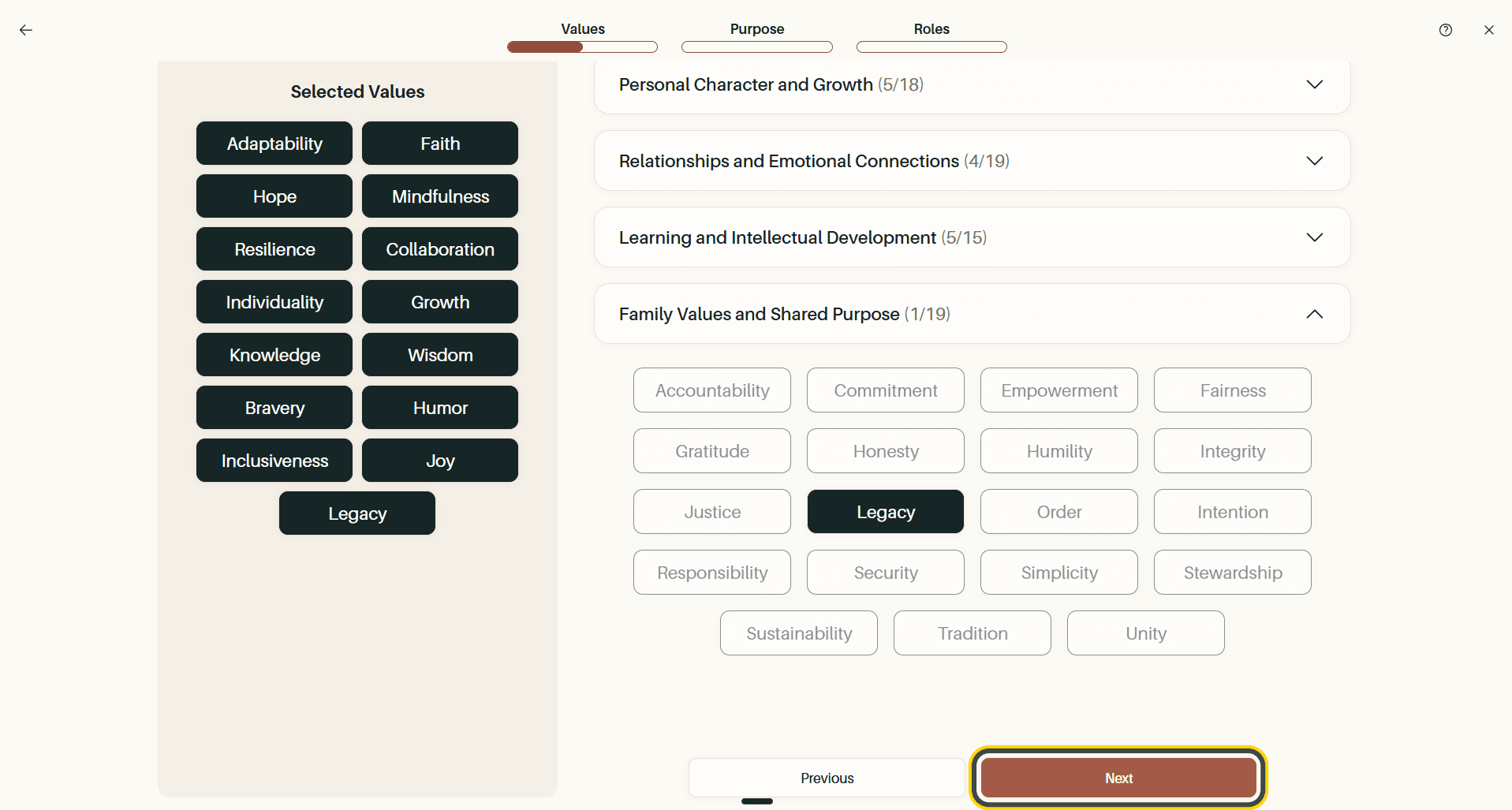
Those 71 values sit across four categories: Personal Character and Growth, Relationships and Emotional Connections, Learning and Intellectual Development, and Family Values and Shared Purpose. Only one is open at a time. Select a category header to expand it, and select anything that resonates.
The counter at the top tracks your running total, your picks collect in the Selected Values panel on the left, and each category header shows its own count against the number it holds. Select a value again to remove it.
Once you reach 15, the remaining options grey out. Select Next.
Narrow to Your Top 5
Now cut those 15 down to the five that matter most. The same select-and-deselect behaviour applies, and unselected options grey out once you reach five.
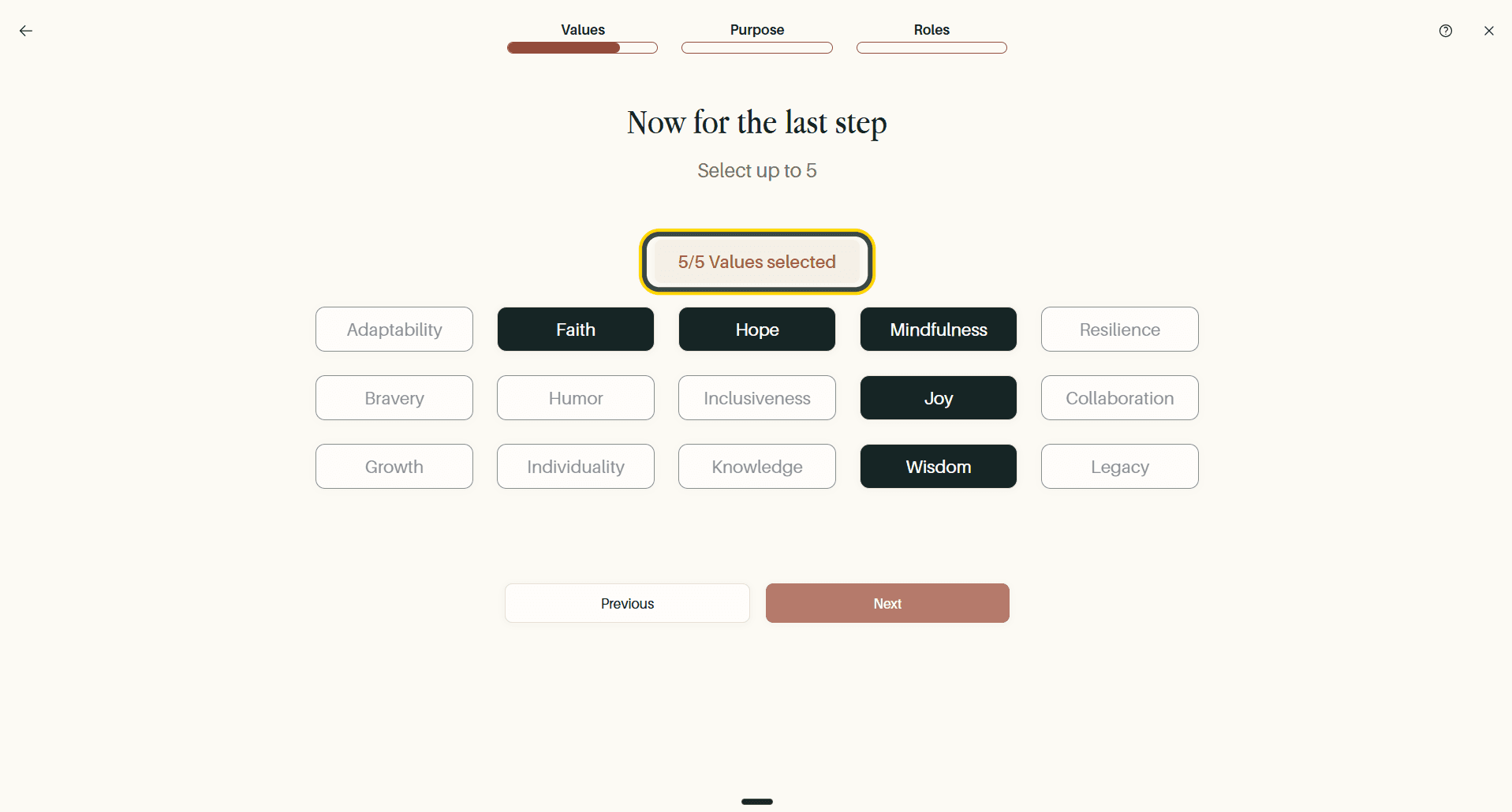
Select Next to confirm, and you will get a short celebration screen listing your five values. From here, Save and move to Purpose.
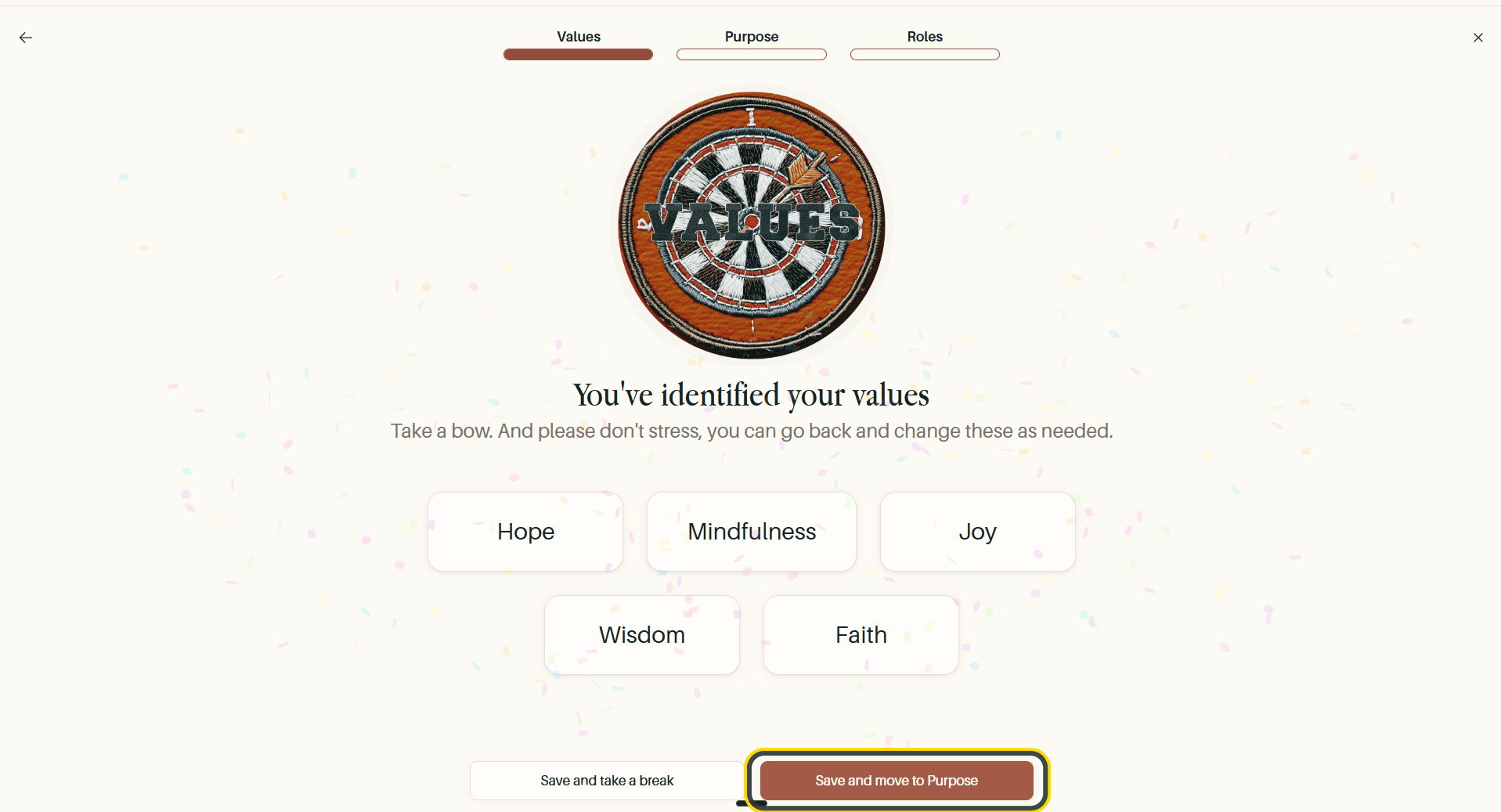
Tip Save and take a break appears alongside it on every completion screen. Your progress is kept, so you can come back to the next pillar another day.
Step 2: Purpose
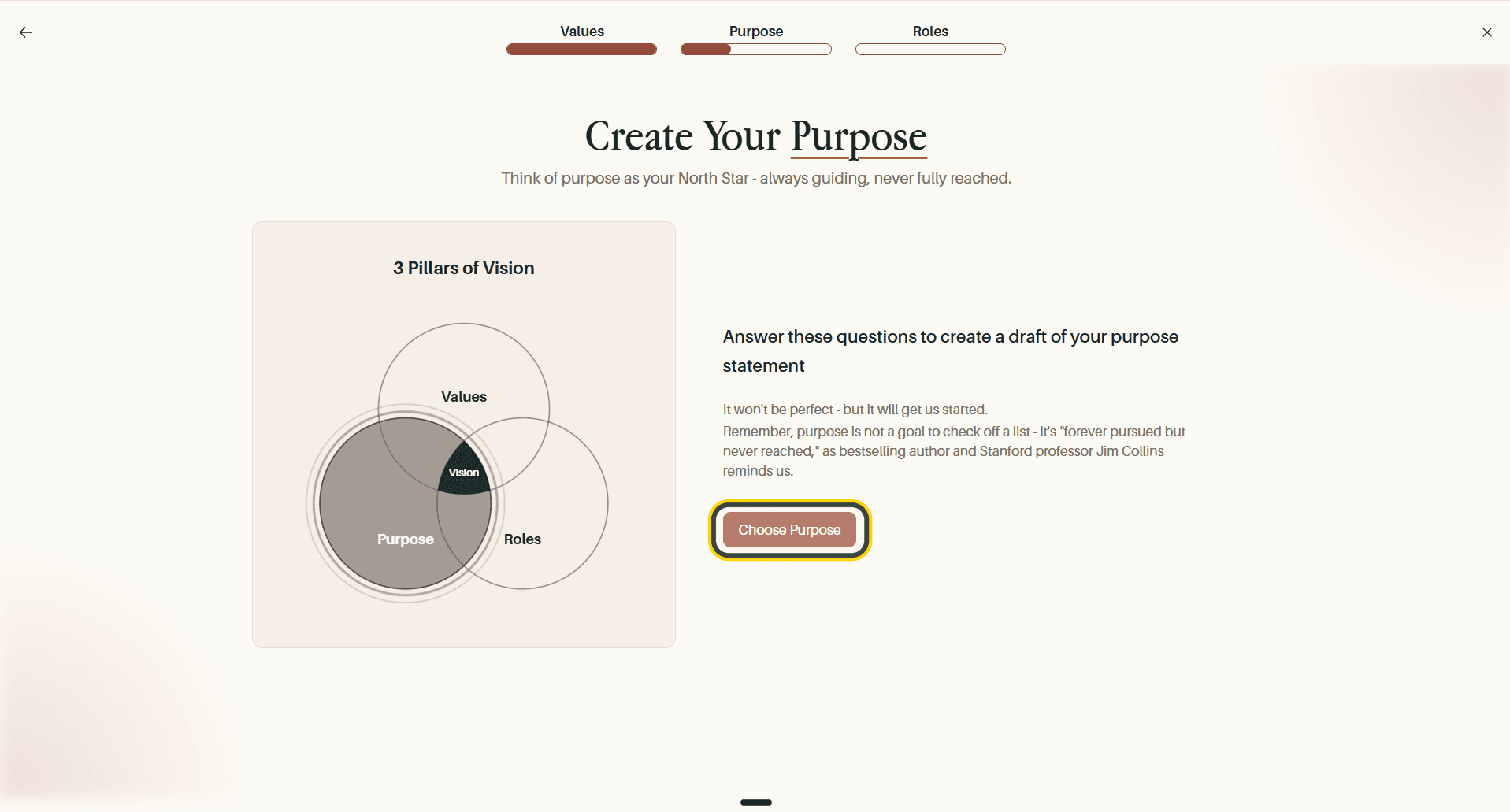
Purpose is described as your North Star, always guiding, never fully reached. Rather than asking you to write a statement from scratch, Total Family builds a draft from a short quiz.
Select Choose Purpose to begin.
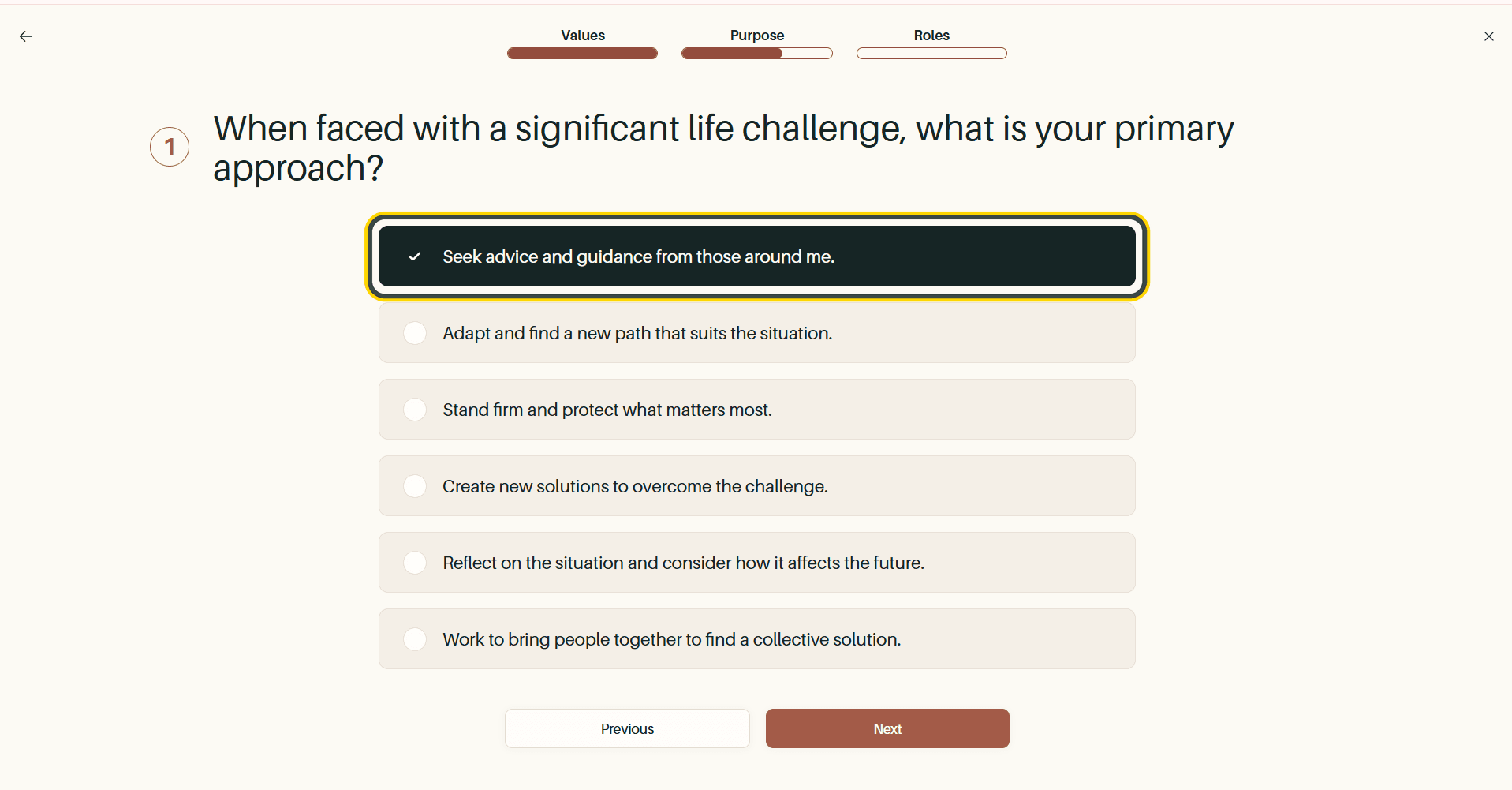
Answer the Questions
Each question offers several ways of approaching life. Pick the one that sounds most like you and select Next.
Choose Your Purpose Statement
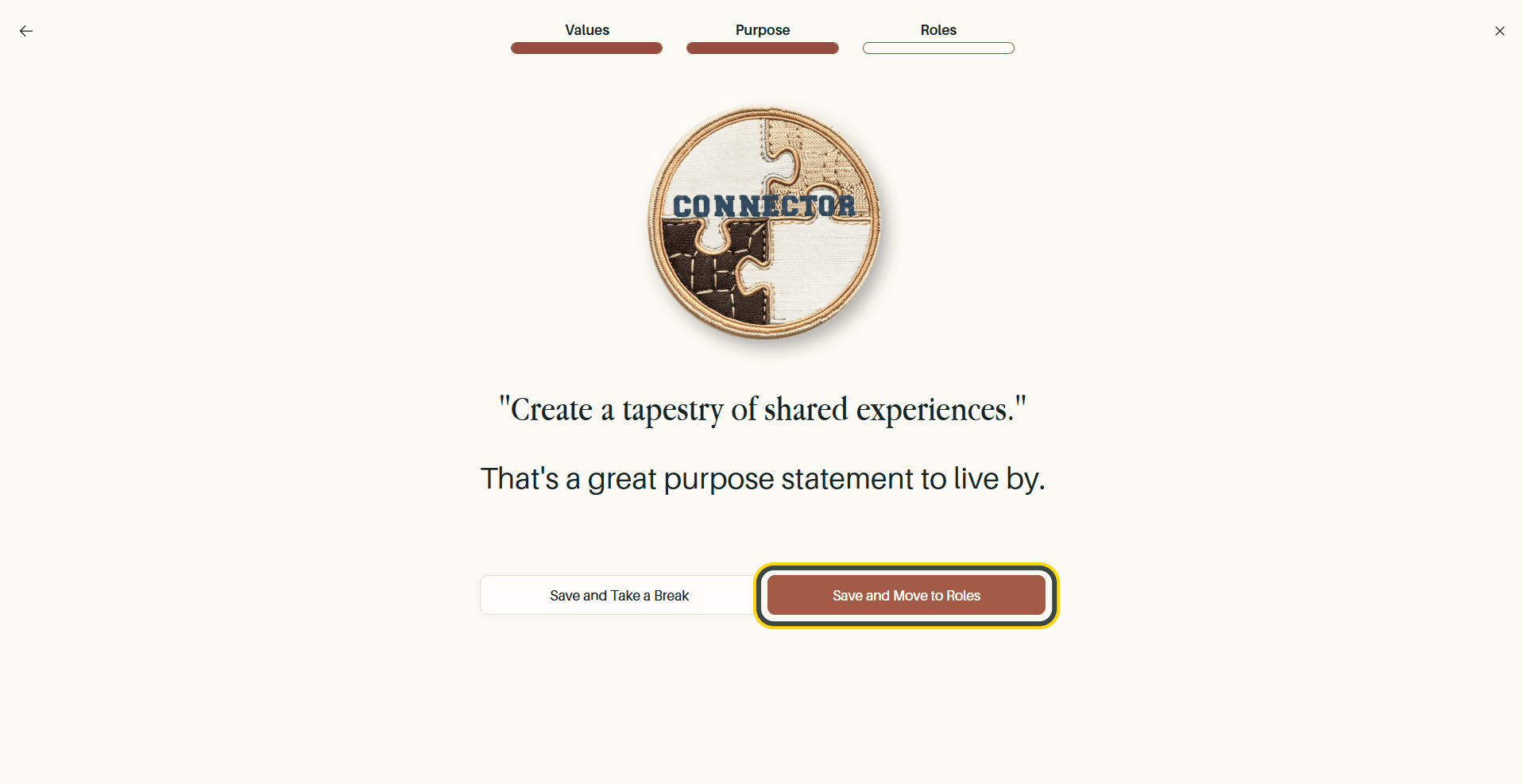
After the last question there is a short pause while your result is prepared, then Total Family names the archetype it matched you to (Connector, for example) and offers eight purpose statements written in that spirit. Choose whichever sits closest to how you see things and select Finalize. You can fully customise the wording afterwards, so pick the nearest fit rather than searching for a perfect one.
Your statement is then confirmed on its own screen. Select Save and Move to Roles.
Step 3: Roles
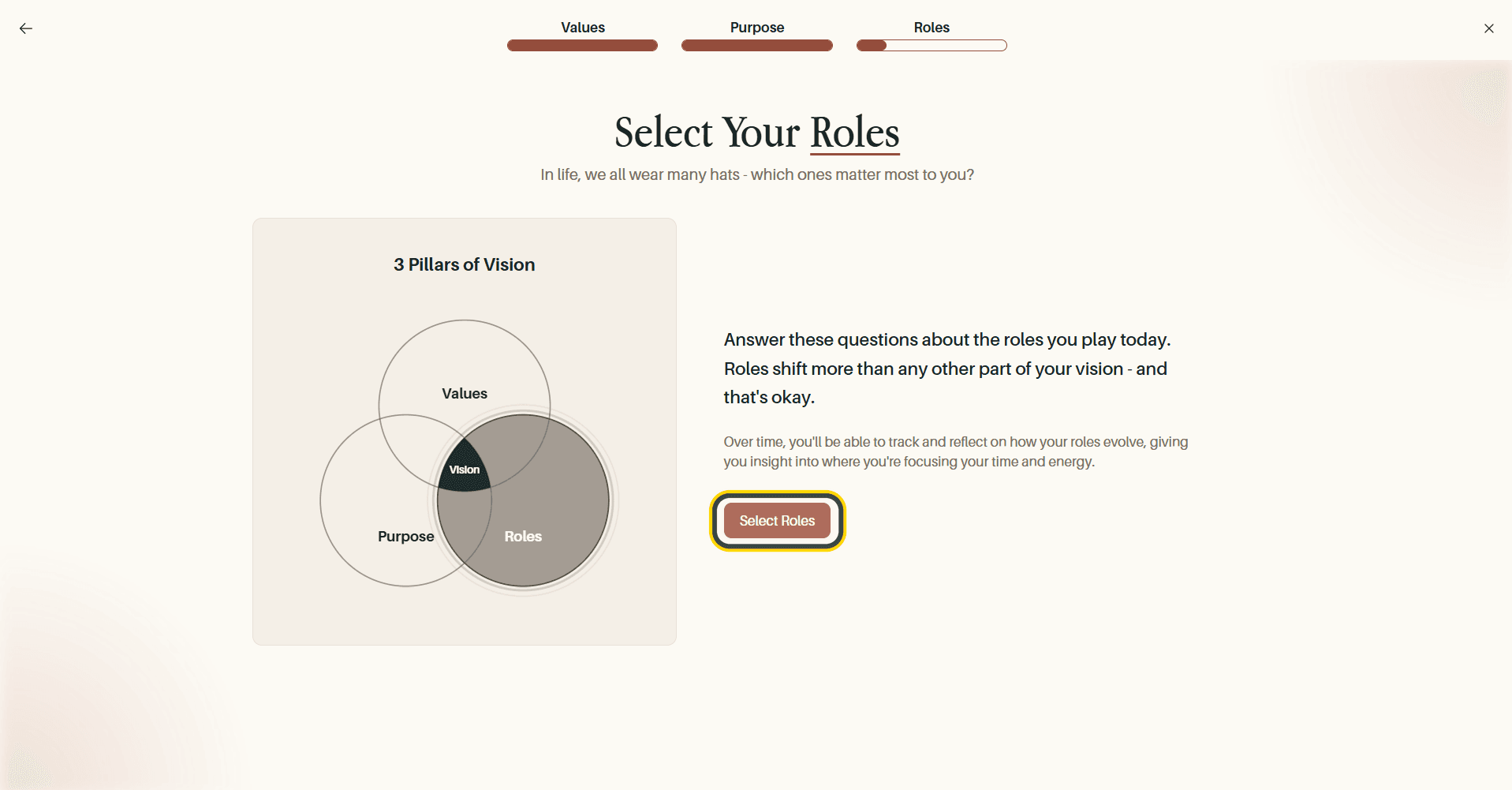
Roles are the hats you wear. They shift more than values or purpose do, and the app is explicit that this is normal. You are describing today, not committing to it.
Select Select Roles to begin.
Divide Your Energy
Where Is Your Energy Going? asks you to divide 100% across the roles in your life: Parent, Career, Friend, Child, Relative, Sibling, Grandparent, Spouse, and Contributor. Each one has a slider running from 0 to 100.
The bar in the middle tracks your running total and confirms when your allocations are within 100%. It has to land on 100% exactly: Review Allocation stays greyed out until it does, so raising one role means lowering another. Leave a role at 0 and it simply does not feature.
This is the honest part of the exercise. The numbers are meant to describe where your time actually goes today, not where you would like it to go.
Review Your Allocation
Your allocation becomes a ranked list and a pie chart of the roles you gave energy to, most first, with the panel naming how many there are. Use Change Allocation to go back, or Define Success to continue.
Define Success for Each Role
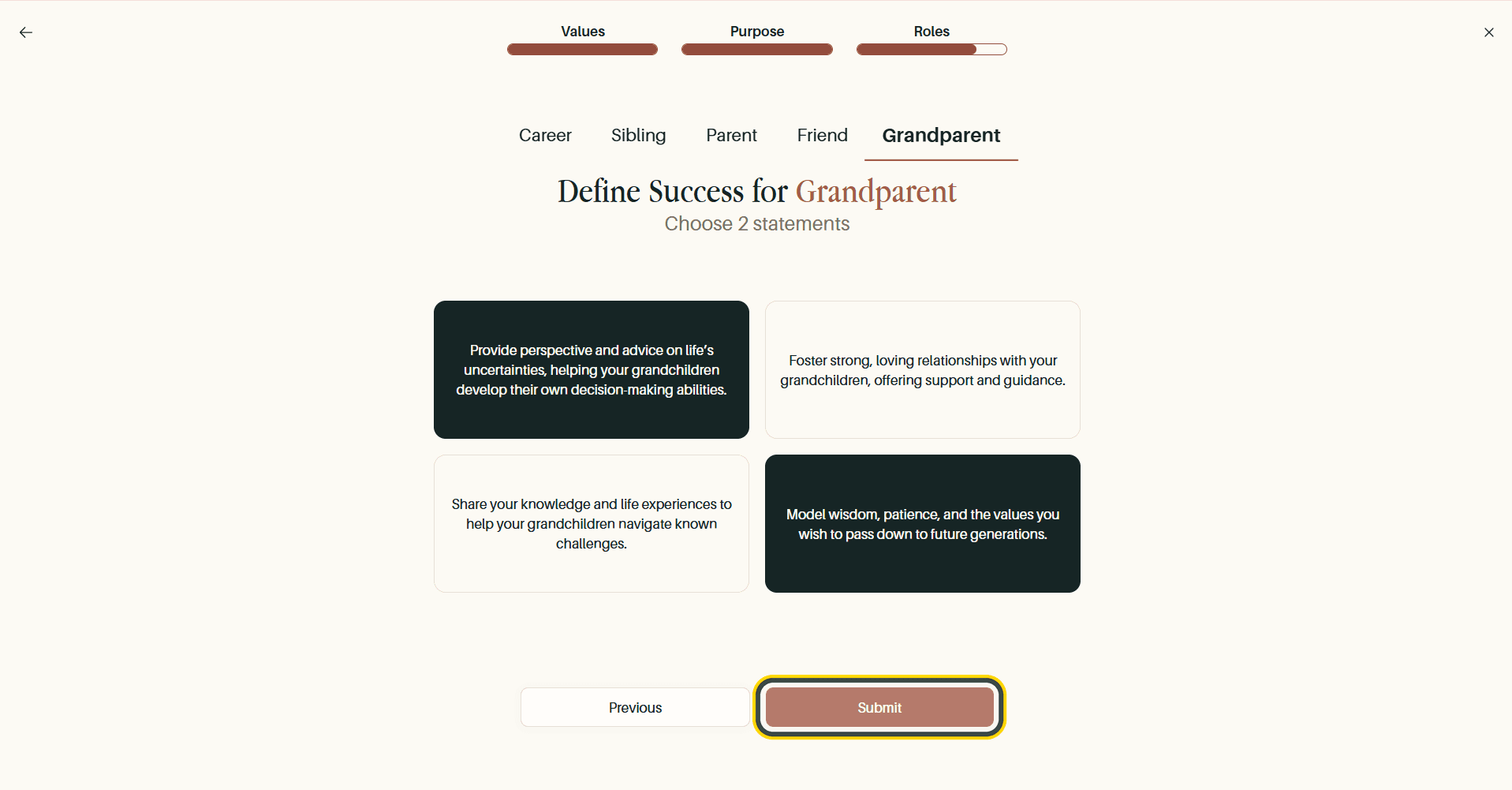
For each of those roles, choose the two statements that best represent success. The tabs across the top show which role you are on and which remain.
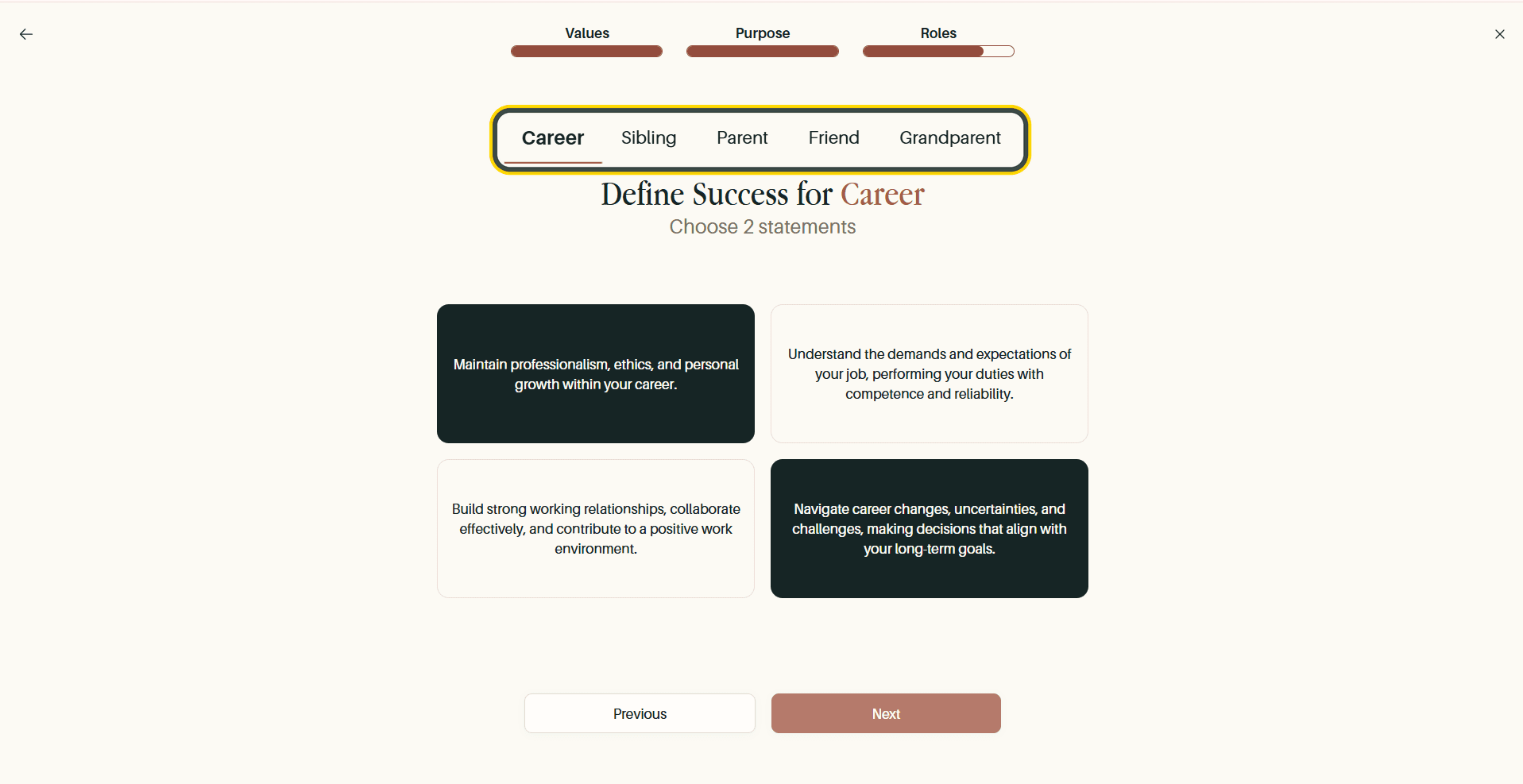
Select Next to move through the roles. On the last one the button becomes Submit.
Write a Note to Your Future Self
A Congratulations screen closes the roles step, and beside it one last question: if you were reading this a few years from now, which role deserves more of your time and energy, and which deserves less? Answer in your own words, then select Get your vision.
Ready to Save Your Vision? confirms before anything is written, and says what matters most: you will be able to update it later if anything changes. Go back to quiz returns you to your answers.
Select Get your vision again and it saves. Expect a few seconds of loading, then Your Vision Is Complete, with Vision saved. Your family will see this update.
Invite Your Spouse or Life Partner
With your vision saved, Total Family offers to invite your spouse or life partner so they can work through their own values, purpose, and roles. The form opens alongside the completion message, at the end of the clip above.
First name, Last name, and Email are required, Phone is optional. Fill them in and select Invite My Spouse or Life Partner.
Skip for Now continues on your own. Nothing is lost by skipping: you can invite them later from My Family.
Your Vision Board
Your finished Personal Vision is laid out on one page.
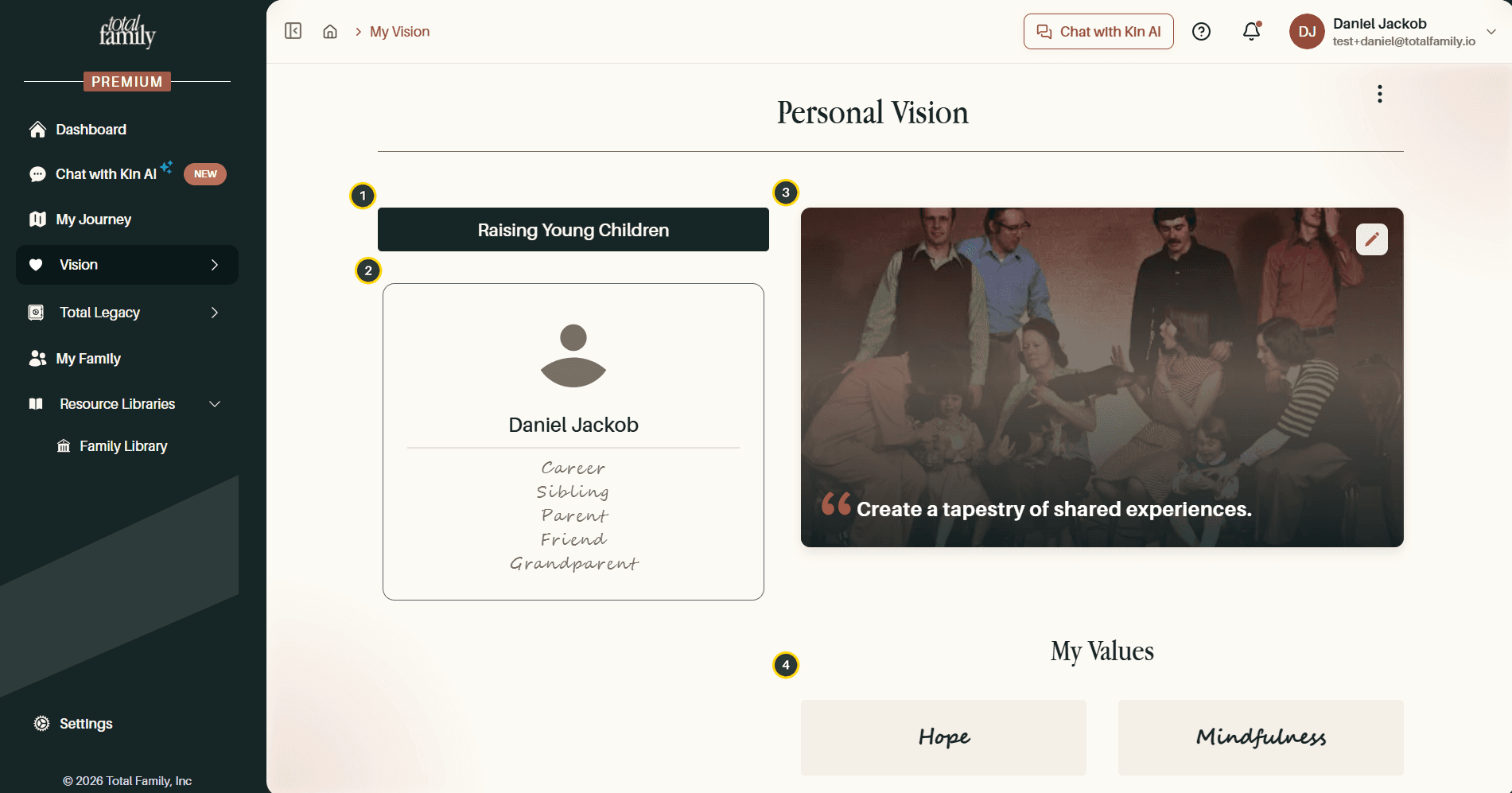
- Life phase: the stage you selected when setting up your profile.
- You and your roles: your name above the roles you gave energy to, in priority order.
- Purpose statement: your statement over your family photo.
- My Values: your top five values.
Your values and purpose statement also feed the Family Dashboard, so what you set here shows up on your home screen.
Changing Your Vision Later
Nothing here is locked. The ⋮ menu in the top right of your vision page holds three options, Export PDF to download your vision as a designed document, Edit Vision to change one section or redo the whole thing, and Version History to see every saved version. All three are covered in Living Vision.