
Milestones
Capture the moments that matter and lay them out on your family timeline.
You will remember the wedding without help. It is the ordinary days that go first: the bike, the terrible haircut, the summer everyone still talks about.
Milestones are where those go: a trip, a graduation, a first birthday, a turning point. Each one holds a date, a place, a description, and at least one photo, and they line up on a timeline your family can look back through.
Add Your First Milestone
Open Total Legacy > Milestones. Until you have created one, the page is an invitation rather than a list: your family's story, one milestone at a time. Select Add Milestone.
Fill In the Details
A blank milestone opens. Fields marked with a red asterisk are required.
- Title: what the moment was, in a few words.
- Category: the kind of moment it was.
- Date: when it happened.
- Location: where it happened.
- Share with family members: whether anyone else sees it.
- Description: the story behind the moment.
There is one more required field further down the page: at least one photo.
Choose a Category
The category list covers the kinds of moments families tend to record, each with examples underneath to help you choose: Ancestral Moment, Birthday, Defining Moment, Career Change, In Memory, World Event, and more. Scroll the list to see them all.
The examples are the useful part when two categories both look right. Defining Moment covers significant events, life decisions, and turning points; Career Change covers a promotion, a new job, retirement, or starting a business; World Event is your perspective on something that happened to everyone.
Set the Location
Start typing a place into Location and matching suggestions appear. Pick one from the list rather than typing it out in full, so the place is recorded properly.
It searches as you type, so give it a moment before deciding nothing matched. The target icon on the right of the field uses your current location instead.
Location is required. Leave it empty and Create Milestone refuses, with the field marked in red and a message saying so.
Share It, or Keep It Private
Share with family members decides who the milestone belongs to.
- Share with family members: tick this to make it a family milestone.
- Share with: appears once ticked, and is required. Choose which family members can see it.
Leave the box unticked and the milestone stays private to you. The note under the checkbox says the same thing: if unchecked, only you will see it.
The selector is searchable. If you have not added anyone to your family yet it reads No family members found, which is the point at which to go and invite them.
Tip Ticking the box does not share with everyone automatically. You still have to choose the people. A milestone with the box ticked but nobody selected cannot be saved.
Write the Description
The Description editor is the same one used for Legacy Letters, including the AI assistant.
The ✨ button lets you ask for a specific change in your own words, and Get suggestions offers ready-made edits like Polish wording or Make warmer. The rest of the toolbar handles headings, bold, italic, strikethrough, colour, lists, links, images, and tables. See Legacy Letters for a fuller walkthrough of the AI tools.
Add Photos
Every milestone needs at least one image: the form will not save without it, and says so under the box.
Select Browse file, or drag an image onto the box, and choose your photo. Crop Image opens before it is added, so you get to frame it rather than accepting whatever the camera gave you. Zoom with the slider, reposition by dragging, and there are rotate and remove controls beside it. Next, then Save, or Re-crop to go round again.
A counter beside the section tracks how many you have used out of 10. The first image becomes the photo shown on the timeline, so lead with the picture that best represents the moment.
Your Timeline
When everything is filled in, select Create Milestone at the top right. Saving takes a few seconds, then Milestone created successfully! confirms it and you land on the timeline.
Your milestones sit on a timeline, newest first, grouped by month. Total Family also asks how easy the milestone was to add, which is a thumbs up or down and nothing more.
- The milestone card: title, date, category, and your lead photo. The heart marks it as a favourite.
- The + button: adds another milestone at that point in the timeline. Add Milestone at the top right does the same thing.
Open a Milestone
Select a card to see the whole thing: the description in full, every photo you added, and who created it.
The row under the title carries the date, the location, and whether it is a Personal Milestone or shared with your family. Created By at the foot names whoever added it, which matters once more than one of you is writing them.
Edit or Delete
The ⋯ at the top right of an open milestone holds both actions.
- Edit: reopens the form, where you can change the title, category, date, location, sharing, description, or photos, and add more images.
- Delete: removes the milestone permanently.
As Your Timeline Grows
Repeat the process for every moment worth keeping. Milestones stack up newest first and alternate sides of the timeline, with the date of each marked on the spine between them.
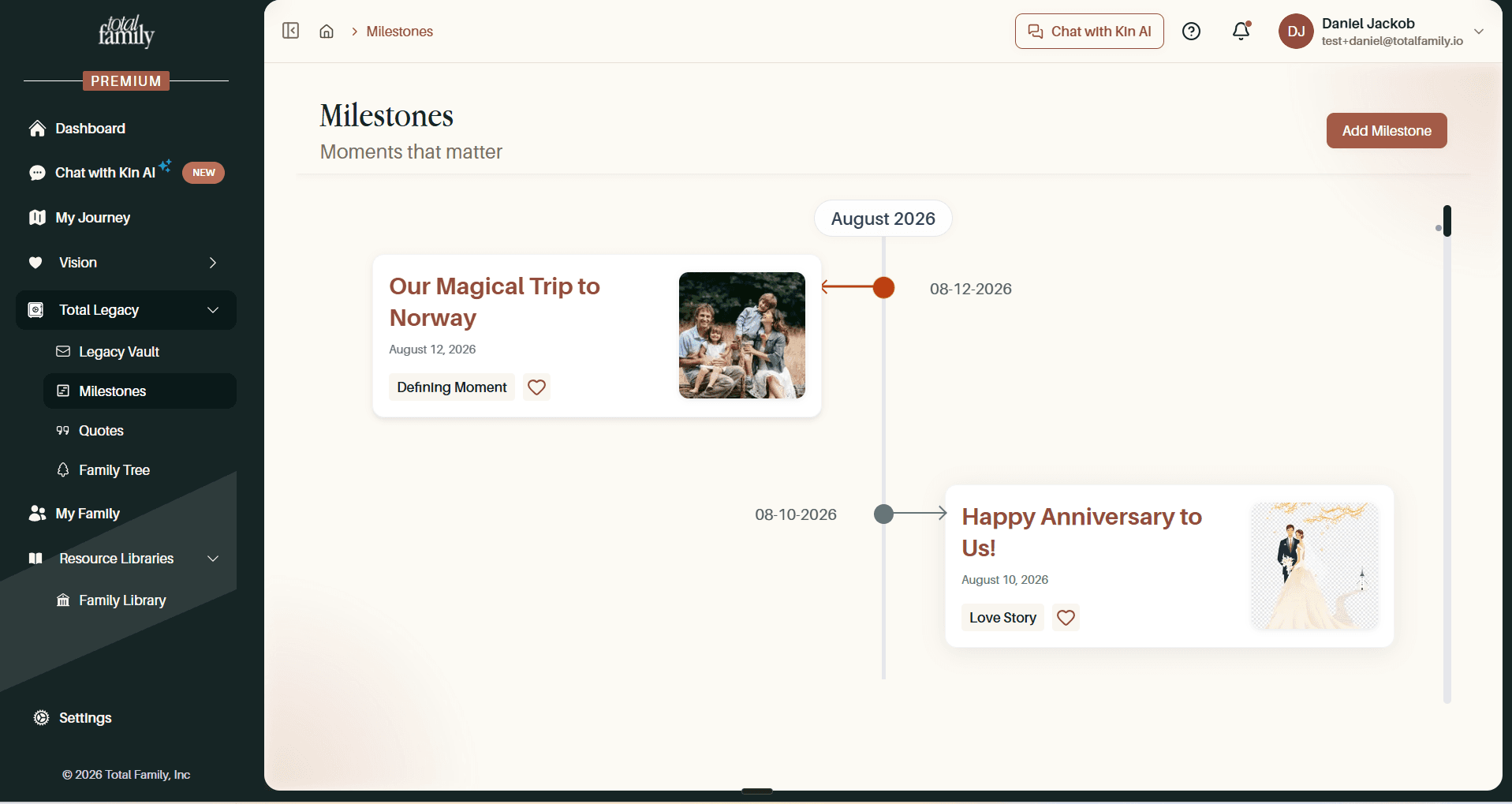
The point is the line they make. One entry is a photograph. Twenty is a record of how your family got here.
Add the one you thought of while reading this.